How it works
From SharePoint to your database, in seven steps
Connect, pick what to replicate, point at a database, and SPSync keeps it in sync from there. Six of the seven steps below show the screen you use.
Book a call to talk through your use case, see further walkthroughs or demos, and set up a trial in your own environment.
-
01
Connect to SharePoint
Sign in with Microsoft, with delegated access, or with app permissions scoped to specific sites through Sites.Selected. Find any site by name or URL, including subsites, without asking IT to list them first.
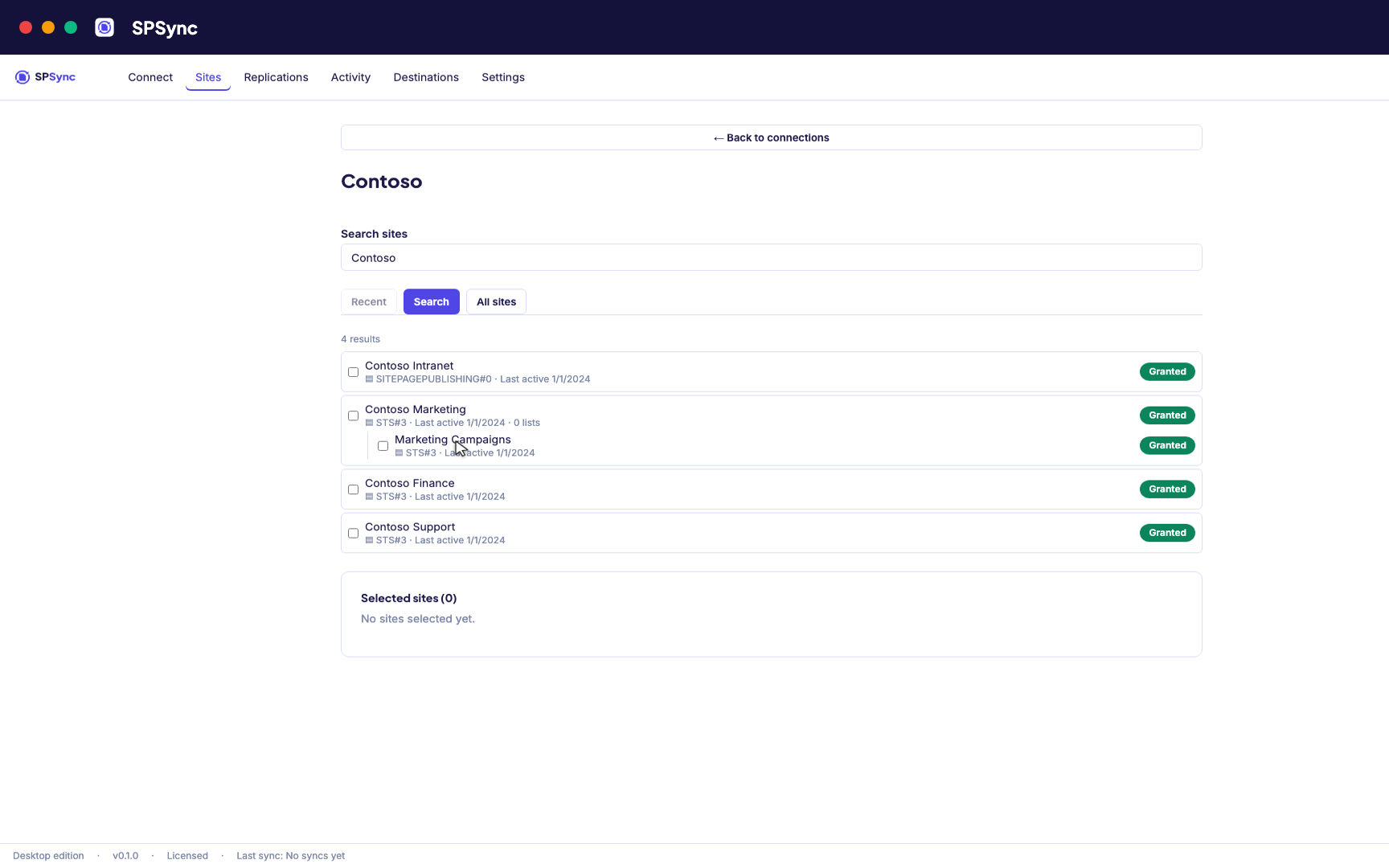
Sign in with Microsoft, then find a site by name or URL, including subsites. -
02
See what you are replicating
SPSync shows every list and library on a site, with its columns and item counts, as soon as you pick a site. You can check what you are about to replicate before you tick anything.
-
03
Choose lists and libraries
Tick individual lists, pick by a name pattern, or sync the whole site so new lists are picked up automatically. The same options work at any level of the site hierarchy.
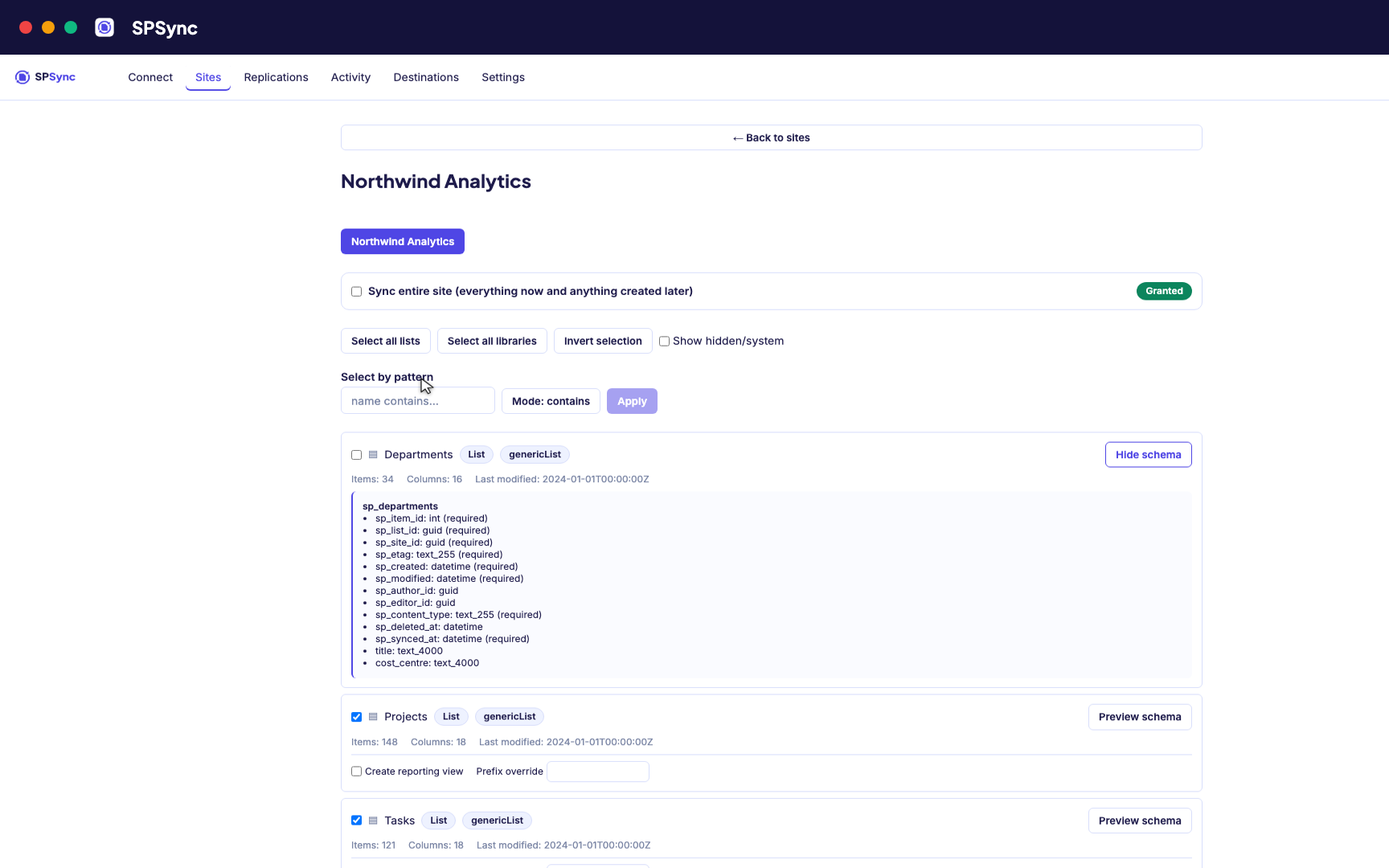
Tick lists individually, pick by name pattern, or sync the whole site, with a schema preview. -
04
Connect your database
SQL Server, Azure SQL, Postgres and the rest. Test the connection before you commit. SPSync generates and maintains the tables, so there are none to create by hand.
Destination setup guides · If the test fails: troubleshooting
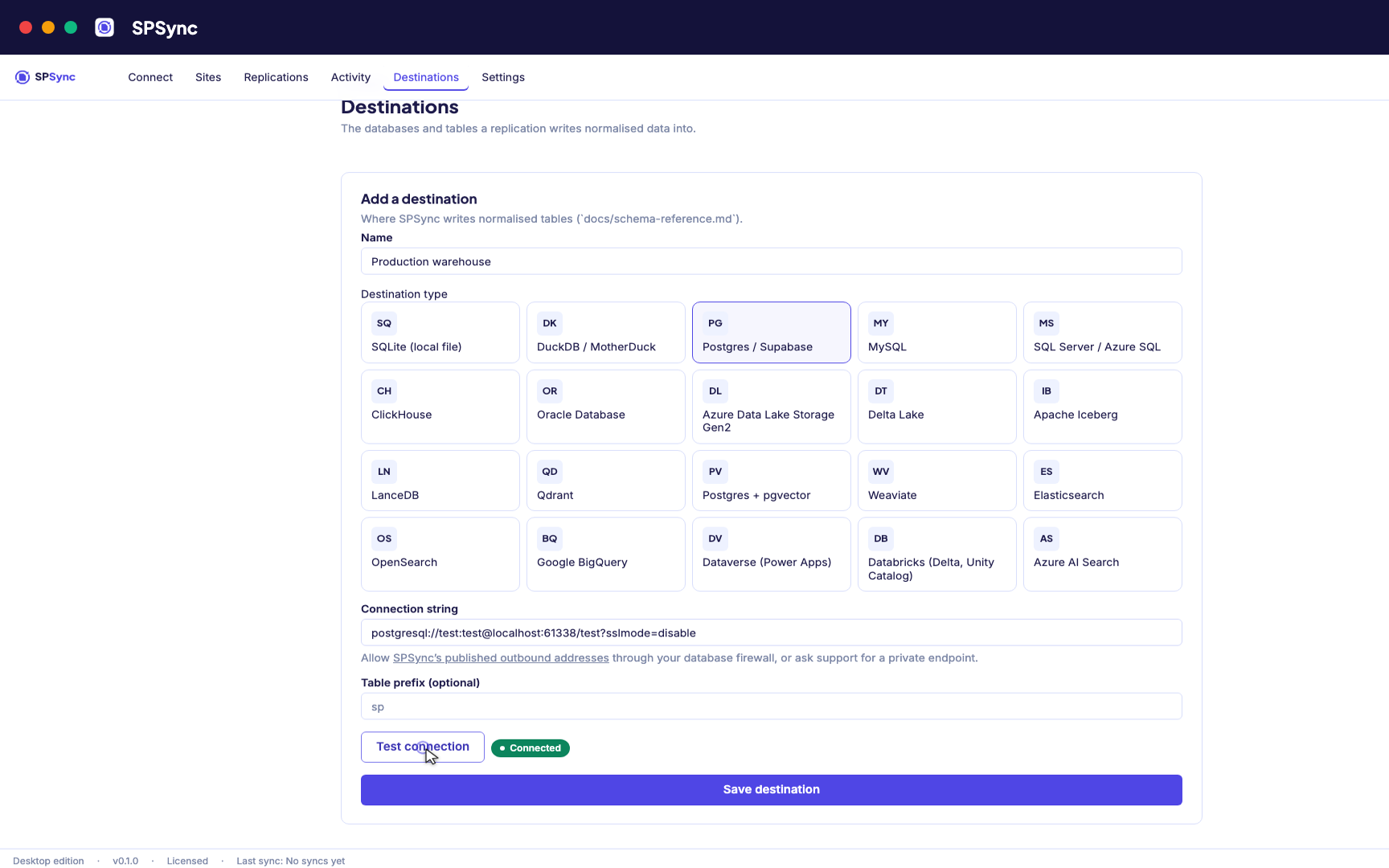
Point at your database. Test the connection, then SPSync creates and maintains the schema. -
05
Run and keep it in sync
A full load first, then deltas on your schedule with a reconcile behind it, weekly by default. Throttling and list view thresholds are handled for you, lookups arrive as keys, and deletes are kept.
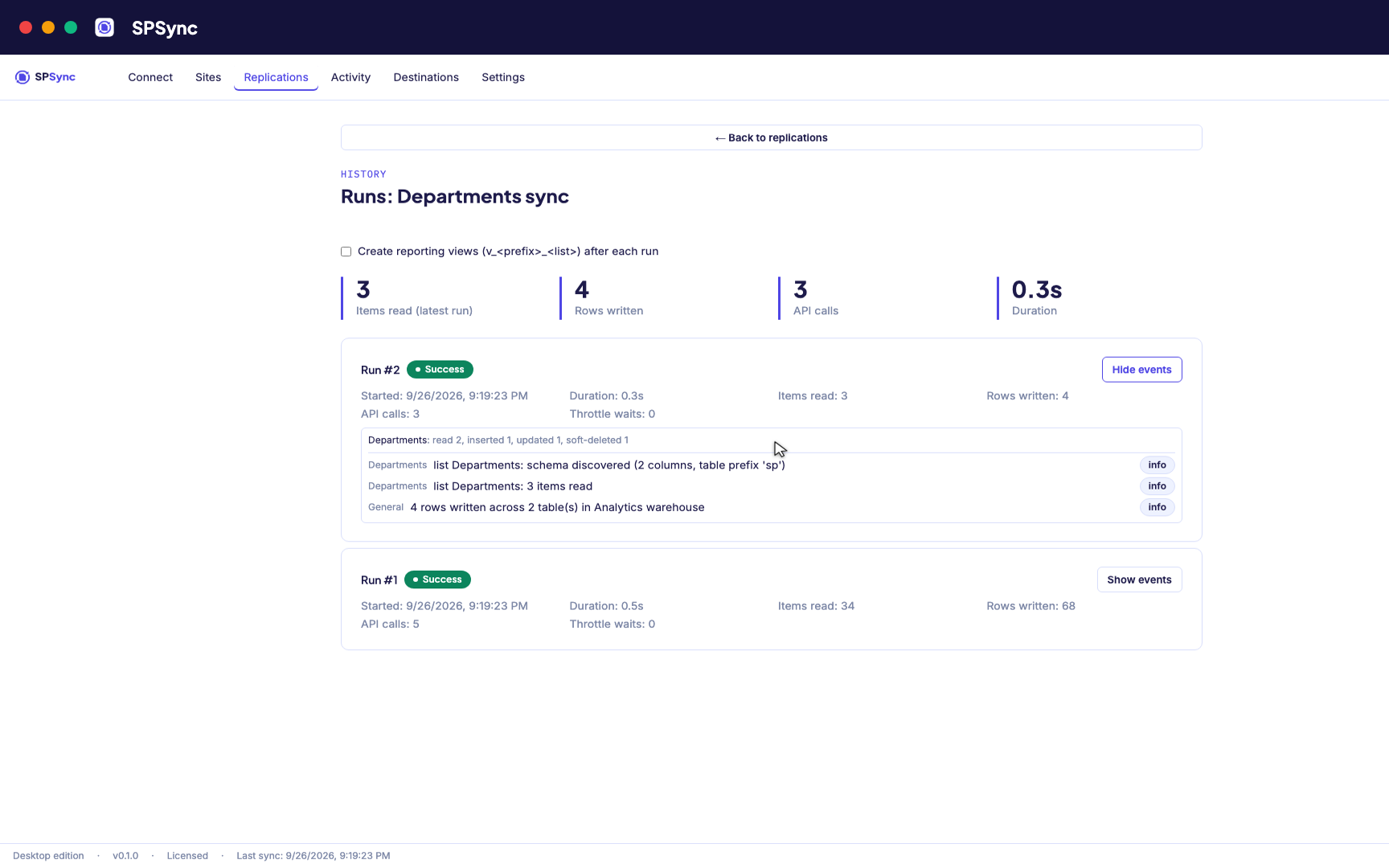
Every run's per-list counts: rows read, inserted, updated and soft-deleted. -
06
Bring sites together and report on it
Replicate many sites into one database, with generated reporting views ready for Power BI DirectQuery on SQL and warehouse destinations. The same tables give any other application a stable SQL interface.
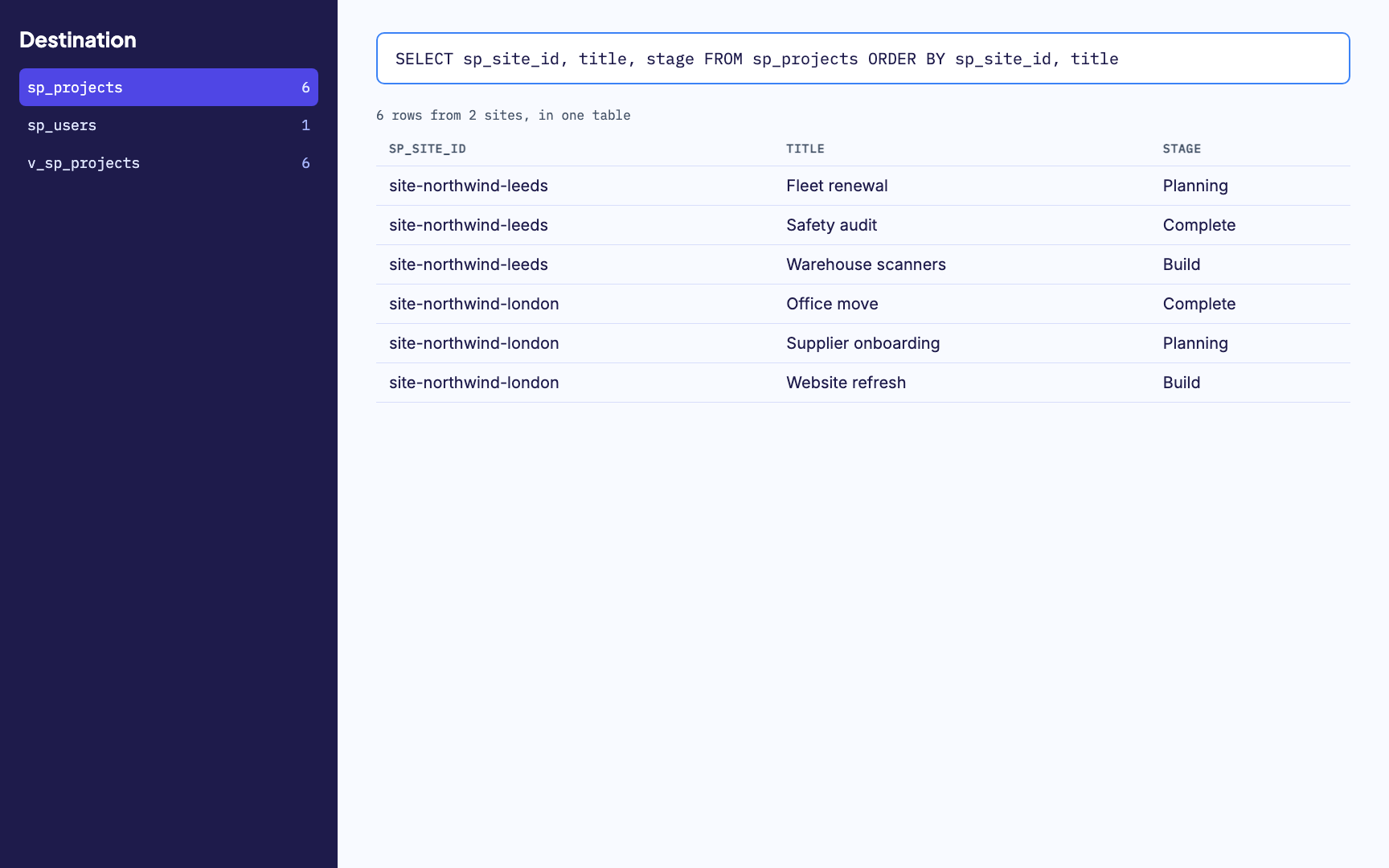
Many sites merged into one table, with a generated reporting view alongside. -
07
Watch it run
Activity and run history sit in one place, with every error named by column. From any run you can send us its diagnostics when you want help with it.
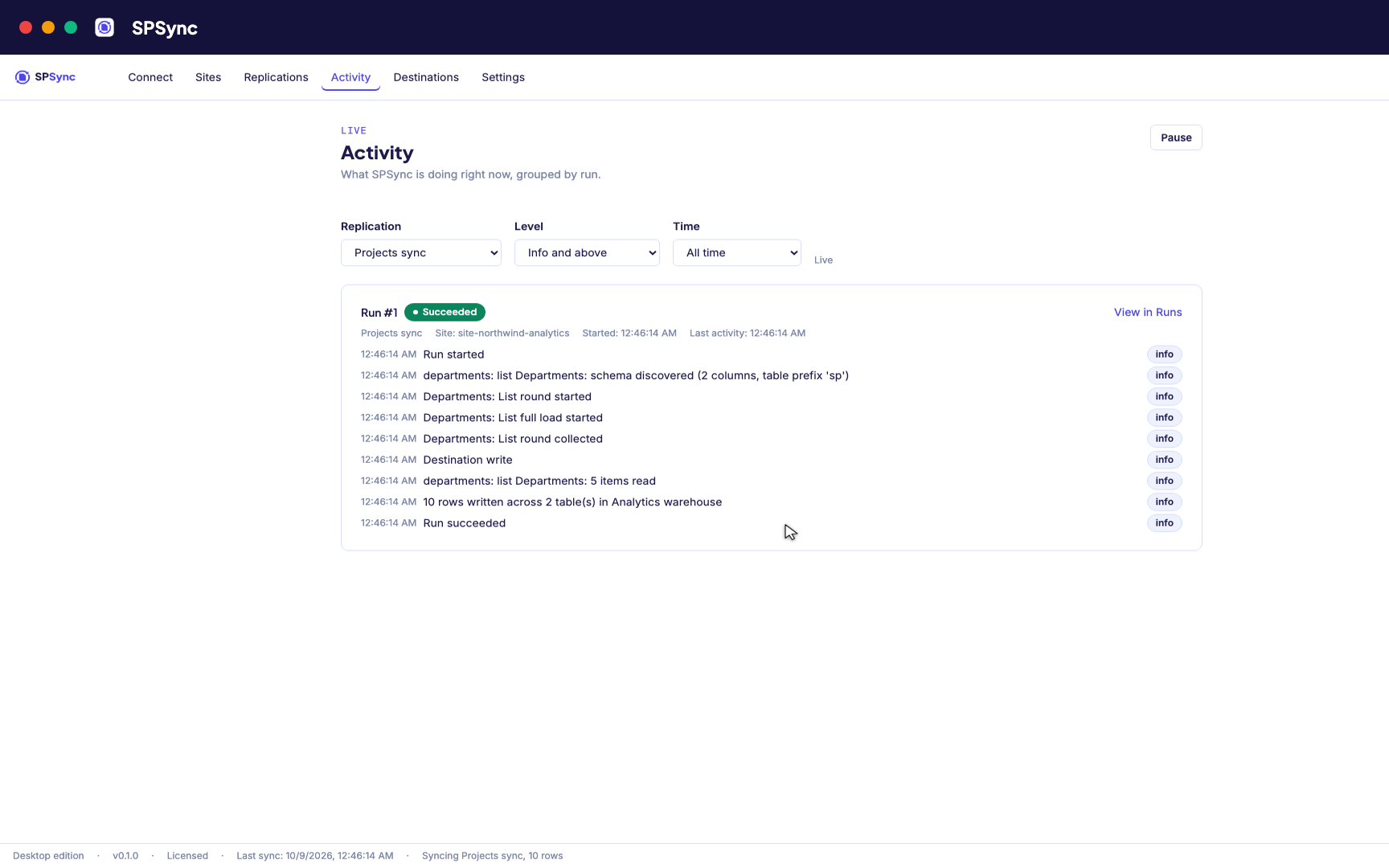
Activity: every run's own steps, live, grouped by run.
See it against your own tenant
A 20-minute call is enough to show every step above against your own sites and lists.
Book a call to talk through your use case, see further walkthroughs or demos, and set up a trial in your own environment.