Who it is for
Analysts who need Power BI, Excel or a notebook on list data that has outgrown the SharePoint connector. Developers who want a table under an internal app. Anyone doing a one-off migration or an evaluation before SPSync in your Azure is deployed with you. If you can open the site in a browser, you can replicate it from the desktop app.
Five minutes to first rows
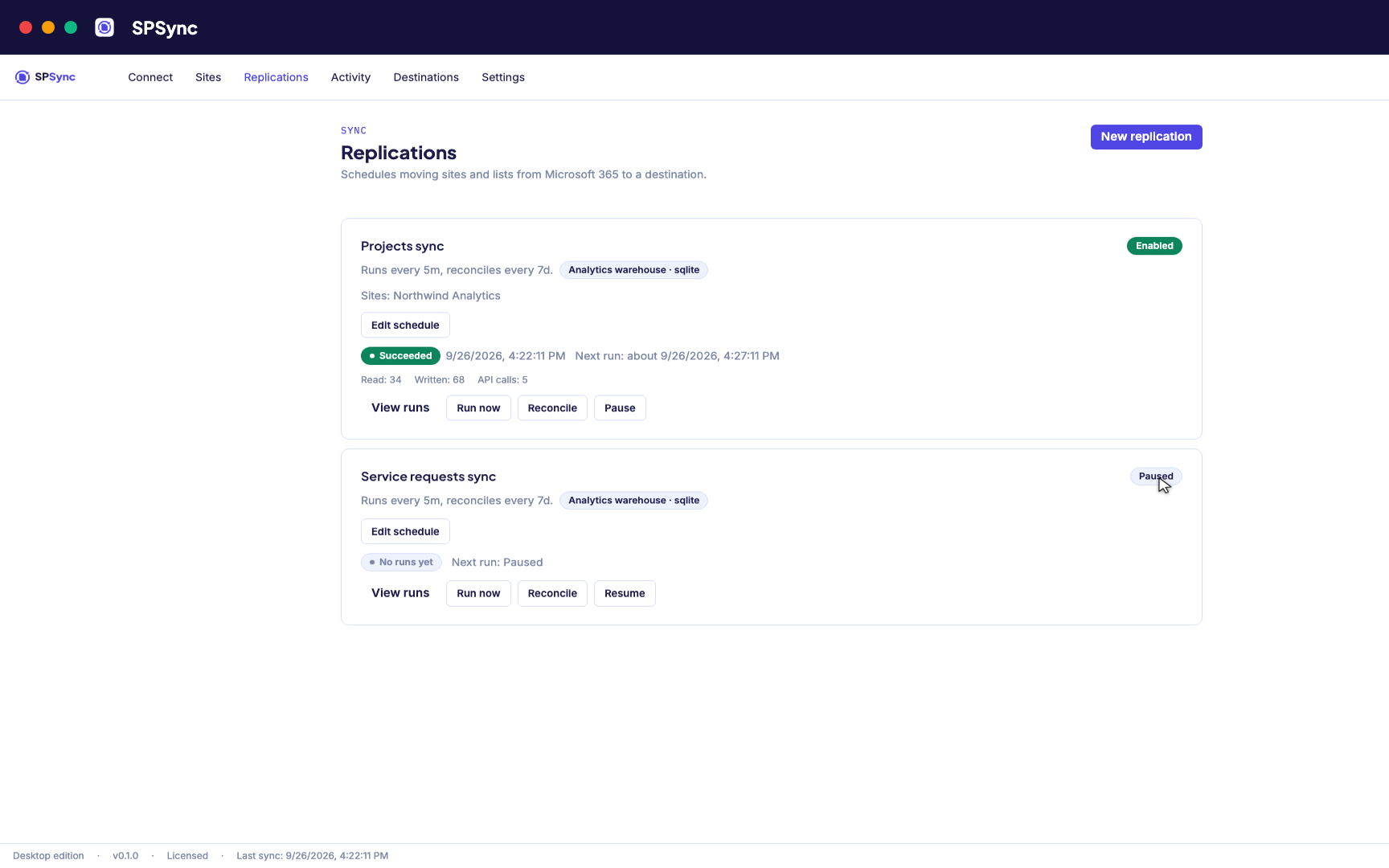
- Sign in with Microsoft. With delegated sign-in, SPSync sees only what you can see.
- Find the site by name or paste its URL. Admins can browse every site in the tenant.
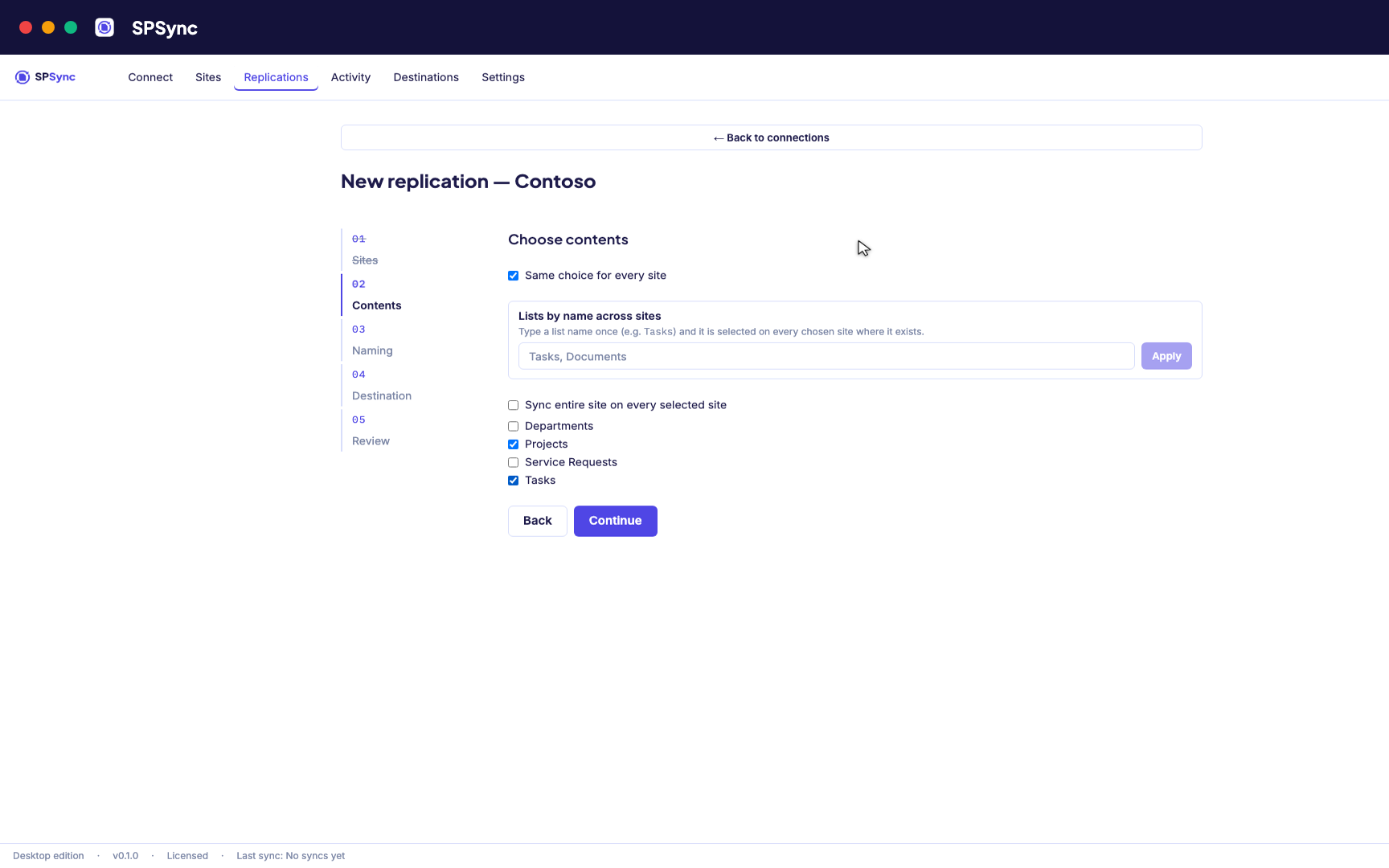
- Tick the lists and libraries you want, or select the whole site so any list added to it later appears in the replica on its own.
- Choose a destination: SQL Server, Azure SQL, Postgres, Supabase, MySQL, DuckDB, or Parquet on Azure Data Lake. Test the connection in place.
- Run it, watch the full load, then leave it on a five-minute schedule.
What you see while it runs
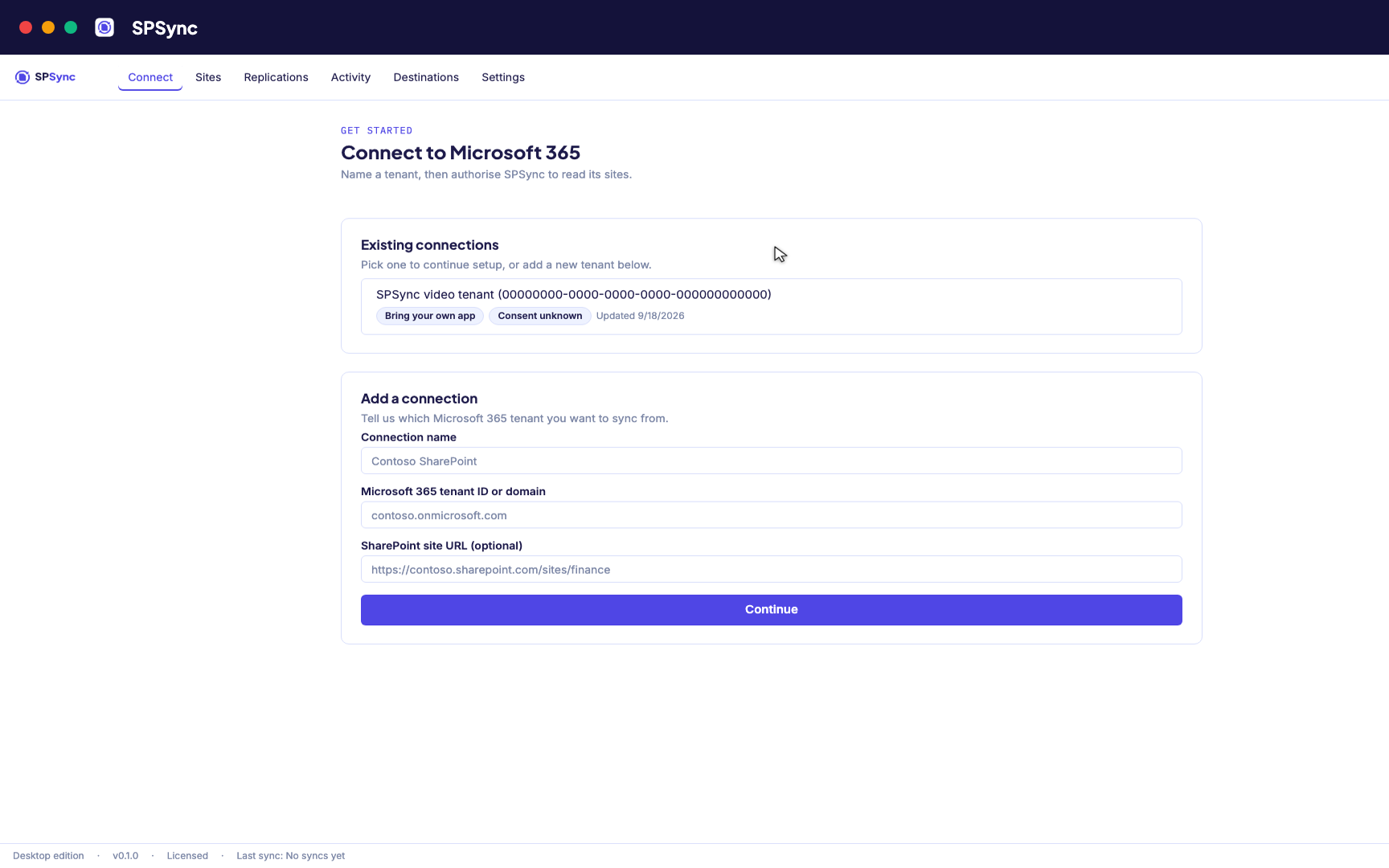
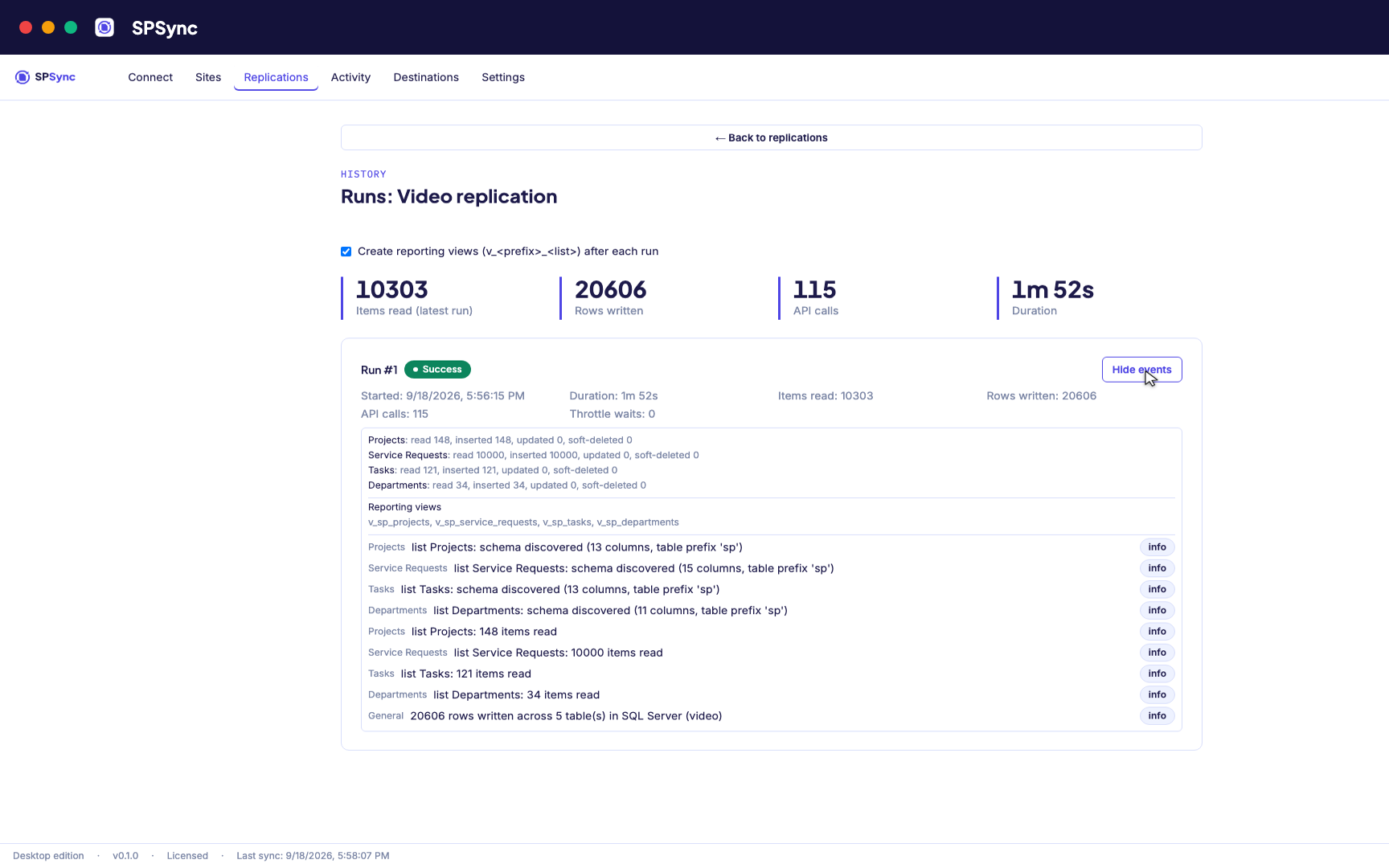
Every replication shows its schedule and its last and next run, with pause, resume and run now from the same screen, each a real sync on the same engine as the command line and Azure. Rows read and written for each run, and errors named by list, are there as soon as the run finishes. A full reconcile pass runs on its own on a schedule you set (weekly by default), confirming every row still matches SharePoint; force one sooner with the command-line tool (a separate install), handy right after your own server or a Microsoft 365 outage clears.
The same engine as Azure and the command line
The desktop app wraps the same replication engine that powers the Azure managed application and the CLI. The tables it creates, the way it handles lookups, deletes and schema changes, and the licence key it activates are identical. To move a replication to Azure or a server later, set it up there against the same destination and the tables carry on as they are.
- 1ConnectSign in with Microsoft, or grant per-site app permissions.
- 2DiscoverPick sites, lists and libraries, or a whole site.
- 3MapSPSync reads each list's columns and creates the tables and keys.
- 4Full loadEvery item, paged the way Microsoft recommends, into the destination.
- 5Delta syncEvery few minutes only what changed moves: inserts, updates, deletes.
- 6ReconcileWeekly by default, or on demand with the command-line tool: a full comparison to confirm SharePoint and your database match, or to catch back up after an outage.
Steps 5 and 6 repeat for as long as the replication runs. Nothing is ever written to SharePoint.
Permissions your admin can say yes to
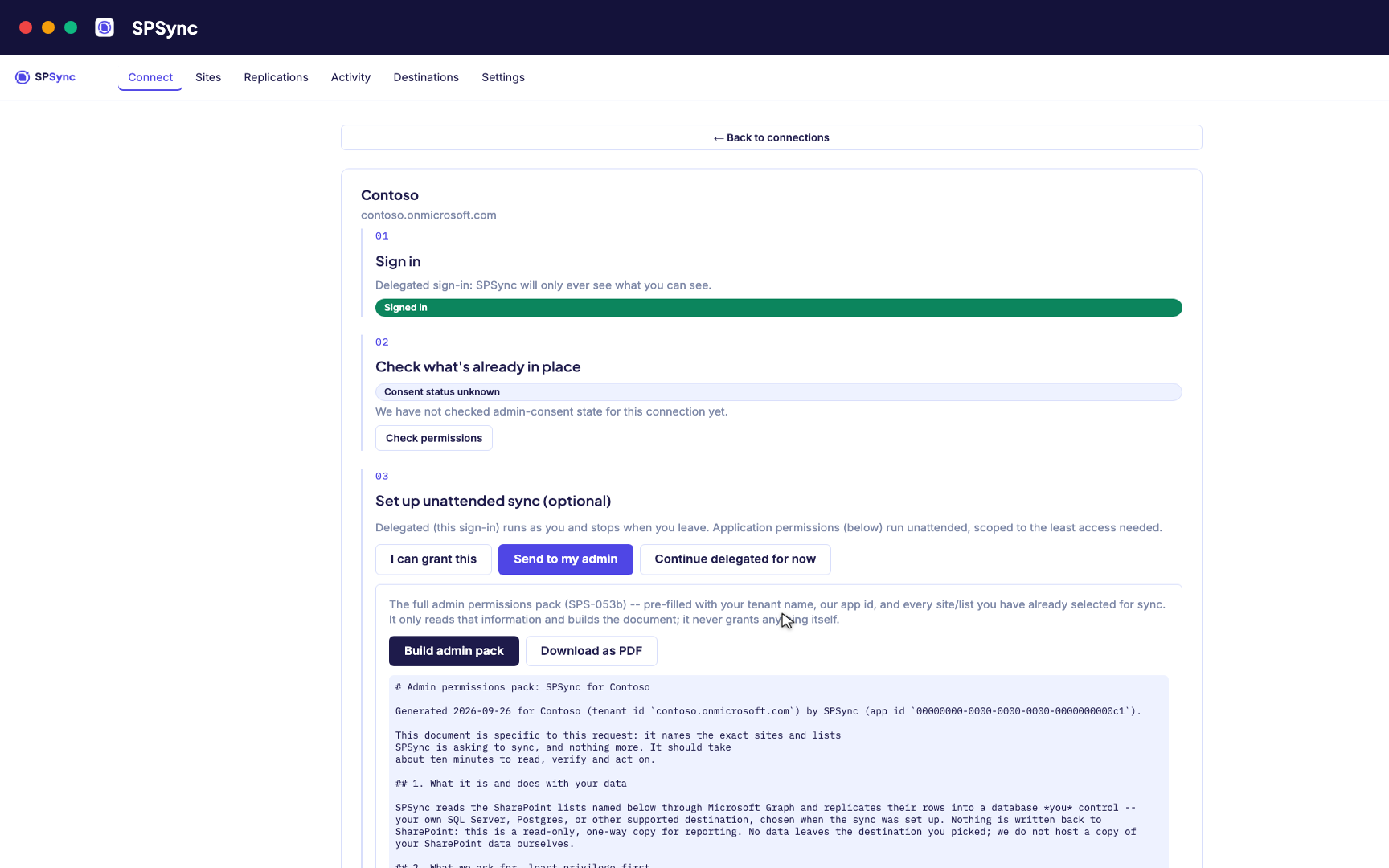
Delegated sign-in needs no admin, unless your tenant requires admin consent for apps; the admin permissions guide explains the difference. When you want unattended sync with app permissions, the first-run wizard explains each permission in plain language, generates a one-page pack for your admin, and supports Sites.Selected so access is granted site by site. Tenants with their own app registration can bring it.
Good to know
- Runs on Apple Silicon Macs and Windows 10 and 11 on x64. Code signing and notarisation are in progress; today's builds may show an unsigned-app warning on first launch.
- Scheduled syncs can keep running with the window closed: turn on "Keep syncing in the background" in Settings, and SPSync registers a per-user background service (a launchd agent on macOS, a Scheduled Task on Windows) that needs no admin rights.
- SharePoint Online only today. On-premises SharePoint 2016, 2019 and Subscription Edition are under consideration; see the roadmap.
Frequently asked questions
Does the desktop app need to stay open?
No, if you turn on Keep syncing in the background in Settings: SPSync registers a per-user background service and scheduled syncs carry on with the window closed. With it off, syncs run while the app is open. A closed app leaves the replica where it was, and the next run picks up every change since, because deltas are keyed on SharePoint's change tokens.
What does it need from my IT team?
Usually nothing to start. Delegated sign-in uses your own Microsoft account and sees only the sites you can already open. It needs no admin unless your tenant requires admin consent for apps. If you want unattended app permissions later, the first-run wizard produces a one-page pack your admin can approve per site with Sites.Selected.
Where does the data go?
Straight from SharePoint into the database you point it at: SQL Server, Azure SQL, Postgres, Supabase, MySQL, DuckDB, or Parquet on Azure Data Lake. The app keeps its configuration locally and never sends your content anywhere else.
Can I move a replication to Azure or the command line later?
Yes. Set the replication up again in the other edition with the same lists and the same destination; on the command line, spsync export-config writes it as YAML from the site URL and list names. The tables and schema are identical, so reports built on them carry on working.
How is it licensed?
Per installation and per target family, on an annual term, with Standard Support included. Each machine that runs SPSync is one seat; lists, items and sites are unlimited on every licence. There is no free tier and no public price list: book a call and we size a licence with you.