Product
Three ways to run the same engine
SPSync replicates SharePoint Online lists and document-library metadata into the database you already use, then keeps the copy in sync every few minutes. Run it as a desktop app or from the command line. SPSync in your Azure, a managed application for your own subscription, is deployed with you on a call while the Marketplace listing is prepared. The schema, the sync and the licence are the same in all three, and none of them installs anything in SharePoint or writes back to it.
Book a call to talk through your use case, see further walkthroughs or demos, and set up a trial in your own environment.
Source
- Lists and Microsoft Lists
- Document library metadata
- Lookups, people and choices (column types)
- Any number of sites
Replicate, then keep in sync
Desktop appmacOS and Windows In your AzureYour subscription, deployed with you Command lineScripts, servers, CIOne engine in all three. Same schema, same delta sync, same licence key.
Destinations
Relational databases
Warehouses and lakes
What SPSync does
SharePoint is where the business keeps its lists: projects, assets, requests, registers, reference data. Power BI, applications and AI models work better reading them from a database. SharePoint's list APIs are built for the page: lookups arrive as ids, large lists hit the 5,000-item view threshold, and every direct query pays SharePoint's throttling.
SPSync takes each list and library you choose and writes it into tables shaped the way a database expects. A lookup becomes a key column you can join on, multi-choice columns become child tables, and people resolve into one users table. After the first full load, each run is a delta: only what changed moves, and deleted items are kept and flagged. A reconcile (weekly by default) compares everything, so you can confirm the two sides match or catch back up after an outage on your own server or in Microsoft 365.
- 1ConnectSign in with Microsoft, or grant per-site app permissions.
- 2DiscoverPick sites, lists and libraries, or a whole site.
- 3MapSPSync reads each list's columns and creates the tables and keys.
- 4Full loadEvery item, paged the way Microsoft recommends, into the destination.
- 5Delta syncEvery few minutes only what changed moves: inserts, updates, deletes.
- 6ReconcileWeekly by default, or on demand with the command-line tool: a full comparison to confirm SharePoint and your database match, or to catch back up after an outage.
Steps 5 and 6 repeat for as long as the replication runs. Nothing is ever written to SharePoint.
What ends up in the database
SPSync reads each list's columns, creates the tables, and changes them as the list changes. New columns appear and removed columns stay. On SQL Server, PostgreSQL, MySQL and MariaDB, ClickHouse, Oracle, SQLite and DuckDB, a retyped column gets a versioned _v2 copy and the original keeps its type for the queries already reading it. Other destinations do not fork a retyped column yet.
Text, number, choice and yes/no columns, lookup keys and the system columns come across today. Some column families are still being verified on a live tenant: currency, hyperlink, lookup display values, multi-value lookup and person columns, date-only columns on sites east of UTC, managed metadata, and document library file details. The schema reference lists every type and how it maps. Each row carries its modified timestamp and editor. On SQL and warehouse destinations, generated reporting views give Power BI DirectQuery a ready-made shape, and any other application or AI model gets a stable SQL interface to read. Two destinations carry vectors as well: Postgres with pgvector and Azure AI Search receive an embedding per row. It is generated on each sync from the text columns you pick, and only changed rows are re-embedded.
| Title | Client lookup | Tags multi-choice | Owner person | Due |
|---|---|---|---|---|
| Riverside | Acme Ltd | Design; Build | Ada Lovelace | 2026-11-30 |
| Harbour | Borealis plc | Build | Alan Turing | 2027-02-14 |
then sync
- id
- title
- client_id → clients.id
- owner_id → sp_users.id
- due
- is_deleted soft delete
- sp_modified
- id
- title
- …
- project_id
- tag
One row per value: Riverside has two.
- id
- display_name
One users table shared by every list.
Working within SharePoint's limits
Large lists
Tested to 10,000 items on a live tenant and to 1,000,000 on a synthetic Graph. Lists are read by delta query and paged the way Microsoft recommends, so the view threshold does not apply.
A polite client
SPSync honours every Retry-After and meters the resource units it uses, so a sync stays within the limits Microsoft sets for the tenant. To keep heavy loads to quiet hours, start command-line runs from your own scheduler; the desktop app and the Azure edition run on a fixed interval.
Many sites into one database
The same list from every project site can go into one table with a site prefix. Or pick a whole site, and any list added to it later appears in the replica on the next run, with no change to the configuration.
Deletes
Soft deletes are the default, so a report never loses a row. With the command-line tool, a per-replication hard-delete setting in its YAML config physically removes the row when you want the database to mirror SharePoint's current state. The desktop and Azure editions use soft deletes.
Permissions
Delegated sign-in sees only what you can see. For unattended runs, app permissions are granted per site with Sites.Selected, and you can bring your own app registration if your tenant requires it. SPSync never writes to SharePoint and installs nothing in it; two-way sync is on the roadmap as an explicit opt-in. The security page has the detail.
Replication or sync?
Both. The first run builds a replica: a complete, normalised copy of the lists in your destination. Every run after that is a sync: a delta that keeps the replica within a few minutes of SharePoint on the default five-minute schedule. Pause it, resume it, or run it now from any edition: desktop, in your Azure, or the command line. The command line can also force an immediate reconcile pass ahead of schedule, which is useful for a QA check or to catch back up after an outage. The desktop app and Azure reconcile automatically on their own schedule (weekly by default).
When the reader is an agent
An agent needs three things from SharePoint data: a schema it can describe, a query it can run without paging, and a boundary on what it may see. The copy gives it all three. Each list is a table, lookups are key columns and multi-value columns are child tables. A Postgres or SQL Server MCP server, a text-to-SQL tool or a framework's SQL tool works against that shape unchanged. SPSync has no agent of its own. The servers people already run against those databases work, and so does spsync mcp serve, a read-only MCP server over the copy that knows each list's SharePoint columns. A separate admin MCP server lets an assistant set SPSync up; the AI page covers both.
The boundary is the database grant. SharePoint item permissions are not copied, so you give each agent a read-only login on the tables or views its job needs. Add row-level security where an agent should see one region or team. The agent holds no Graph permission, so a loop of questions costs SharePoint nothing beyond the delta round SPSync runs anyway. The database's own audit log records what it read. An agent data layer for SharePoint works through a three-list join with the Graph cost beside it, and grounding Copilot Studio on clean tables covers the Copilot Studio route.
How it works
Seven steps from a SharePoint site to a database you can report on. See the full walkthrough with screenshots.
-
01
Connect to SharePoint
Sign in with Microsoft, with delegated access, or with app permissions scoped to specific sites through Sites.Selected. Find any site by name or URL, including subsites, without asking IT to list them first.
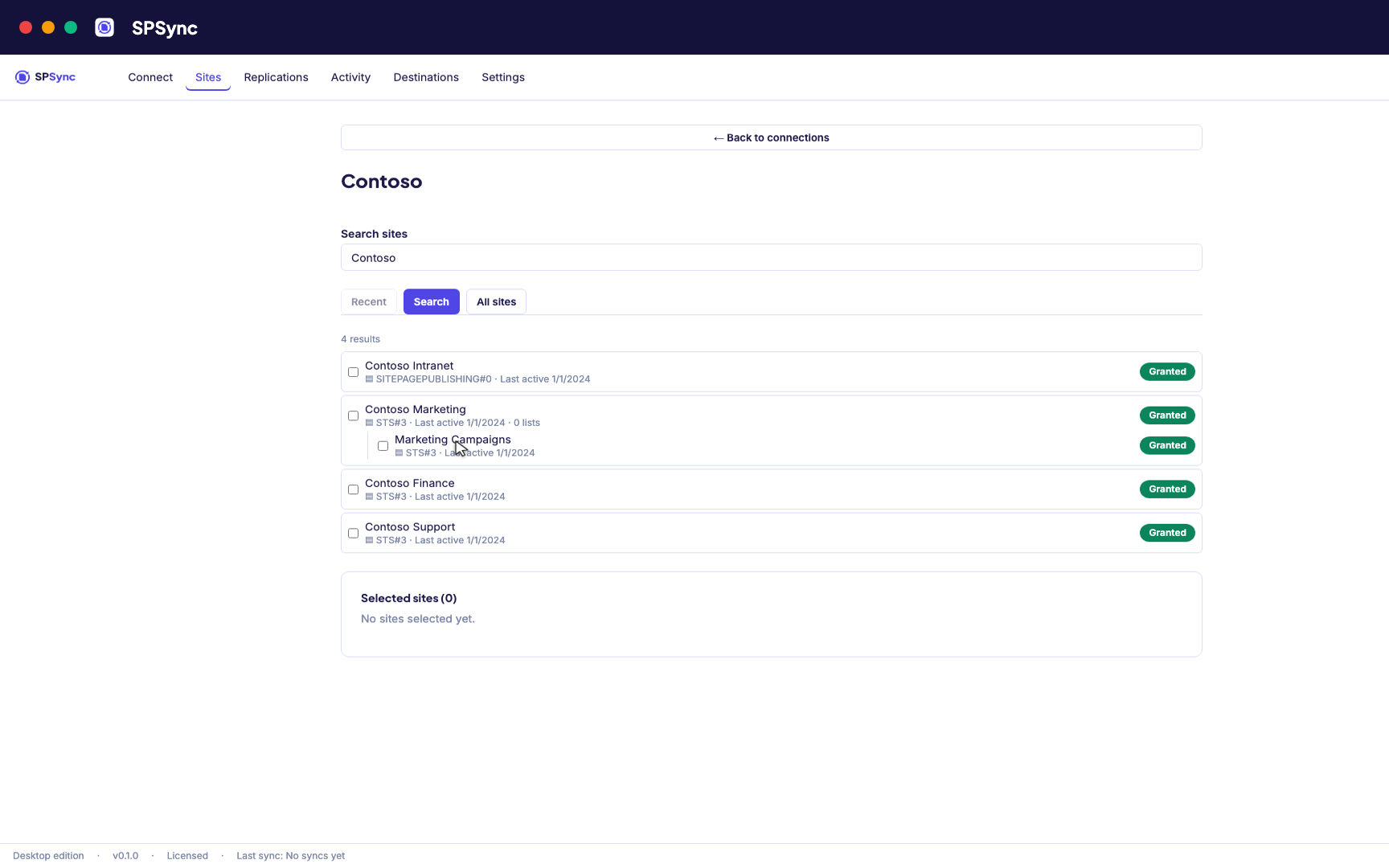
Sign in with Microsoft, then find a site by name or URL, including subsites. -
02
See what you are replicating
SPSync shows every list and library on a site, with its columns and item counts, as soon as you pick a site. You can check what you are about to replicate before you tick anything.
-
03
Choose lists and libraries
Tick individual lists, pick by a name pattern, or sync the whole site so new lists are picked up automatically. The same options work at any level of the site hierarchy.
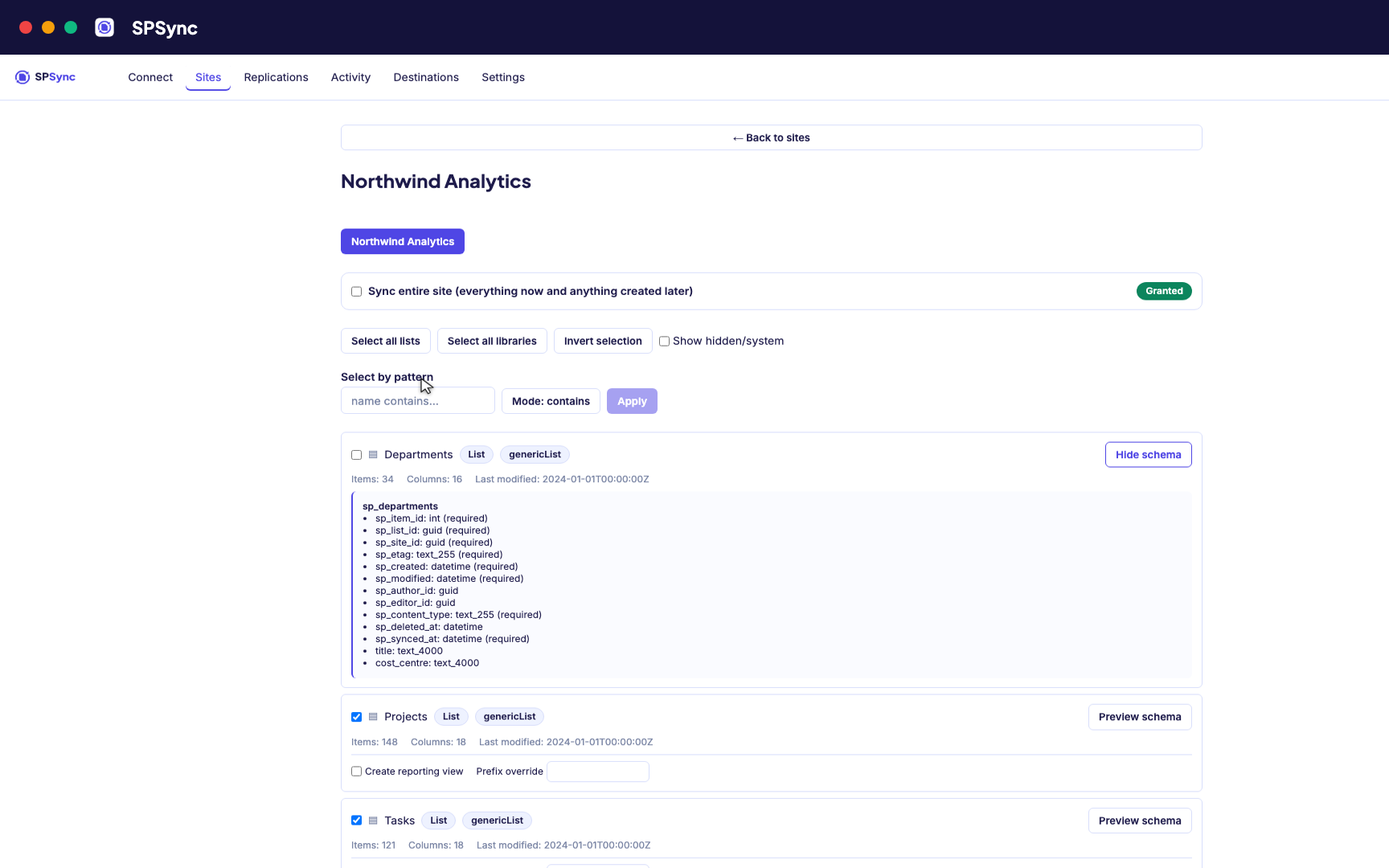
Tick lists individually, pick by name pattern, or sync the whole site, with a schema preview. -
04
Connect your database
SQL Server, Azure SQL, Postgres and the rest. Test the connection before you commit. SPSync generates and maintains the tables, so there are none to create by hand.
Destination setup guides · If the test fails: troubleshooting
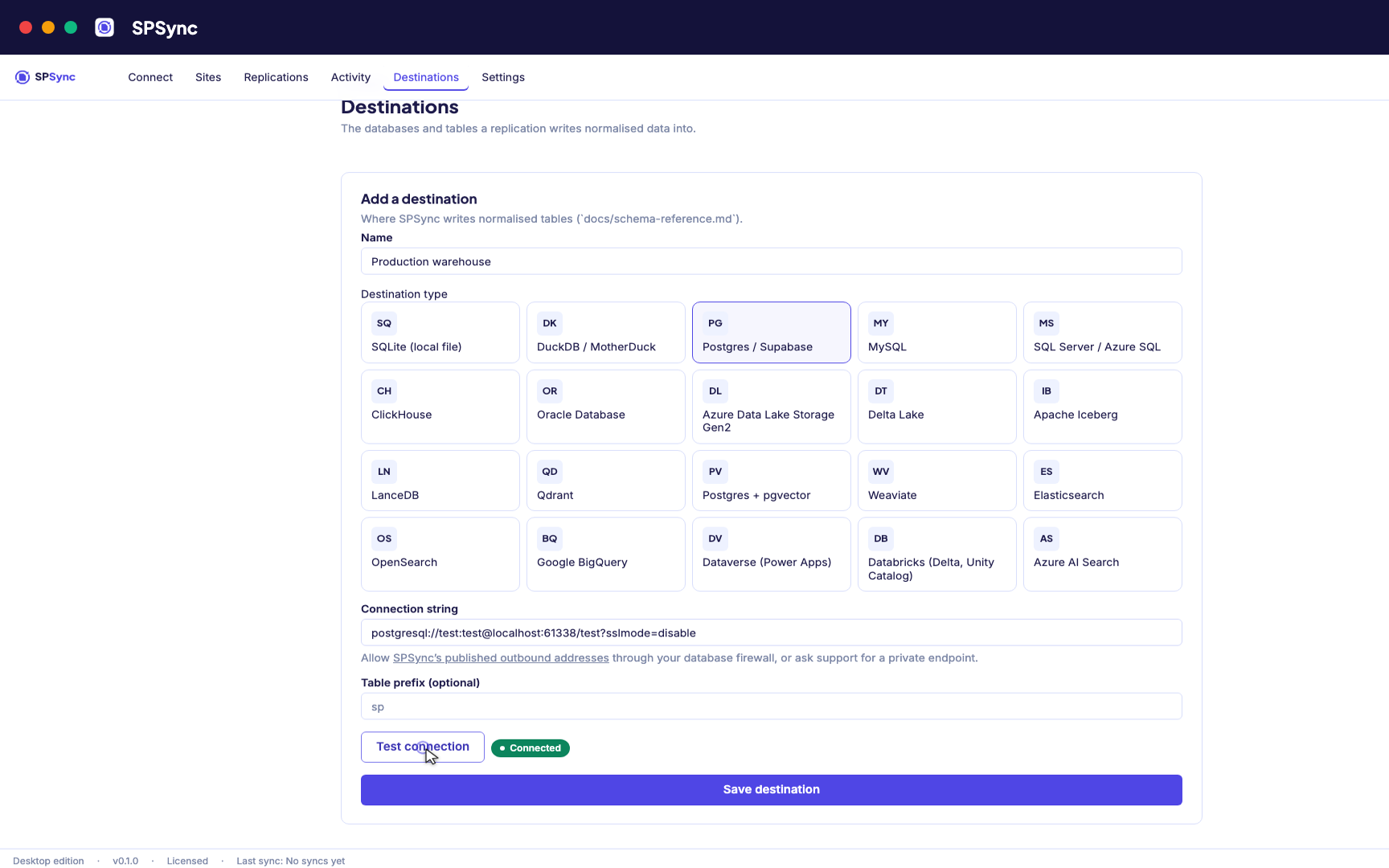
Point at your database. Test the connection, then SPSync creates and maintains the schema. -
05
Run and keep it in sync
A full load first, then deltas on your schedule with a reconcile behind it, weekly by default. Throttling and list view thresholds are handled for you, lookups arrive as keys, and deletes are kept.
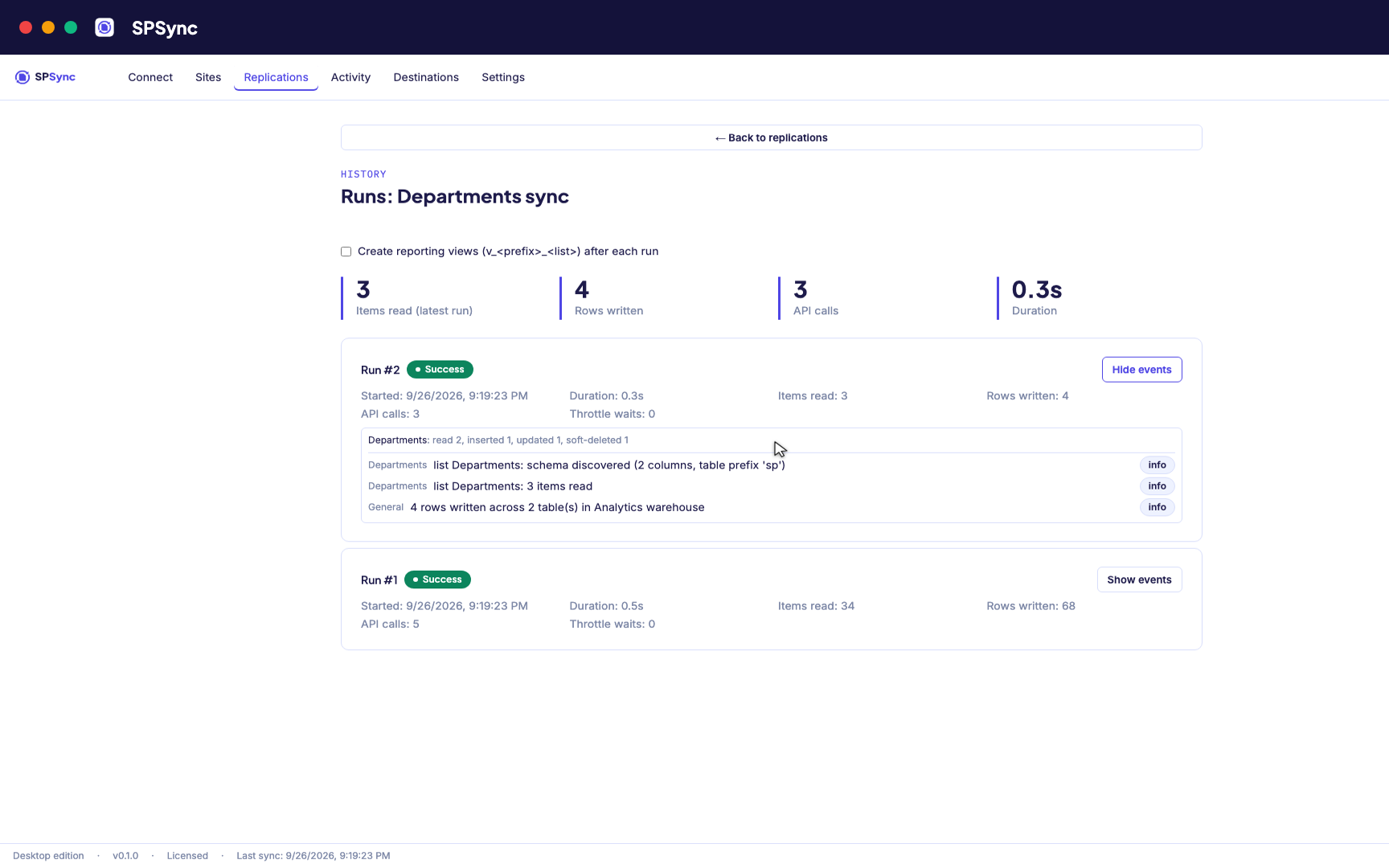
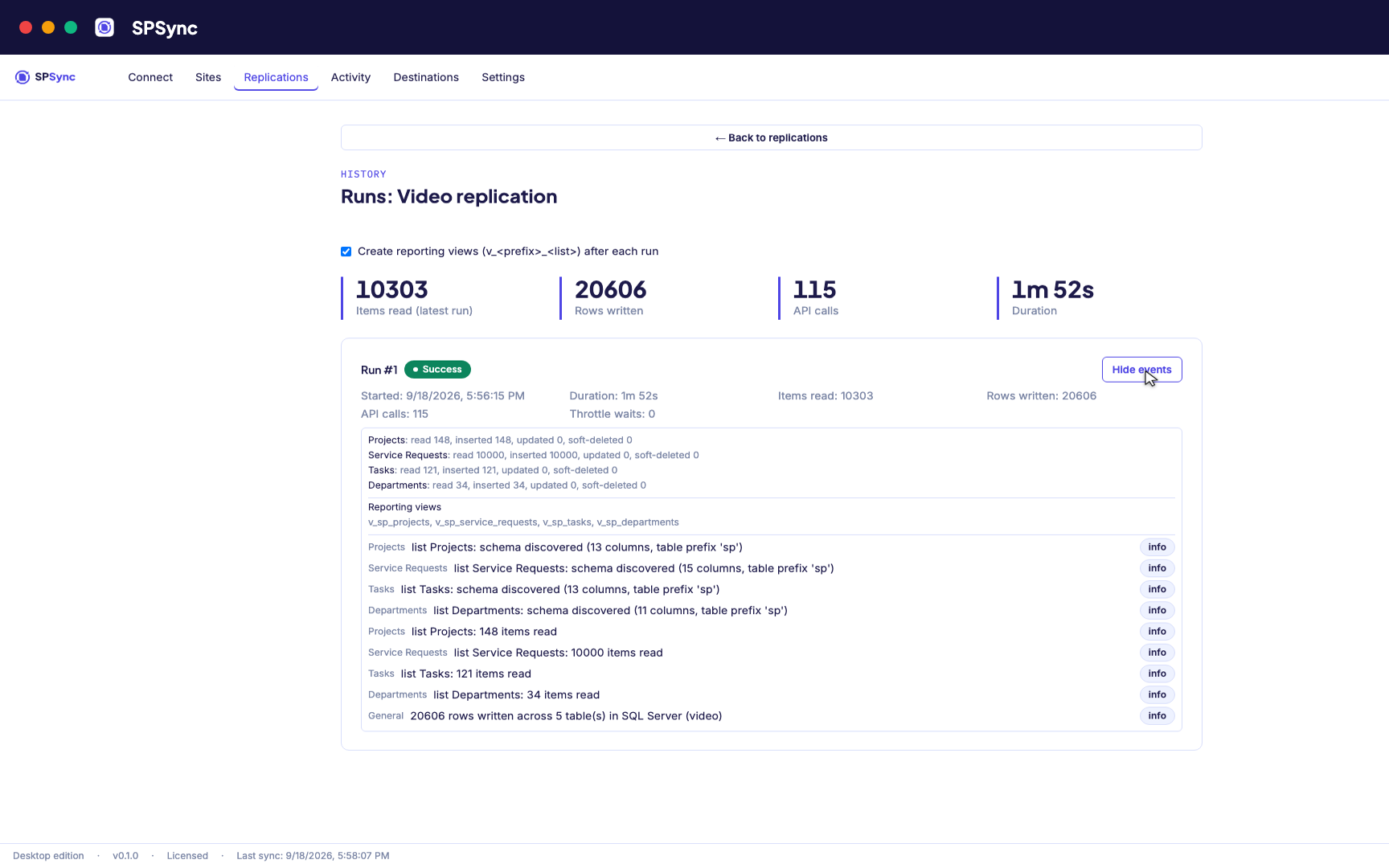
Every run's per-list counts: rows read, inserted, updated and soft-deleted. -
06
Bring sites together and report on it
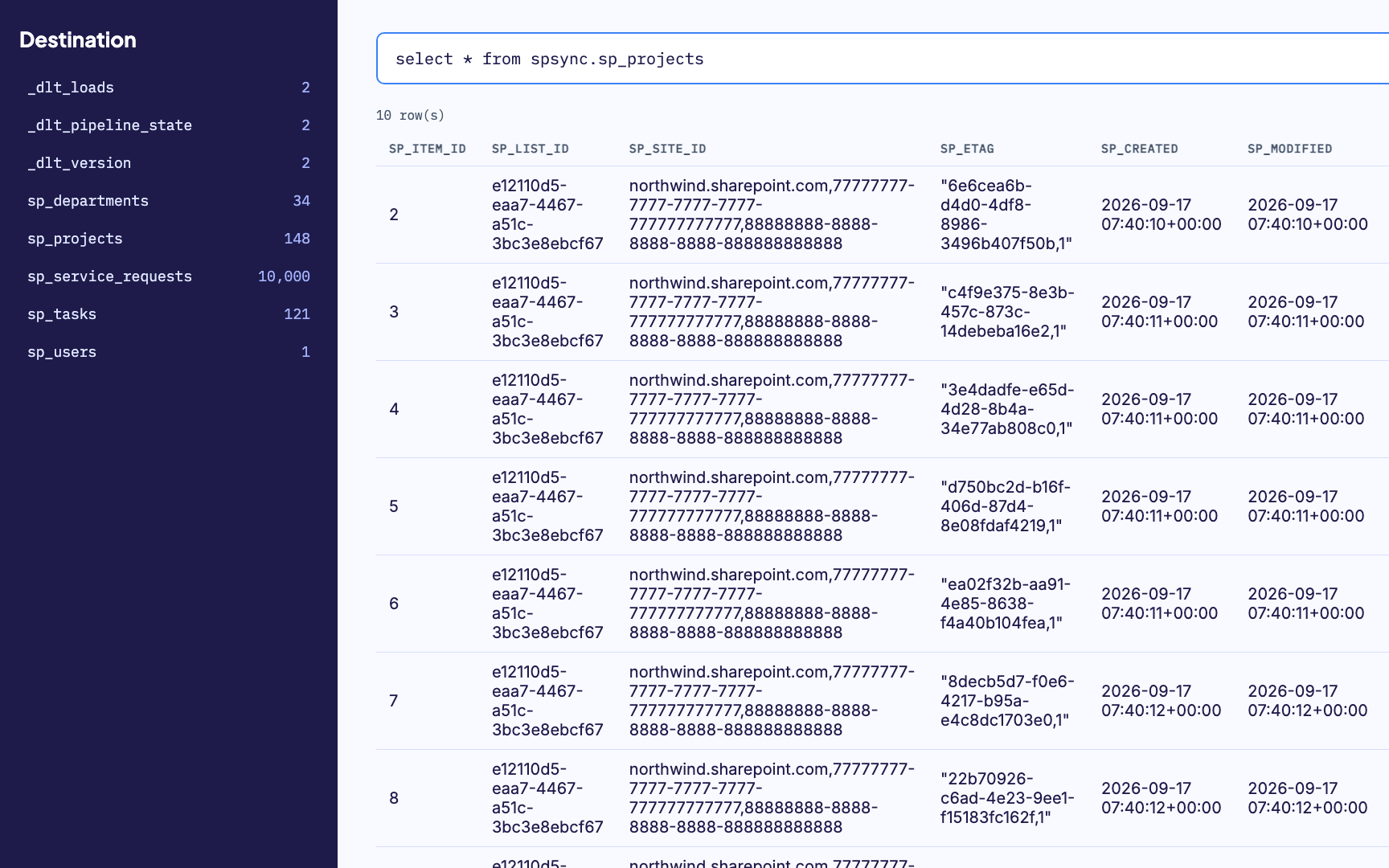
Replicate many sites into one database, with generated reporting views ready for Power BI DirectQuery on SQL and warehouse destinations. The same tables give any other application a stable SQL interface.
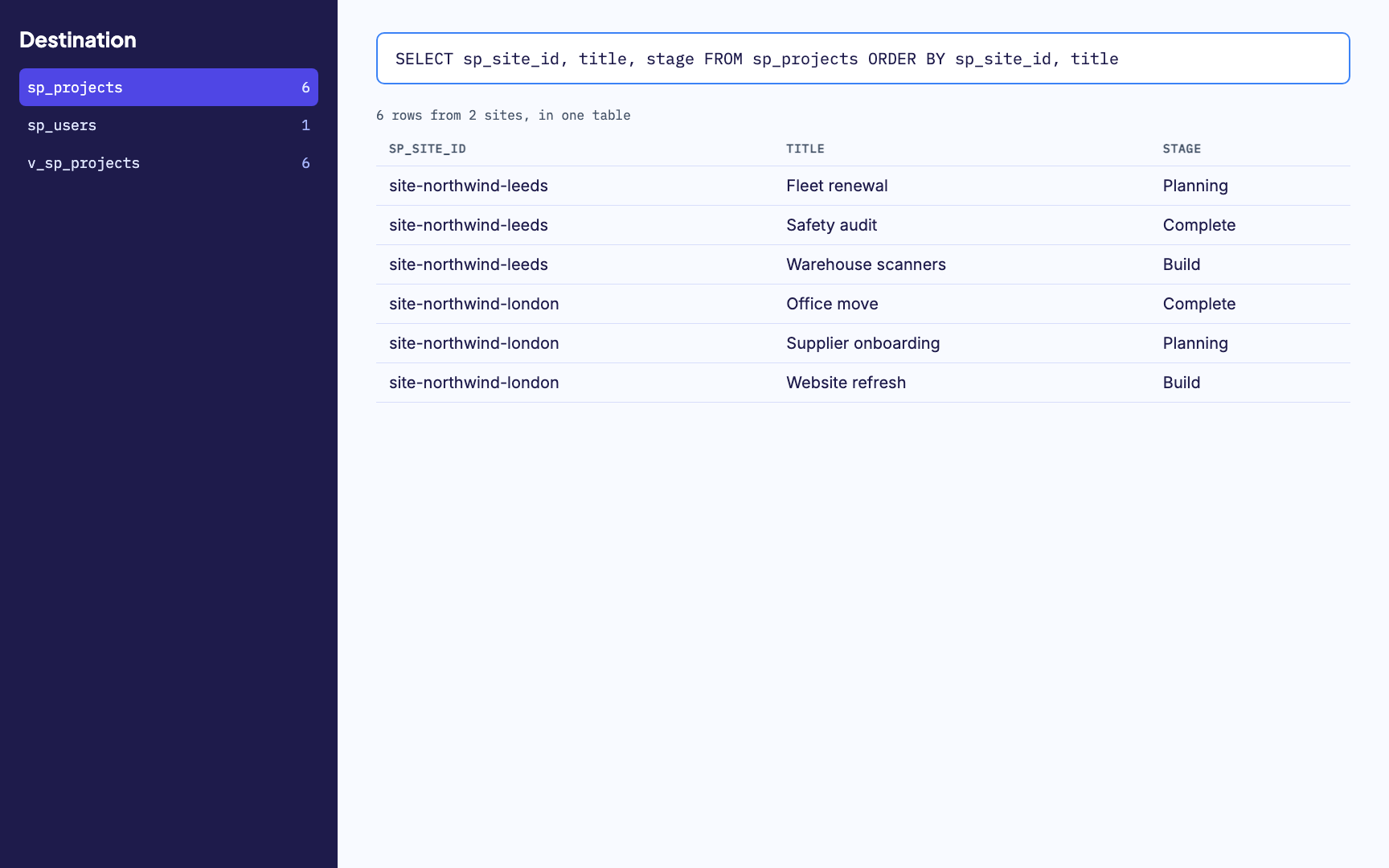
Many sites merged into one table, with a generated reporting view alongside. -
07
Watch it run
Activity and run history sit in one place, with every error named by column. From any run you can send us its diagnostics when you want help with it.
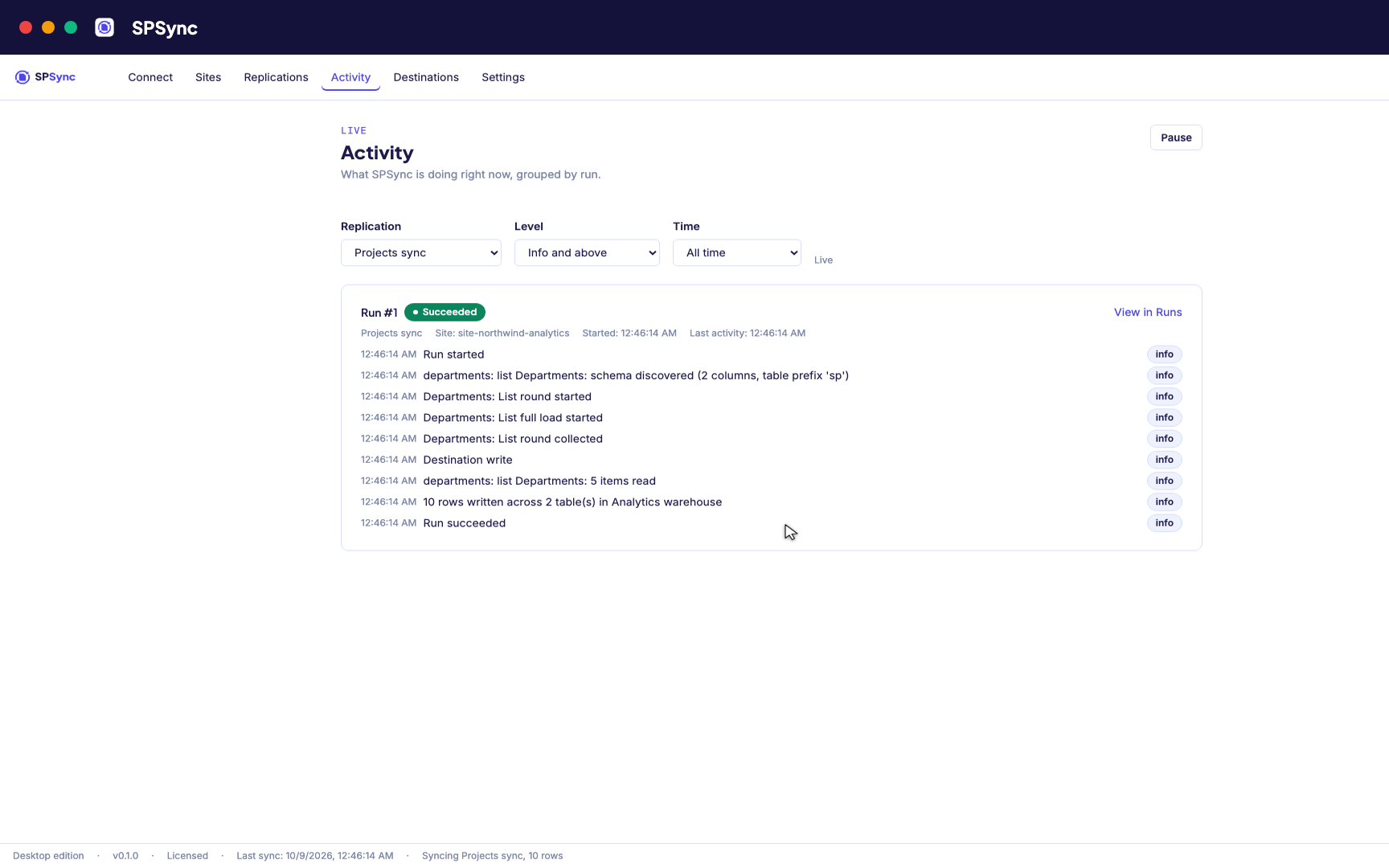
Activity: every run's own steps, live, grouped by run.
Where it runs
Desktop app
Install on macOS or Windows, sign in with Microsoft, and sync from your own machine on a schedule, with the app open or in the background. A good fit for analysts, one-off migrations and evaluation.
In your Azure
Deployed with you on a call while the Marketplace listing is prepared; once deployed, always on with nothing to install. The same interface in the browser, with your own app registration and replicated content kept in your database.
Command line
Every replication as reviewable YAML. Run from a server, a container or CI, batch many sites at once, and re-run safely any time.