SharePoint to SQL Server
SharePoint Online lists, live in SQL Server
SPSync copies SharePoint Online lists, including Microsoft Lists, and the metadata of your document libraries one way into SQL Server or Azure SQL, and SharePoint stays the system of record. Your team keeps its registers, requests and project lists where they already are. The copy stays current on a schedule you choose, so reports, apps and integrations query a database you run, with lookups you can join and deleted items still on record.
Last updated
Chapters are in the video's description.
Watch the full SharePoint-to-SQL-Server walkthrough, connecting, picking lists, a 10,000-item list past the list view threshold, then the replicated tables, a join and a newly added column in a SQL client.
Watch the command-line version of this walkthrough.
Where it usually starts
The month-end report that outgrew its list
A finance team tracks purchase approvals in a SharePoint list, and a Power BI report reads that list directly. For the first year it refreshes in a minute. Then the list passes 5,000 items, the refresh starts timing out on the morning of month end, and someone exports the list to Excel by hand so the board pack can go out.
The trouble is the connector. It reads through APIs built to show one page of items to one person, and every refresh pays SharePoint's view threshold and throttling again. Approvals spread across several sites make it worse, because SharePoint has no way to join them.
Put a SQL Server copy in between and the report reads a table. The team keeps editing the list in SharePoint, SPSync keeps the table current, and the refresh no longer depends on how big the list has grown.
Export, sync, connect, copy, load, query
Export a SharePoint list to SQL Server once, then keep exporting it
Most people who search for this have done it once already. They exported the list to Excel or ran an import wizard, and by lunchtime there was a table. The next morning it was out of date, because nothing carried the edits across.
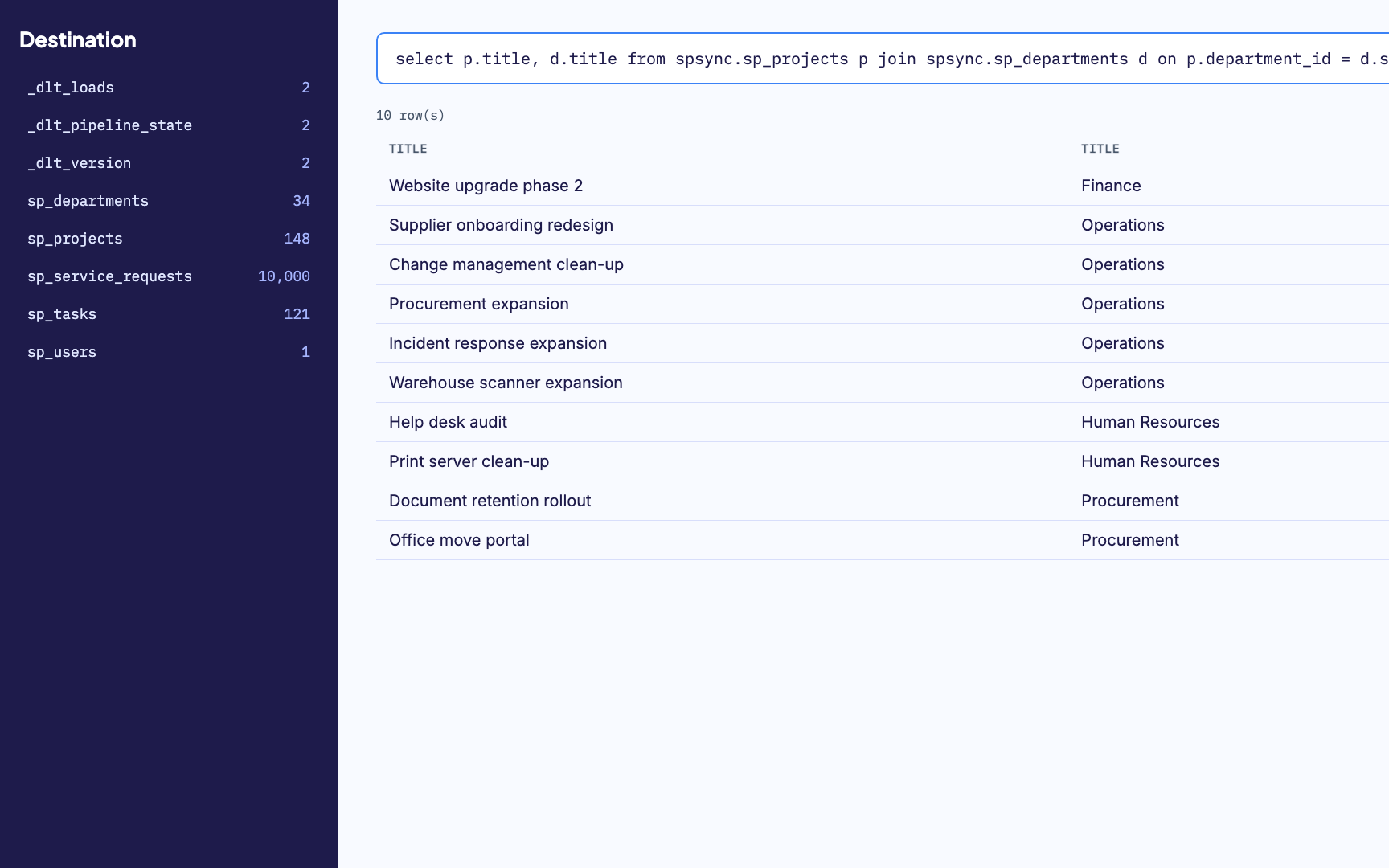
SPSync treats that export as the first run of a replication. It reads the whole list through Microsoft Graph, creates the table in SQL Server and writes every item. Each later run asks Graph only for what changed since the last one, so tomorrow's export is a handful of rows. You pick the lists in the desktop app, or name them in a YAML file for the command-line tool. Seven steps from a SharePoint list to a SQL Server table walks through the first export screen by screen.
Sync a SharePoint list to SQL Server automatically
Automatic should mean the copy happens without anyone remembering to run it. The desktop app runs each replication on a fixed interval and shows the last run, the next run and the rows each run wrote. If your SQL Server has a batch window, use the command-line tool instead: it does one run per call, so SQL Server Agent, Windows Task Scheduler or cron decides when.
Every run is a Graph delta query, so a list where nothing changed writes nothing. Once a week by default SPSync also reconciles, reading the full list and comparing it with the table as a QA check. After an outage on your side or Microsoft's, you can start the same reconcile from the command line and know the table matches the list again. What it costs to keep a SharePoint export script running sets this against a scheduled script you maintain yourself.
How do I connect or link a SharePoint list to a SQL Server table?
What people usually want here is a SQL Server table that behaves like the list, with the same rows and columns and no copying by hand. There are two ways to get one. A driver or a linked server goes back to SharePoint every time a query runs, so every query is subject to Graph throttling and the list's own limits, and a slow report turns into a slow query. A replica reads SharePoint once per change and answers every query from SQL Server.
SPSync builds the replica and installs nothing in SharePoint. It connects with your own sign-in, or with an app registration an admin grants Sites.Selected on the sites you name, so it can read those sites and no others. Column names come from SharePoint's internal names, which means renaming a column in the list does not break a query. SharePoint column types in SQL Server and PostgreSQL shows how each type comes across.
Copy Microsoft Lists data into a SQL table
Microsoft Lists is SharePoint underneath. A list made in the Lists app and saved to a site is a SharePoint list, and SPSync copies it in the same way as one made in Site contents years ago. Lists kept under My lists live in the creator's OneDrive and have not been tested, so save the list to a site first.
For a copy you only need once, a script is a fair choice. PnP PowerShell can read a list and a bulk insert can write it, and an afternoon is usually enough. The trouble comes when the copy has to happen again every week and the script has to start handling paging, throttling, deleted items and the column someone added on Tuesday. SPSync vs PnP PowerShell and custom scripts sets out which jobs to keep in a script.
Load SharePoint Online lists into SQL Server past 5,000 items
Most home-made loads break first at the 5,000-item list view threshold. Once a list passes it, a view or a Power Automate Get items action that filters or sorts on an unindexed column is refused. Adding indexes helps on some lists and not on others.
SPSync never queries a view. The first run pages through the whole list with Graph delta and later runs read only the changes, so a 10,000-item list loads the same way as a 100-item one. We measured one run of four lists, one of them 10,000 items long, into SQL Server on a live tenant, and the figures are further down this page. What breaks past 5,000 items and how delta reading avoids it explains the mechanics, with the Power Automate comparison covering the flows that hit the threshold most often.
Query a SharePoint list with SQL
Once the list is a table, a question SharePoint could not answer takes a few lines of
SQL. Approvals join to suppliers on the lookup id, and a year of requests groups by
month without a 5,000-row export in between. Because each site's tables carry their
own prefix, the same list from ten project sites can be stacked with a
UNION ALL.
Power BI reads the tables in Import or DirectQuery mode. Turn on the generated reporting views and it gets a flattened shape with soft-deleted rows already left out. Why Power BI refreshes on SharePoint lists slow down covers the report side, and joining lists on lookups the way SharePoint cannot shows the SQL.
After the first run
What you will find in SQL Server
One table per list, named after the list and prefixed by site, so the same list from ten project sites can sit in one database without colliding. Text, number, choice and yes/no columns arrive with SQL Server types and lookups arrive as id columns. Currency, hyperlink, lookup display values, multi-value lookup and person columns, date-only columns on sites east of UTC, managed metadata and document library file details are still being verified on a live tenant. The schema reference lists every mapping, and SharePoint column types in SQL Server and PostgreSQL sets the two engines side by side.
A lookup becomes an id column you can join on. Multi-choice columns get child tables with one row per value, and every person resolves to one users table, so a report author has no delimited strings to unpick.
Take a purchase approvals list on a finance site, with a Supplier lookup and a Cost centres column that allows more than one choice. After the first run SQL Server holds these tables:
| Table | What it holds | Columns |
|---|---|---|
finance_purchase_approvals | One row per list item | sp_item_id, title, amount, supplier_id, supplier_value, status, sp_modified, sp_deleted_at |
finance_suppliers | The list the Supplier lookup points at | sp_item_id, title, account_code, sp_deleted_at |
finance_purchase_approvals__cost_centres | Child table, one row per ticked value | sp_item_id, ordinal, value |
The report author's query joins the lookup on its key and the child table on the item id, and leaves out anything deleted in SharePoint:
SELECT a.title, a.amount, s.title AS supplier, c.value AS cost_centre
FROM finance_purchase_approvals AS a
JOIN finance_suppliers AS s ON s.sp_item_id = a.supplier_id
LEFT JOIN finance_purchase_approvals__cost_centres AS c ON c.sp_item_id = a.sp_item_id
WHERE a.sp_deleted_at IS NULL;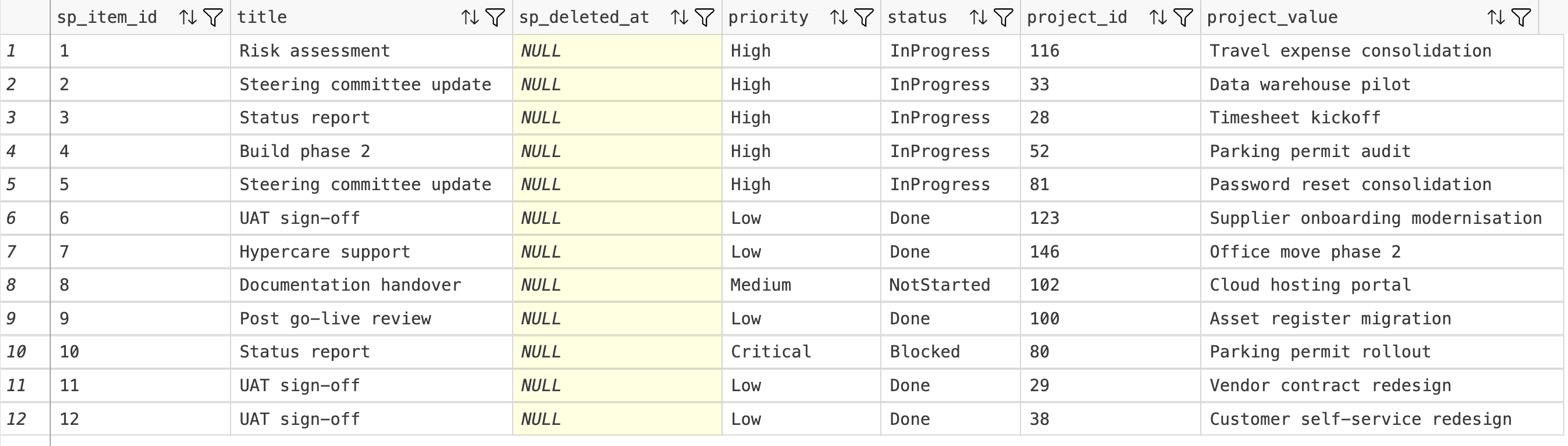
When someone deletes an item, the row stays and is flagged as deleted, so last
quarter's figures do not move under you. If you want the table to mirror SharePoint's
current state, the command-line tool has a per-replication hard-delete setting in its YAML
config. When someone adds a column to the list, it appears in the table on the next
run; a removed column stays put, and a retyped one moves to a new _v2
column and the original keeps its type.
Turn on the generated reporting views and Power BI gets a flattened, already-joined shape for DirectQuery, with soft-deleted rows left out. The same setup works for SQL Server, Azure SQL Database and Azure SQL Managed Instance.
The same tables serve a Copilot Studio agent. Azure SQL is listed among Copilot Studio's real-time knowledge connectors on Microsoft Learn (a preview feature as of 20 October 2026). An agent grounded on the replicated tables can answer a count over every row of a list. Copilot Studio's own list knowledge reads only the first 2,048 rows. Grounding Copilot Studio on clean tables sets out the limits and the two routes.
Document libraries
Send document library metadata to SQL Server
A document library replicates in the same way as a list, as metadata. Each file and
folder becomes a row carrying its item id, content type, created and modified dates and
every custom column the library has, such as a contract's client, its renewal date or
its approval status. Folders and document sets get rows of their own, and
sp_content_type tells them apart.
The files stay in SharePoint. SPSync never downloads file contents or attachments, so the table describes the library without holding a copy of it. The file name, URL, size and folder path columns are in the schema but arrive empty on a live tenant today while the library read is being fixed, so build reports on the library's own columns for now. A pipeline that needs a file's contents can fetch it from Graph with the site, list and item ids on the row. Library metadata is the catalogue an AI assistant needs follows that pattern through.
Choosing a route
SSIS, PowerShell, Power Automate, ADF or SPSync
Each of these can put a SharePoint Online list into SQL Server. Where they differ is what you end up building around them. The cells describe each tool as it ships, before anyone writes extra logic, and any of them can close a gap if you are willing to own the code that does it.
| Question | SSIS | PnP PowerShell script | Power Automate | Azure Data Factory | SPSync |
|---|---|---|---|---|---|
| Lists or files | List items, through an OData source or a third-party component | Whatever the script reads, lists or files | List items and files, through the SharePoint connector | List items, through the SharePoint Online List connector | Lists and library metadata; file contents stay in SharePoint |
| Lookups resolved | Arrive as ids or text; you join them in the package | You write the code | You map each field inside the flow | Arrive as integer ids; resolving them is up to the pipeline | Key columns you can join, and multi-value columns as child tables |
| Deletes | Not detected unless you compare full loads | You build delete detection | Needs a second flow triggered on deletion | Not documented for the list connector | Row kept and flagged by default; hard delete with the command-line tool |
| Schema drift | Package metadata has to be refreshed when a column changes | You handle it in the script | Flow actions need updating for new columns | Mappings live in the pipeline | New columns appear on the next run; a retyped column gets a _v2 column |
| Past 5,000 items | Depends on how the source component pages | Page the read; a filter on an unindexed column still hits the threshold | Pagination must be turned on, and its cap depends on the performance profile | A filtered query on an unindexed column can hit the threshold | Graph delta with paging; tested to 10,000 items on a live tenant |
| Throttling handling | Retries are yours to add | Your own Retry-After handling and backoff | The action retry policy, inside the connector's own call limits | Activity retry settings you configure | Honours Retry-After and meters resource units per tenant |
| Scheduling | A SQL Server Agent job | Task Scheduler, cron or a CI pipeline | A scheduled or item-triggered flow | Pipeline triggers | A fixed interval in the desktop app, or any scheduler for the command-line tool |
| Where it runs | A Windows server with Integration Services | Wherever you run PowerShell | Microsoft's cloud, with a data gateway to reach an on-premises SQL Server | Azure, with a self-hosted integration runtime for an on-premises SQL Server | The desktop app on Windows or macOS, or the command-line tool on a server you run |
Sources: Microsoft's Power Automate limits for the pagination cap, and its guidance on avoiding throttling in SharePoint Online, which SPSync follows. The full comparisons with SSIS, Power Automate, PnP PowerShell and Azure Data Factory say when each one is the better choice. SharePoint to SQL Server tools compared adds CData Sync, Skyvia, Layer2, Fabric, Fivetran and Airbyte.
Measured, small lists
Three lists on a laptop, against a live tenant
The 11 s and 6 s figures were measured once, on 10 September 2026, against a real Microsoft 365 tenant on a laptop. The 1 RU figure is SPSync's own metering, about 1 RU per list per delta round; a live tenant charges roughly twice that. SQL Server runs on the same engine, and the larger runs follow below.
Measured, past the threshold
A 10,000-item list into SQL Server
One replication run covering four SharePoint lists, one of them 10,000 items long and well past the list view threshold where a Power BI report, a Power Automate flow or a custom app querying the list starts to fail. SQL Server has no such threshold. Measured on 18 September 2026 against a real Microsoft 365 tenant with SPSync's desktop app.
Measured, one million items
A 1,000,000-item list, through the real sync engine
A single 1,000,000-item list, read in full and then through a 10,000-change delta round, by the same delta-query-and-paging code every replication uses. The figures were last re-verified on 27 September 2026. There is no item-count ceiling by design. Measured mostly on a Mac mini against a scripted large-scale fixture, not a live tenant, with some runs on a second, quieter machine included in the same spread. The write side of this run (to SQL Server, at this scale) could not be measured on this hardware and is still to be done. Timing varies with the machine's own load: across 8 recorded runs, full load ranged from 74 s to 112 s and throughput from 8,929 to 13,503 rows/s. The figures above are the slowest and lowest of those runs, the conservative end, not a median. Peak memory is a published ceiling that sits above every run observed so far, not an observed figure.
Setting it up
Seven steps from a SharePoint site to a SQL Server table
The full walkthrough shows each step, with screenshots.
-
01
Connect to SharePoint
Sign in with Microsoft, with delegated access, or with app permissions scoped to specific sites through Sites.Selected. Find any site by name or URL, including subsites, without asking IT to list them first.
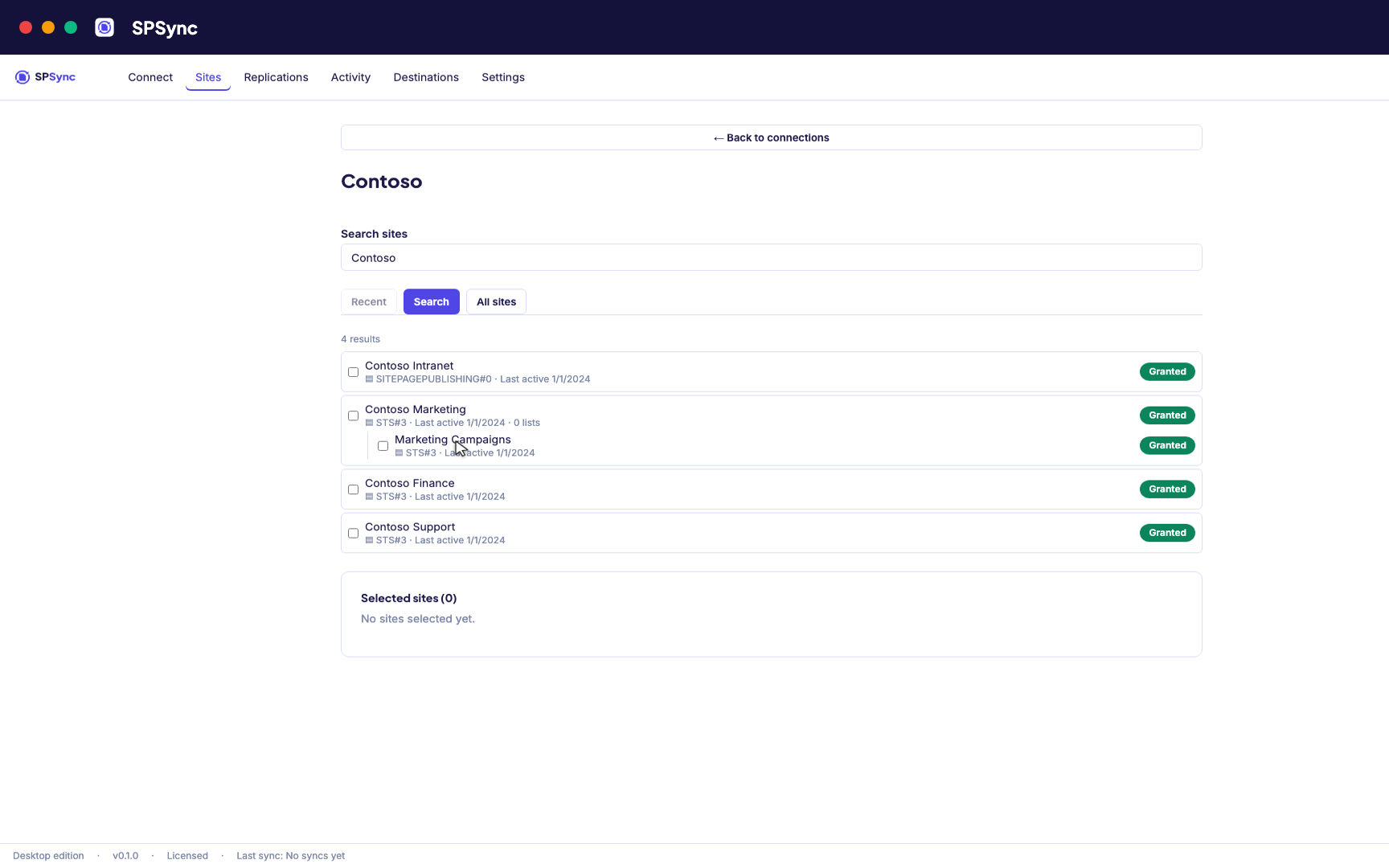
Sign in with Microsoft, then find a site by name or URL, including subsites. -
02
See what you are replicating
SPSync shows every list and library on a site, with its columns and item counts, as soon as you pick a site. You can check what you are about to replicate before you tick anything.
-
03
Choose lists and libraries
Tick individual lists, pick by a name pattern, or sync the whole site so new lists are picked up automatically. The same options work at any level of the site hierarchy.
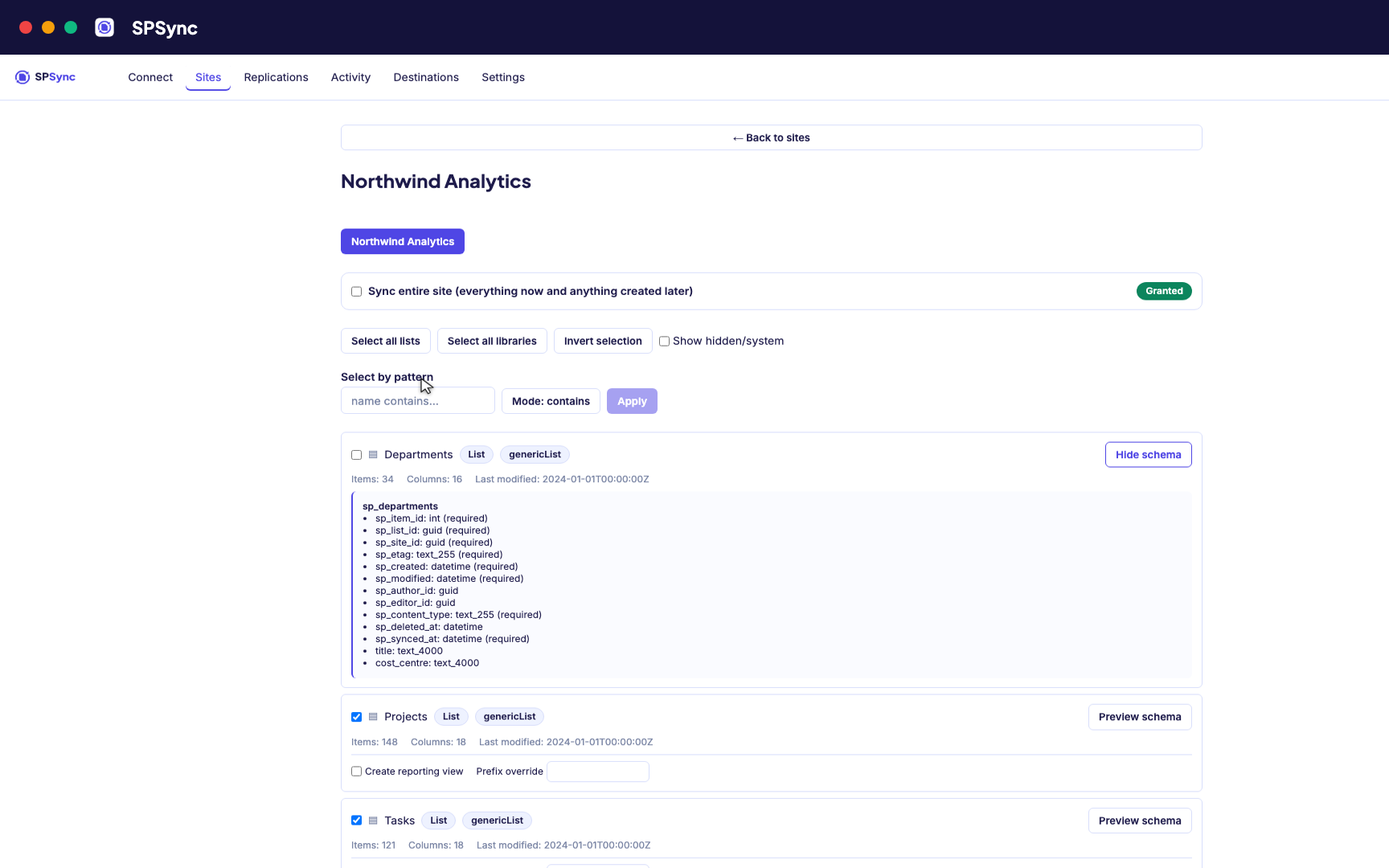
Tick lists individually, pick by name pattern, or sync the whole site, with a schema preview. -
04
Connect SQL Server
Point SPSync at SQL Server and test the connection before you commit. SPSync generates and maintains the tables, so there are none to create by hand.
Destination setup guides · If the test fails: troubleshooting
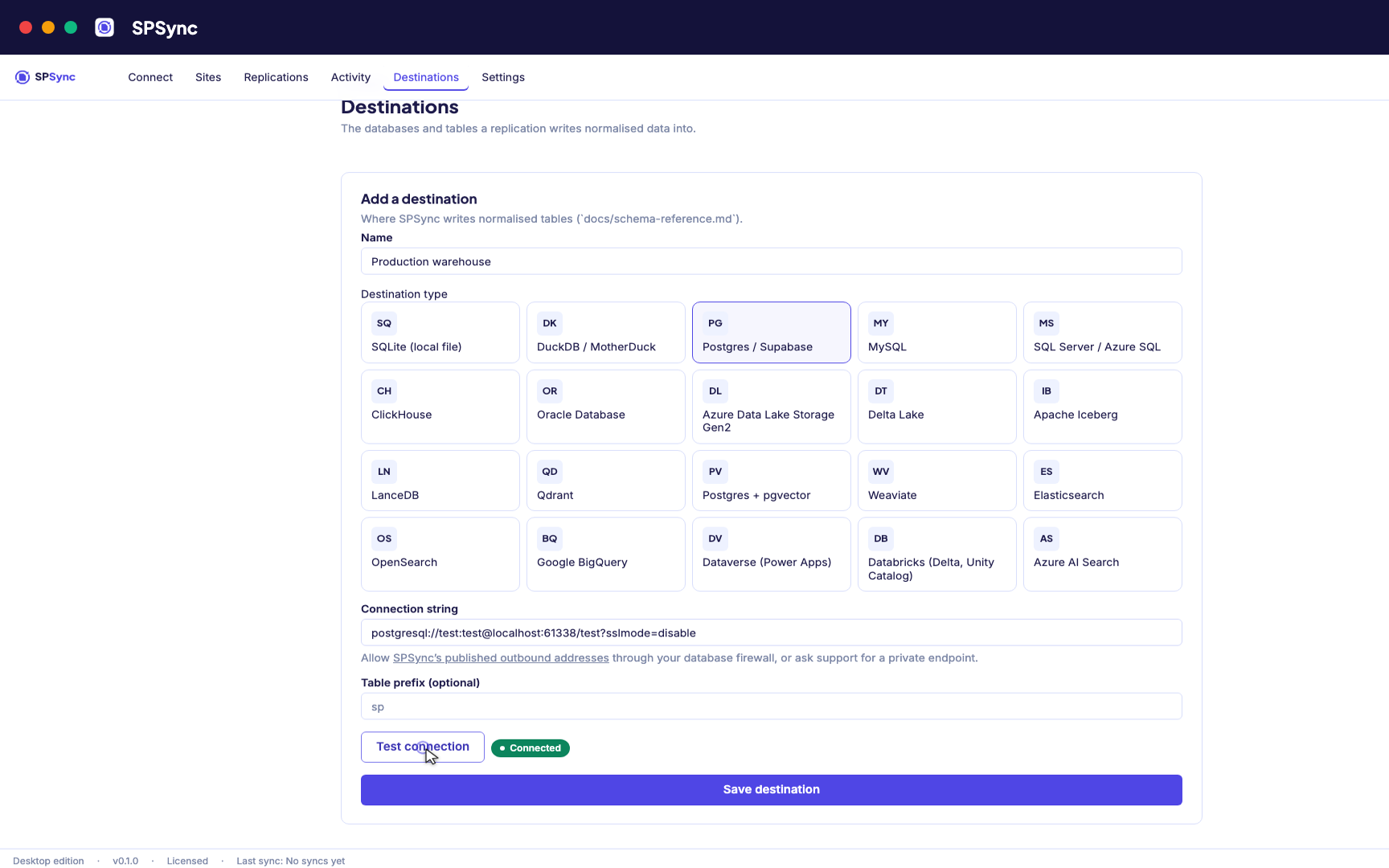
Point at your database. Test the connection, then SPSync creates and maintains the schema. -
05
Run and keep it in sync
A full load first, then deltas on your schedule with a reconcile behind it, weekly by default. Throttling and list view thresholds are handled for you, lookups arrive as keys, and deletes are kept.
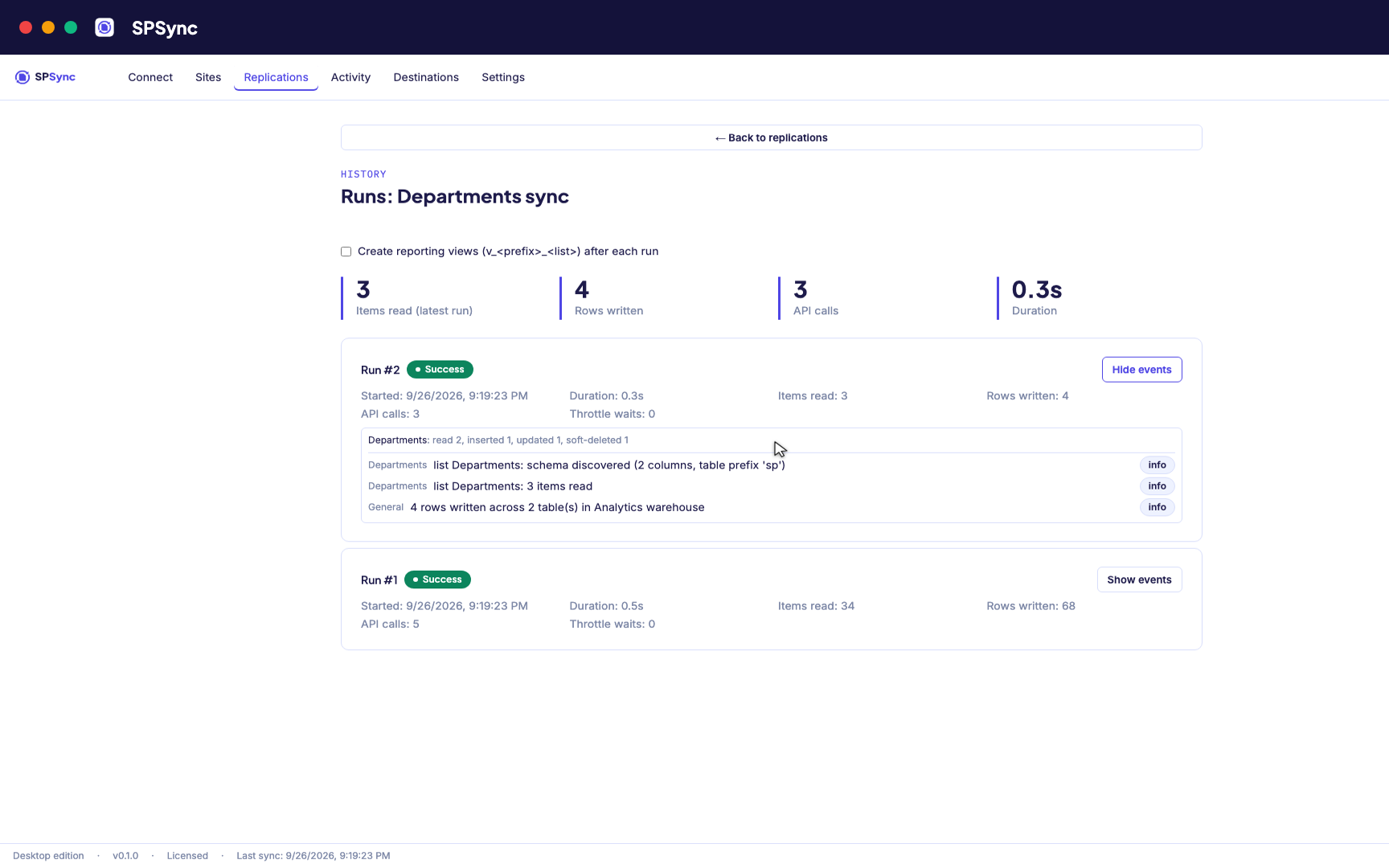
Every run's per-list counts: rows read, inserted, updated and soft-deleted. -
06
Bring sites together and report on it
Replicate many sites into one database, with generated reporting views ready for Power BI DirectQuery on SQL and warehouse destinations. The same tables give any other application a stable SQL interface.
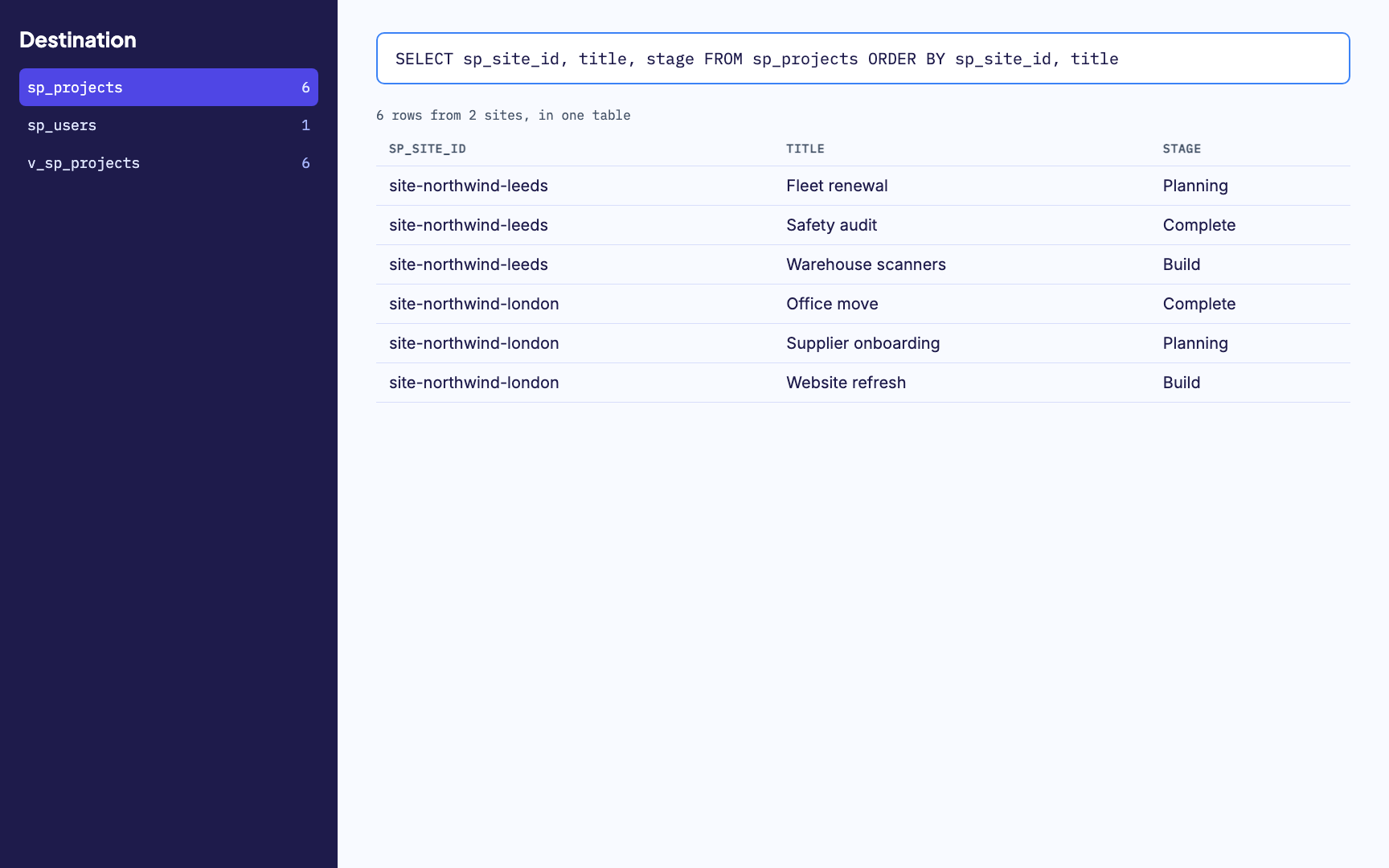
Many sites merged into one table, with a generated reporting view alongside. -
07
Watch it run
Activity and run history sit in one place, with every error named by column. From any run you can send us its diagnostics when you want help with it.
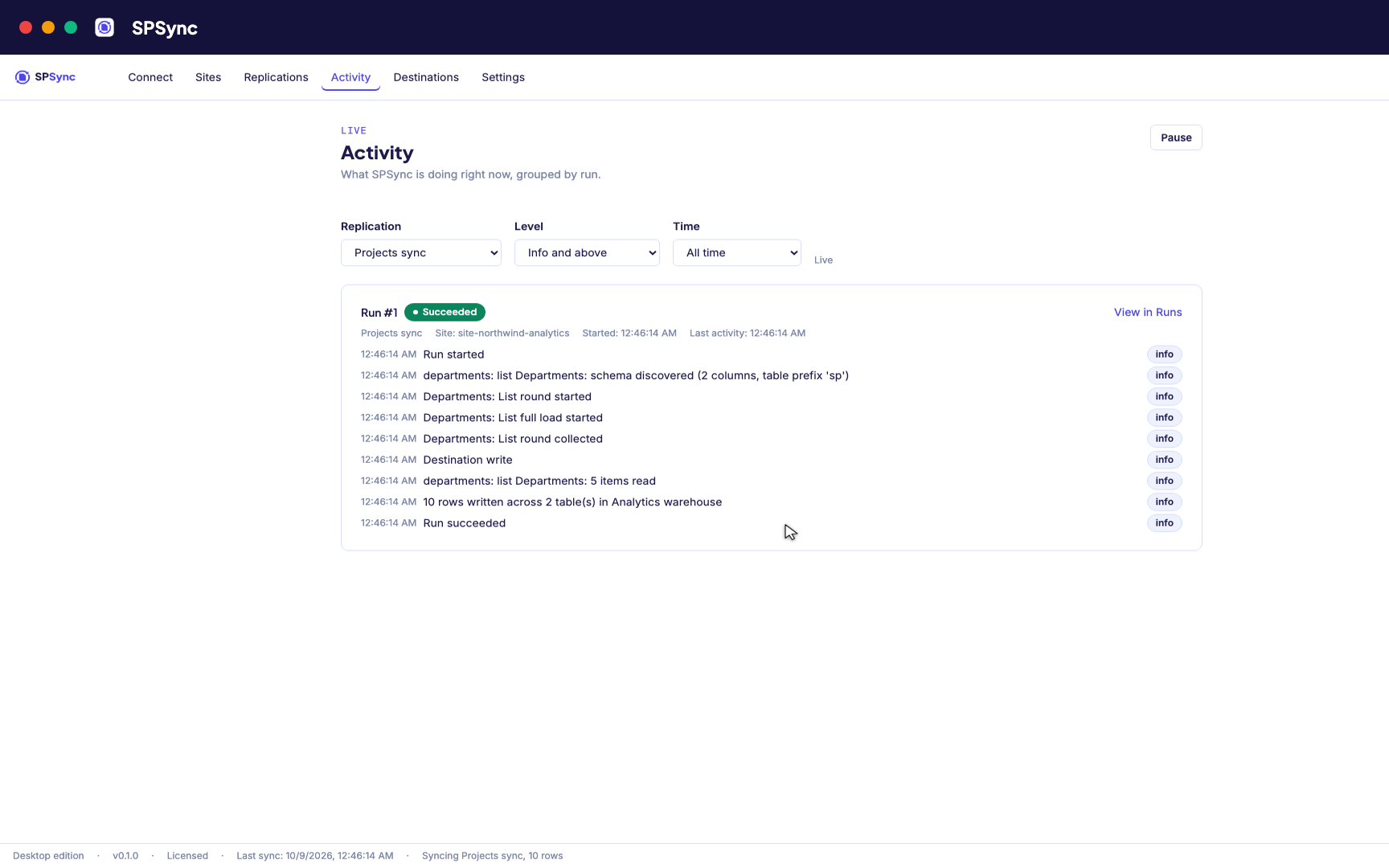
Activity: every run's own steps, live, grouped by run.
Before IT signs it off
What your security reviewer will want to know
Nothing is installed in SharePoint and nothing is written back to it. Below are short answers to the questions that come up early in a review.
It runs where you put it
The desktop app runs on your machine and the command line on your own server. SPSync in your Azure, a managed application for your own subscription, is deployed with you on a call while the Marketplace listing is prepared. Nothing SPSync controls sits between SharePoint and your database.
Read permissions only
SPSync asks Microsoft Graph for read access only. No code path creates, updates or deletes a SharePoint item.
Approved site by site
Unattended runs use app permissions granted per site with Sites.Selected, so an admin chooses each site SPSync can read.
A pack for your admin
The first-run wizard explains each permission in plain language and produces a one-page summary your admin can review before approving anything.
A record of every run
Run history shows the rows read and written, and an error names the list and the column it came from.
Your data stays with you
Nothing from SharePoint or your databases is sent to SPSync. Licence activation and any diagnostics you opt into are the only calls it makes.
An agent reads the database copy
An AI agent or Copilot Studio grounded on the copy connects with a database login and holds no Graph permission. SharePoint item permissions are not copied, so the database role and row-level security decide what it sees.
The security page covers the permission model, the data flow and the throttling policy in full.
If you build it yourself
What a home-made copy job ends up owning
After the first copy, these are the jobs that arrive, usually for whoever wrote the first version.
A column mapping someone wrote once
Each column was mapped by hand when the job was built. When someone adds a column to the list, the job carries on without it, and the gap shows up weeks later as a blank in a report.
Lookups that arrive as numbers
A lookup or a multi-person column comes through as an id or a semicolon-separated string. Turning that into something a report can join is code, and somebody has to keep it working.
Throttling
Graph slows callers down under load. A script or flow without its own Retry-After handling and backoff stops halfway, and the table is left half refreshed.
Deletes with no record
A copy job has no idea an item was deleted. The row is missing from the next copy, with no date and no trace, so the month's totals move and no one can say why.
Finding out it failed
Alerting, logging and a way to see which list and column broke all have to be built around the job, or the first sign of trouble is a stale dashboard.
Common use cases
Further reading
Evaluation and licensing
Talk to us about SQL Server
A 20-minute call is usually enough to see it working on your own tenant. You can run SPSync from the desktop app or the command line, with the same tables and the same licence key. SPSync in your Azure, a managed application for your own subscription, is deployed with you on a call while the Marketplace listing is prepared. Licences are per installation and per target family, on annual terms, with Standard Support included: see how licensing works.
Frequently asked questions
Can I sync a SharePoint list to SQL Server automatically?
Yes. After the first full copy, SPSync runs on a schedule and reads only what changed in the list since the previous run. The desktop app runs each replication on a fixed interval; the command-line tool runs once per call, so Windows Task Scheduler, cron or a CI pipeline can start it whenever suits your batch window.
How do I export a SharePoint list to a SQL table?
Sign in to Microsoft 365, pick the site and tick the list, point SPSync at a SQL Server database and run it. SPSync creates the table and writes every item on that first run. Seven steps from a SharePoint list to a SQL Server table shows each screen.
Does it handle lookup and person columns?
Yes. A lookup becomes an id column you can join to the table of the list it points at, with the display value alongside it. Multi-value lookups and multi-choice columns become child tables with one row per value, and person columns point at a shared sp_users table. Lookup ids are verified on a live tenant; lookup display values, multi-value lookups and person columns are still being verified there, and the schema reference shows the current state.
What about lists with more than 5,000 items?
They replicate the same way as small ones. The 5,000-item list view threshold stops views and filtered queries on unindexed columns, and SPSync uses neither: it pages through the list with Graph delta. It has been tested to 10,000 items on a live tenant and to 1,000,000 on a synthetic Graph.
Is it one way?
Yes. SPSync reads from SharePoint and writes to SQL Server, and SharePoint stays the system of record. It holds read permissions only, so a change made in the database never goes back to the list. If you need edits in SQL Server to reach SharePoint, that is a two-way sync, which SPSync does not do today.
Does it work with Microsoft Lists?
Yes, for lists saved to a SharePoint site. A list made in the Microsoft Lists app and saved to a site is a SharePoint list, and SPSync copies it like any other. Lists kept under My lists are stored in the creator's OneDrive and have not been tested, so save the list to a site before you replicate it. Microsoft Lists to SQL Server explains how to check where a list is saved and compares the routes.
Does this work with Azure SQL as well as SQL Server?
Yes: SQL Server and Azure SQL Database, including Azure SQL Managed Instance, connect through the same ODBC driver and destination. Azure SQL requires an encrypted connection, so add Encrypt=yes to the connection string (already the ODBC Driver 18 default, but worth setting explicitly). See the schema reference for the exact connection strings, including Amazon RDS and Google Cloud SQL for SQL Server.
Does this work with Power BI DirectQuery?
Yes. Turn on generated reporting views for a replication and Power BI, or any other SQL client, reads a flattened shape with DirectQuery. The report reads the database, so no scheduled import runs through the SharePoint list connector.
What happens to items deleted in SharePoint?
They are soft-deleted by default: the row stays in the table, flagged as deleted, so a report never loses it. Hard delete, mirroring SharePoint's current state, is available with the command-line tool, as a per-replication setting in the YAML config.
How are schema changes handled?
Automatically. A new column in the SharePoint list appears in the destination table on the next run. A column removed in SharePoint stays in the table so the mapping keeps working, and a retyped column moves into a new `_v2` column so the original is never corrupted.
Does replicating add load to SharePoint?
SPSync follows Microsoft's own guidance, with Retry-After handling and resource-unit metering per tenant, so a sync is designed not to degrade SharePoint for the people using it. To keep heavy loads to quiet hours, start command-line runs from your own scheduler; the desktop app runs on a fixed interval.
Does SPSync support on-premises SharePoint?
SPSync connects to SharePoint Online today. On-premises SharePoint 2016, 2019 and Subscription Edition are under consideration; the roadmap page has the current status and where to register interest.
How do we review this for security before rolling it out?
Start with the security page: least-privilege access, what SPSync reads and where data goes, and the throttling policy. The admin pack from the first-run wizard, the privacy policy, the data protection agreement and the sub-processor list cover the rest of a standard review.
Can an AI agent use this copy, and how do we see what it read?
Yes. Give the agent a SQL login with `SELECT` on the tables or views it needs, and nothing else; it never touches SharePoint. A database audit specification on `SELECT` for that login records every query, and Azure SQL has auditing built in. SPSync ships no agent of its own, and its read-only spsync mcp serve works over the same tables; it keeps the tables current and holds the only Graph connection.
Set up SQL Server
Sign in to SharePoint with the SharePoint connection guide, then follow the SQL Server setup guide to create the database user and open the connection for SQL Server. If the connection test fails, the troubleshooting guide lists the errors people hit and what fixes them.
Script it
Everything you can click, you can script. The CLI, YAML config and automation below reproduce this scenario exactly. See the CLI reference.
spsync auth login --client-id 00000000-0000-0000-0000-000000000000
spsync export-config --output replication.yaml --pipeline-name sql_server --prefix sql_server --destination-kind mssql --connection-string-env SPSYNC_DB_CONNECTION --dataset-name sql_server --client-id 00000000-0000-0000-0000-000000000000 --site-url https://contoso.sharepoint.com/sites/example --all-lists
spsync doctor replication.yaml
spsync run replication.yaml
pipeline_name: sql_server
prefix: sql_server
auth:
mode: delegated
client_id: 00000000-0000-0000-0000-000000000000
tenant_id: common
destination:
kind: mssql
connection_string_env: SPSYNC_DB_CONNECTION
dataset_name: sql_server
scopes:
- site_url: https://contoso.sharepoint.com/sites/example
mode: entire_site
reconcile_interval_days: 7
create_reporting_views: false
Cron (SQL Server nightly):
# every night at 02:00
0 2 * * * cd /opt/spsync && SPSYNC_DB_CONNECTION="$(cat /etc/spsync/db.env)" uv run spsync run replication.yaml >> /var/log/spsync/run.log 2>&1
GitHub Actions:
# .github/workflows/spsync-run.yml
name: SPSync
on:
  schedule:
    - cron: "0 2 * * *"
  workflow_dispatch: {}
jobs:
  run:
    runs-on: ubuntu-latest
    steps:
      - uses: actions/checkout@v4
      - uses: astral-sh/setup-uv@v3
      - run: uv sync
      - run: uv run spsync run replication.yaml
        env:
          SPSYNC_DB_CONNECTION: ${{ secrets.SPSYNC_DB_CONNECTION }}
          SPSYNC_LICENCE_KEY: ${{ secrets.SPSYNC_LICENCE_KEY }}
Azure DevOps:
# azure-pipelines.yml
schedules:
  - cron: "0 2 * * *"
    branches: { include: [main] }
    always: true
steps:
  - script: uv sync
  - script: uv run spsync run replication.yaml
    env:
      SPSYNC_DB_CONNECTION: $(SPSYNC_DB_CONNECTION)
      SPSYNC_LICENCE_KEY: $(SPSYNC_LICENCE_KEY)
Windows (PowerShell + Task Scheduler):
# Windows Task Scheduler action (see /docs/cli/automation/)
$env:SPSYNC_DB_CONNECTION = (Get-Content C:\spsync\db.env)
uv run spsync run C:\spsync\replication.yaml
schtasks /Create /SC DAILY /ST 02:00 /TN "SPSync" /TR "powershell -File C:\spsync\run.ps1"
macOS (launchd):
# ~/Library/LaunchAgents/io.spsync.run.plist, then: launchctl load ~/Library/LaunchAgents/io.spsync.run.plistSecrets (licence key, connection strings) come from the environment, so never write them into the YAML. See scheduling and secrets.
Book a call to talk through your use case, see further walkthroughs or demos, and set up a trial in your own environment.