Last updated
A Power App built on a large SharePoint list hits delegation warnings, slow galleries and inconsistent filtering once the list grows past a few thousand items.
Power Apps has a data row limit, 500 by default and at most 10,000 items, and on a SharePoint list most filters, sorts and searches stop at it. Power Apps delegates only a small set of operations to SharePoint; anything else pulls rows into the app up to that limit and leaves the rest out without an error. A site inspection app on a list of a few thousand inspections shows the symptom: searching for an older inspection finds nothing. Indexing columns and simplifying formulas raise the ceiling a little and leave it in place. Our post on Power Apps past the data row limit compares what SharePoint and SQL Server each delegate, formula by formula.
Read from SQL, keep editing in SharePoint
SPSync replicates the list into SQL Server or Azure SQL, and Power Apps delegates a much wider set of operations to those. The galleries, filtered views and lookup screens read the replicated table, and the delegation warnings on those screens mostly go away.
SharePoint stays the place people edit. SPSync only reads, so the list, its forms and the Power Automate flows built around it keep working as before. The app’s edit form keeps writing to SharePoint, and the next sync brings the change into the table.
- 1ConnectSign in with Microsoft, or grant per-site app permissions.
- 2DiscoverPick sites, lists and libraries, or a whole site.
- 3MapSPSync reads each list's columns and creates the tables and keys.
- 4Full loadEvery item, paged the way Microsoft recommends, into the destination.
- 5Delta syncEvery few minutes only what changed moves: inserts, updates, deletes.
- 6ReconcileWeekly by default, or on demand with the command-line tool: a full comparison to confirm SharePoint and your database match, or to catch back up after an outage.
Steps 5 and 6 repeat for as long as the replication runs. Nothing is ever written to SharePoint.
Why the formulas start behaving
The list arrives as a table with the same columns. A lookup is a key column with its
display value beside it, so filtering or sorting a gallery on a lookup field gives the
same answer every time. Multi-value columns are child tables. Formulas that used to
change behaviour depending on which field they touched now run against a stable SQL
schema. Deleted inspections keep their row with sp_deleted_at set, which is useful for
a “recently removed” screen or an audit view.
| Title | Client lookup | Tags multi-choice | Owner person | Due |
|---|---|---|---|---|
| Riverside | Acme Ltd | Design; Build | Ada Lovelace | 2026-11-30 |
| Harbour | Borealis plc | Build | Alan Turing | 2027-02-14 |
then sync
- id
- title
- client_id → clients.id
- owner_id → sp_users.id
- due
- is_deleted soft delete
- sp_modified
- id
- title
- …
- project_id
- tag
One row per value: Riverside has two.
- id
- display_name
One users table shared by every list.
Repointing the app
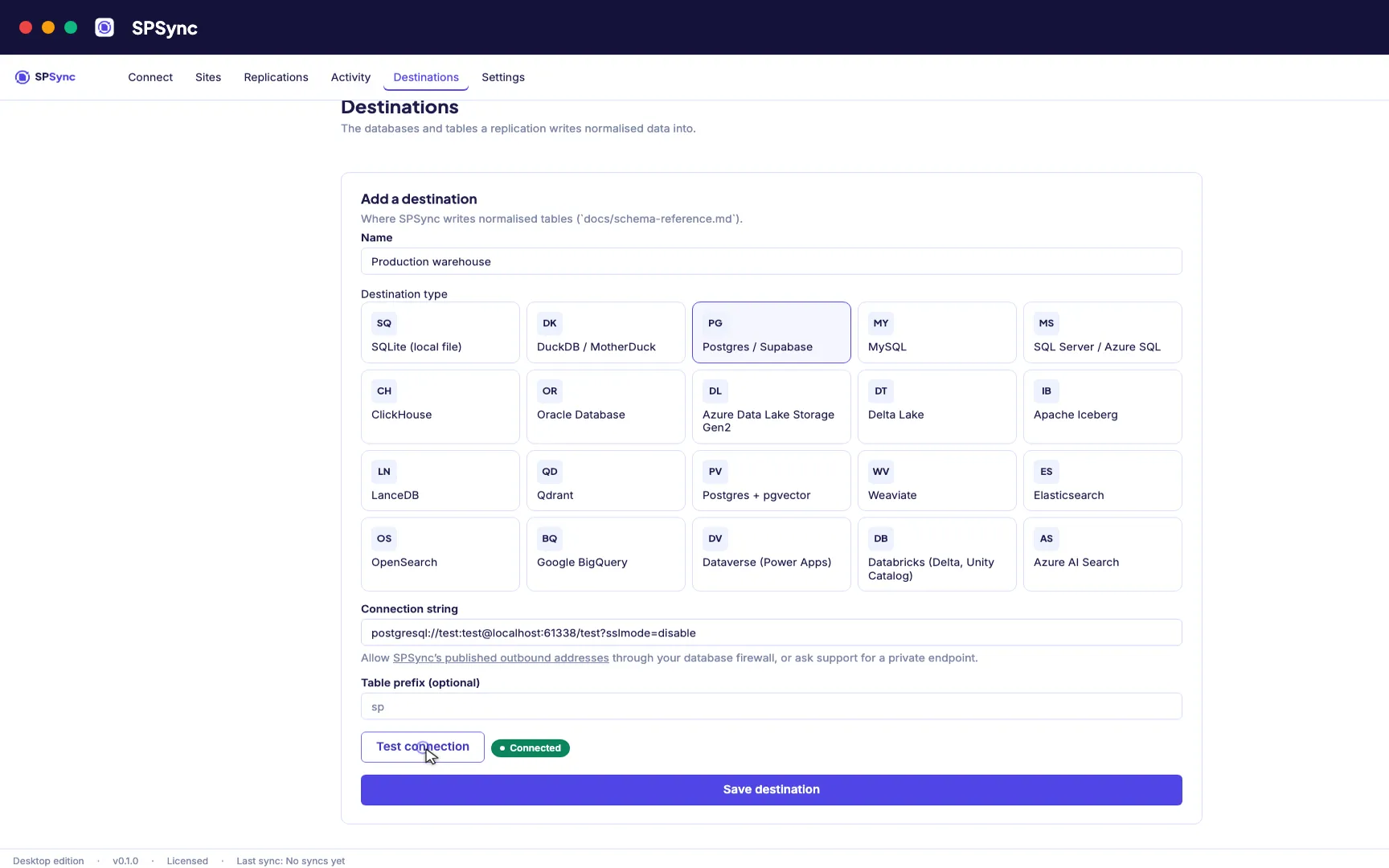
Pick the site, the inspections list and any lists the app’s filters look up to. Choose SQL Server or Azure SQL and let SPSync create the schema. Set a schedule short enough that a just-saved inspection appears in the gallery before the engineer goes looking for it; every few minutes is typical. Then switch the read-only screens to the replicated table and leave the edit forms on SharePoint.
A proof of concept can run from the desktop app on one machine. Once the app is in production, its data source should not depend on anyone’s laptop, which is what SPSync in your Azure is for.
Desktop, Azure or command line
All three editions run the same engine, write the same tables and use the same licence key, so the choice comes down to who looks after the sync.
Desktop app
For macOS and Windows. Sign in with Microsoft, tick the lists, choose a database and sync from your own machine on the schedule you set. Delegated sign-in needs no admin unless your tenant requires admin consent for apps.
In your Azure
SPSync in your Azure, a managed application for your own subscription, is deployed with you on a call while the Marketplace listing is prepared. Once deployed it is always on, so the sync keeps running with every laptop closed.
Command line
Every replication is a YAML file you can review and commit. Run it from a server, a container or a CI pipeline, and re-run it safely any time.
Set it up
Ready to run this against your own site? The setup guide takes you from install to a first replication, and the SharePoint connection guide covers signing in.
Script it
Everything you can click, you can script. The CLI, YAML config and automation below reproduce this scenario exactly. See the CLI reference.
spsync auth login --client-id 00000000-0000-0000-0000-000000000000
spsync export-config --output replication.yaml --pipeline-name power_apps_performance --prefix power_apps_performance --destination-kind mssql --connection-string-env SPSYNC_DB_CONNECTION --dataset-name power_apps_performance --client-id 00000000-0000-0000-0000-000000000000 --site-url https://contoso.sharepoint.com/sites/example --all-lists
spsync doctor replication.yaml
spsync run replication.yaml
pipeline_name: power_apps_performance
prefix: power_apps_performance
auth:
mode: delegated
client_id: 00000000-0000-0000-0000-000000000000
tenant_id: common
destination:
kind: mssql
connection_string_env: SPSYNC_DB_CONNECTION
dataset_name: power_apps_performance
scopes:
- site_url: https://contoso.sharepoint.com/sites/example
mode: entire_site
reconcile_interval_days: 7
create_reporting_views: false
Cron (SQL Server nightly):
# every night at 02:00
0 2 * * * cd /opt/spsync && SPSYNC_DB_CONNECTION="$(cat /etc/spsync/db.env)" uv run spsync run replication.yaml >> /var/log/spsync/run.log 2>&1
GitHub Actions:
# .github/workflows/spsync-run.yml
name: SPSync
on:
  schedule:
    - cron: "0 2 * * *"
  workflow_dispatch: {}
jobs:
  run:
    runs-on: ubuntu-latest
    steps:
      - uses: actions/checkout@v4
      - uses: astral-sh/setup-uv@v3
      - run: uv sync
      - run: uv run spsync run replication.yaml
        env:
          SPSYNC_DB_CONNECTION: ${{ secrets.SPSYNC_DB_CONNECTION }}
          SPSYNC_LICENCE_KEY: ${{ secrets.SPSYNC_LICENCE_KEY }}
Azure DevOps:
# azure-pipelines.yml
schedules:
  - cron: "0 2 * * *"
    branches: { include: [main] }
    always: true
steps:
  - script: uv sync
  - script: uv run spsync run replication.yaml
    env:
      SPSYNC_DB_CONNECTION: $(SPSYNC_DB_CONNECTION)
      SPSYNC_LICENCE_KEY: $(SPSYNC_LICENCE_KEY)
Windows (PowerShell + Task Scheduler):
# Windows Task Scheduler action (see /docs/cli/automation/)
$env:SPSYNC_DB_CONNECTION = (Get-Content C:\spsync\db.env)
uv run spsync run C:\spsync\replication.yaml
schtasks /Create /SC DAILY /ST 02:00 /TN "SPSync" /TR "powershell -File C:\spsync\run.ps1"
macOS (launchd):
# ~/Library/LaunchAgents/io.spsync.run.plist, then: launchctl load ~/Library/LaunchAgents/io.spsync.run.plistSecrets (licence key, connection strings) come from the environment, so never write them into the YAML. See scheduling and secrets.