SharePoint to Azure SQL
SharePoint Online lists in Azure SQL, kept current
SPSync copies SharePoint Online lists one way into Azure SQL Database or Azure SQL Managed Instance, and SharePoint stays the system of record. People carry on editing the list where they always have, while your Power Apps and Power BI reports read a SQL table that SPSync refreshes on your schedule. Microsoft Lists and the custom columns of document libraries come across the same way.
Last updated
Chapters are in the video's description.
Watch the walkthrough: the Northwind Analytics demo lists in SharePoint, connecting to Microsoft 365 in the desktop app, picking lists, the empty Azure SQL database in the Azure portal, the run, and the replicated tables.
Why teams ask
A Power App that stopped finding records
The app was built on a SharePoint list and worked well for a year. Now the list holds several thousand items, galleries take longer to load, and a filter that used to work returns only part of the list. That is Power Apps delegation: SharePoint supports only a limited set of delegated operations, and anything outside it falls back to the app's row limit without raising an error.
Azure SQL accepts a much wider range of delegated filters and sorts. Point the app's read-heavy screens at a replicated table and those filters behave again. The list stays the place people edit, because SPSync never writes back to it, and the app sees their changes on the next scheduled run, typically a few minutes later.
Power Apps reading SQL walks through that change in more detail.
Choosing a route
What's the best approach for moving data from a SharePoint Online list to Azure SQL?
People ask it in exactly those words on Microsoft Tech Community, and the honest answer depends on the list more than on the tool. Microsoft documents two routes of its own, Power Automate and Azure Data Factory, and each is the right call for some lists.
A Power Automate flow fits a short list and a job that reacts to one item, such as writing an approved request into a table the moment someone approves it. Each run is a handful of actions, and the SQL Server connector is a Premium connector in Power Automate. When the flow ends up copying the whole list every night, it is rebuilding a replica one action at a time.
Data Factory makes sense for a data team that already runs pipelines, where the list is one source among many and someone owns the integration runtime. Its type map decides what your lookup columns turn into, which the next section covers.
A replica is for the list a business runs on: lookups into other lists, items deleted every week, tens of thousands of rows, and an app or an agent reading it during the working day. SPSync reads only what changed since the last run, writes it to Azure SQL, and keeps a deleted item's row with the time it was deleted.
The Data Factory, Fabric, Power Automate or a replica decision guide takes the choice one question at a time, cost and ownership of the schedule included. For a closer look at one tool, read SPSync compared with Azure Data Factory or SPSync compared with Power Automate. SharePoint to SQL Server tools compared puts every tool that writes to SQL Server or Azure SQL in one table.
Azure Data Factory
Why does Data Factory copy a SharePoint lookup column as a number?
The connector maps it that way. The type map in
Copy
data from SharePoint Online List on Microsoft Learn, checked on 22 October 2026,
sends a Lookup column and a Person or Group column through as Edm.Int32.
The number is the id of the item in the other list, or of the person in the site's
user list, and no name travels with it. Attachment, Managed Metadata, Task Outcome
and External Data columns are listed as not supported. A note on the same page says
a SharePoint Online List source cannot select more than one choice data type, so a
multi-choice column will not come through as a set of values either.
For a report, a column of ids is where the work starts. To show the category name you copy the Categories list as well and join the two yourself, and each new lookup column means another dataset and another join in the pipeline. Person columns point at a user list that each site keeps for itself, so a pipeline across three sites resolves people three times.
SPSync does that join work as part of the copy. A lookup becomes a key column, and
when you replicate the list it points at as well, the join is one line of SQL. Every
person resolves to one shared sp_users table for the whole database, and
each multi-choice column gets a child table with one row per value. Two gaps are the
same on both sides: SPSync skips managed metadata columns today, and it copies no
attachments.
After the first run
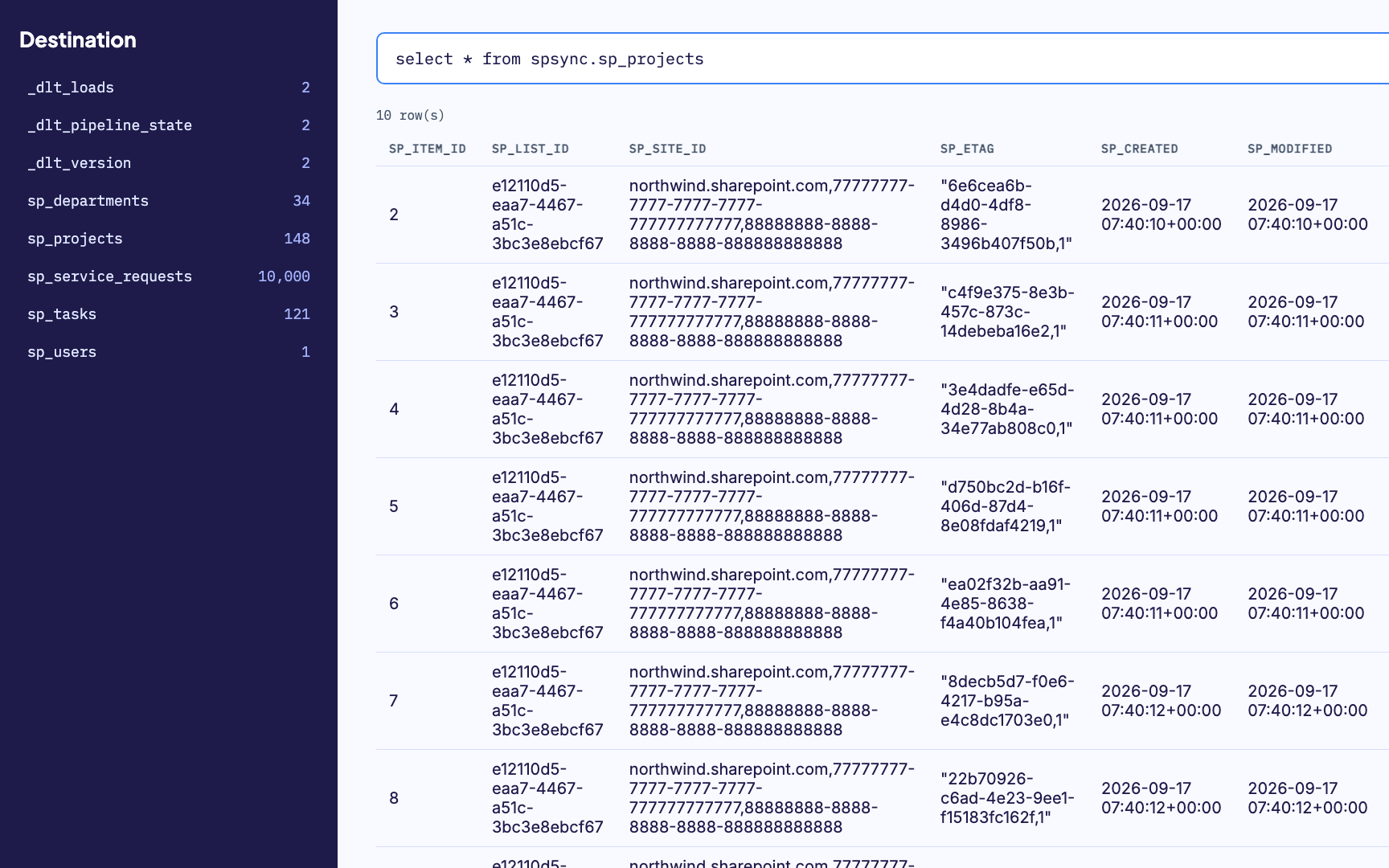
Sync a SharePoint list to Azure SQL and query it
Each list becomes a table named after the site's prefix and the list. A Tickets list
on a site prefixed ops arrives as ops_tickets, keyed on
sp_item_id, with its Category lookup as category_id and its
Tags multi-choice column in a child table called ops_tickets__tags. The
query below finds open tickets tagged network, with the category name beside each.
SELECT t.title, c.title AS category, t.priority
FROM ops_tickets AS t
JOIN ops_categories AS c ON c.sp_item_id = t.category_id
JOIN ops_tickets__tags AS g ON g.sp_item_id = t.sp_item_id
WHERE g.value = N'network'
  AND t.status <> N'Closed'
  AND t.sp_deleted_at IS NULL;
The last line matters. A ticket deleted in SharePoint keeps its row with
sp_deleted_at set, so last month's totals stay put and a query for
current work leaves it out. Someone adding a column to the list gets a new column in
the table on the next run, and a column whose type changes is written to a
_v2 column beside the old one. If Power BI should read a flattened shape
instead, turn on the generated reporting views. The
schema reference lists the Azure SQL type for
every SharePoint column type.
Copilot Studio
Azure SQL as a Copilot Studio real-time knowledge connector (preview)
A Copilot Studio agent given the SharePoint list itself as knowledge answers from part of it. The Copilot Studio quotas and limits page says SharePoint list queries only return data from the first 2,048 rows, so an agent over a Tickets list past that size gives counts that do not match the list view, and nothing in the reply says so.
Azure SQL is in the list of Power Platform connectors Copilot Studio can add as real-time knowledge, a preview feature on Microsoft Learn as of 22 October 2026. Add the replicated tables there and the list's row ceiling stops applying, because the agent reads the database and never touches the list.
Know what the connector does before you rely on it. Learn says Microsoft indexes only metadata, such as table names and column names, and runs each request against the database at runtime. So the agent picks the table and columns for a question from their names, which is semantic grounding over table metadata, and then queries them. Narrow tables and views with plain, descriptive names give it the best chance; a database holding every list from a site gives it the most room to pick the wrong one.
Each runtime call uses the signed-in user's own credentials, so the database's permissions decide what each person can ask about. SharePoint item permissions are not copied into the replica, which makes those grants yours to set before the agent goes live. SPSync ships no agent; its job is keeping the tables current. Grounding Copilot Studio on clean tables covers the list knowledge limits in full and the route for agents built outside Copilot Studio.
Azure SQL questions
Database or Managed Instance, logins and scaling
Both Azure SQL Database and Managed Instance run the SQL Server engine, so the connection settings, the tables SPSync creates and the way it syncs are the same for either. SPSync signs in with SQL authentication over an encrypted connection string. Microsoft Entra authentication is not wired up yet. Firewall rules or a private endpoint control network access as they would for any other client.
Scale the database tier up or down whenever you like. SPSync connects like any other client, so the next run reconnects at the new tier. Several SharePoint sites can share one database, because each site's tables carry their own prefix.
Claims data from SharePoint in Azure SQL or Managed Instance walks through an insurer's lists going into each, with the firewall and virtual network steps that Managed Instance adds.
-
01
Connect to SharePoint
Sign in with Microsoft, with delegated access, or with app permissions scoped to specific sites through Sites.Selected. Find any site by name or URL, including subsites, without asking IT to list them first.
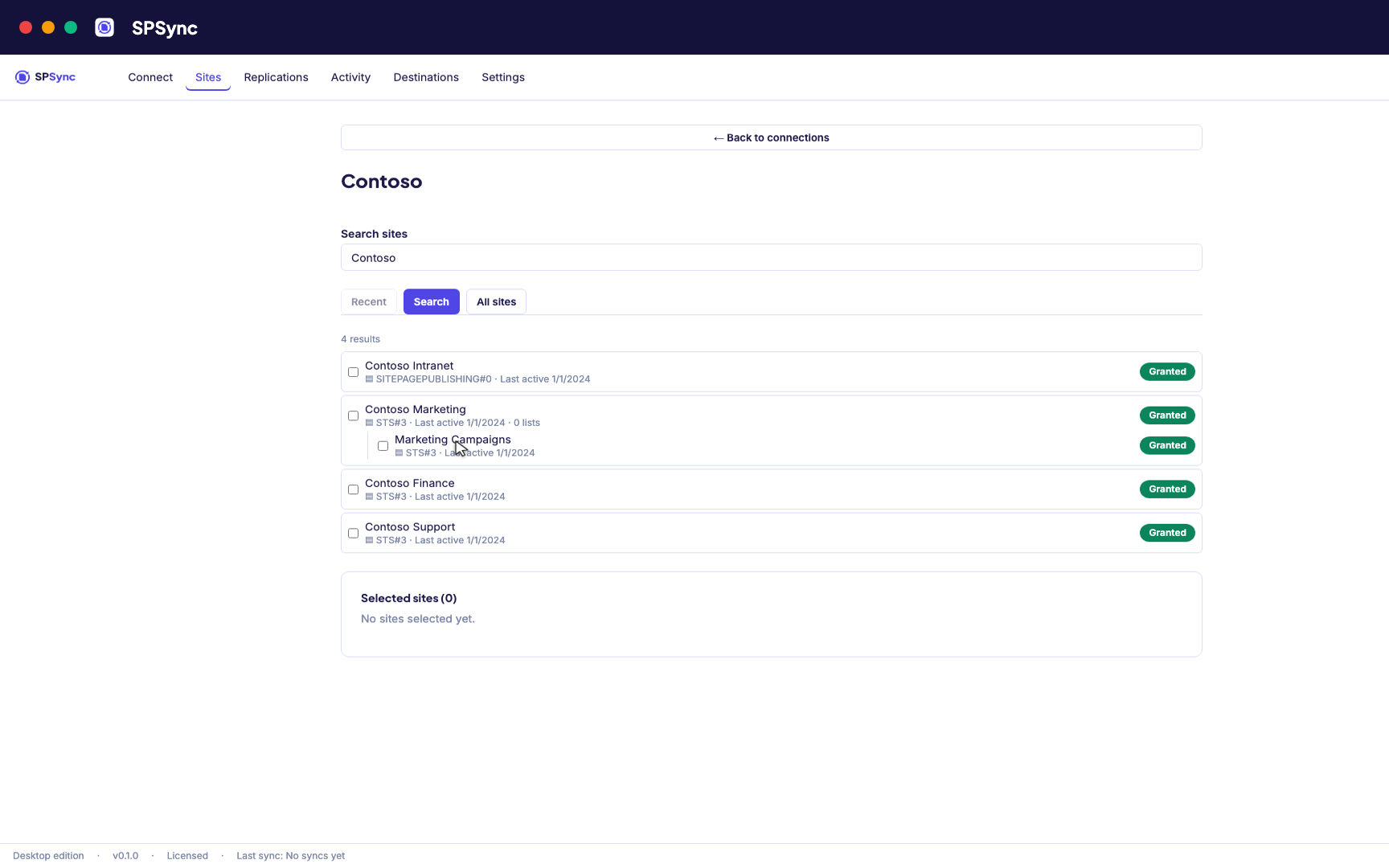
Sign in with Microsoft, then find a site by name or URL, including subsites. -
02
See what you are replicating
SPSync shows every list and library on a site, with its columns and item counts, as soon as you pick a site. You can check what you are about to replicate before you tick anything.
-
03
Choose lists and libraries
Tick individual lists, pick by a name pattern, or sync the whole site so new lists are picked up automatically. The same options work at any level of the site hierarchy.
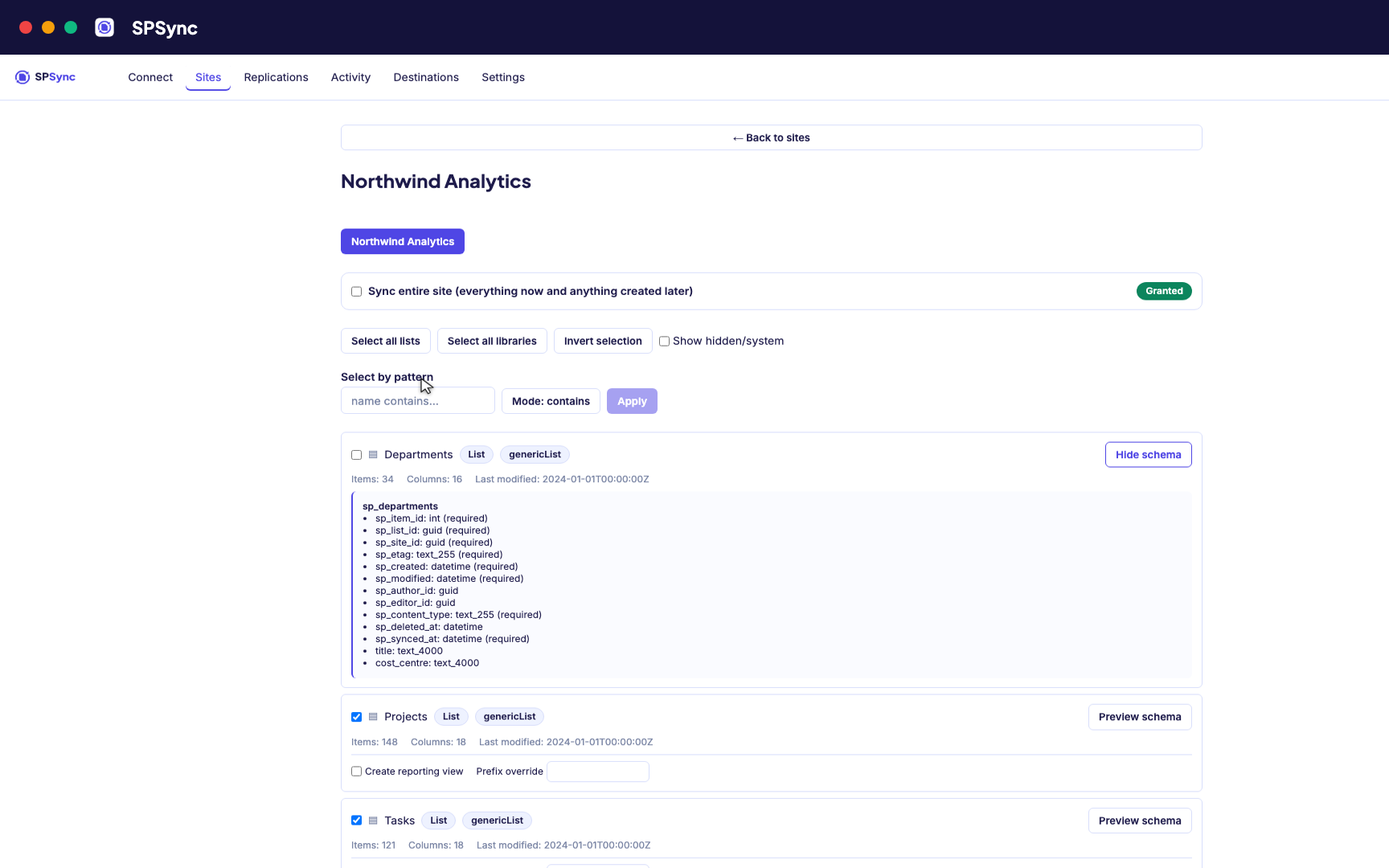
Tick lists individually, pick by name pattern, or sync the whole site, with a schema preview. -
04
Connect Azure SQL
Point SPSync at Azure SQL and test the connection before you commit. SPSync generates and maintains the tables, so there are none to create by hand.
Destination setup guides · If the test fails: troubleshooting
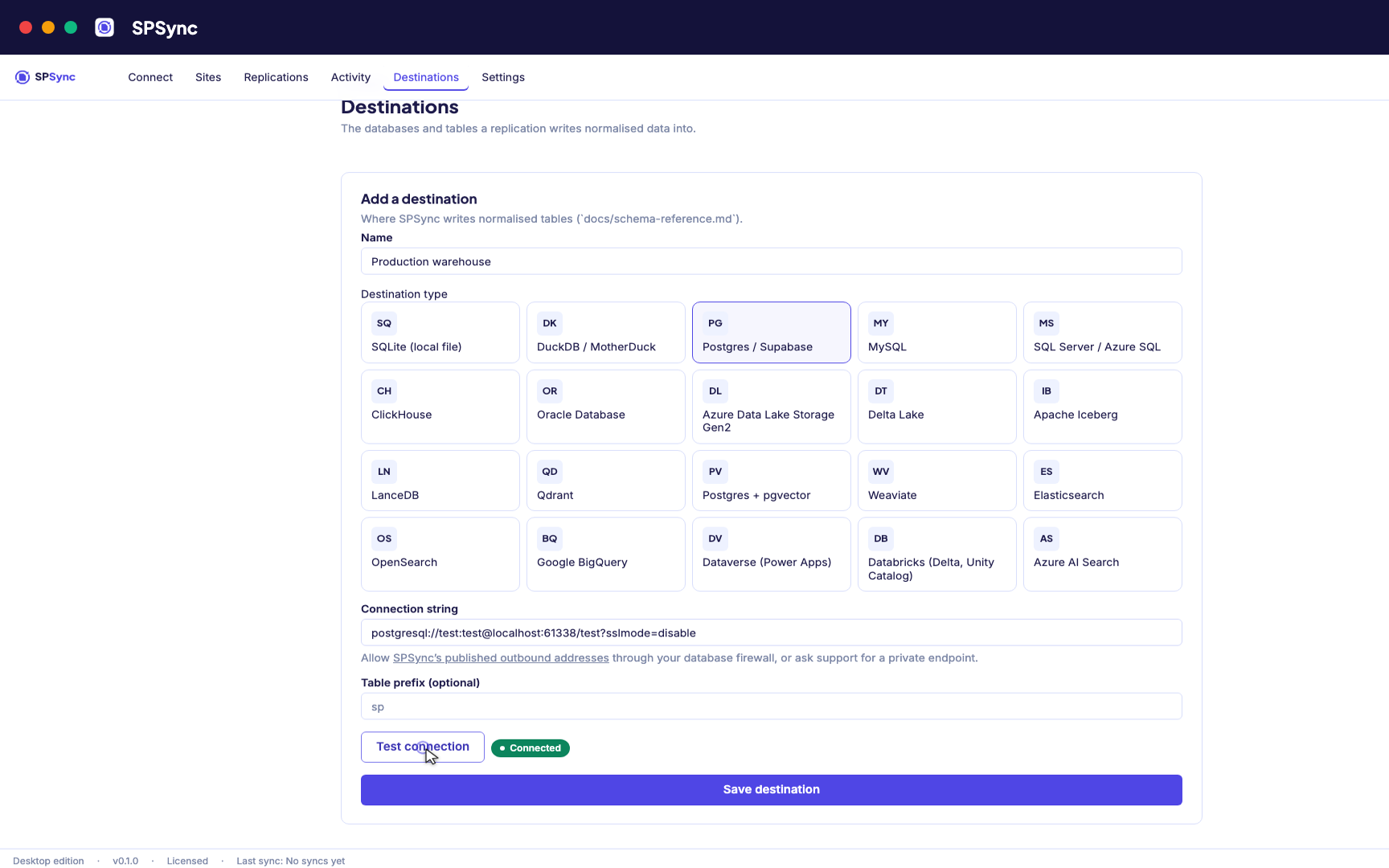
Point at your database. Test the connection, then SPSync creates and maintains the schema. -
05
Run and keep it in sync
A full load first, then deltas on your schedule with a reconcile behind it, weekly by default. Throttling and list view thresholds are handled for you, lookups arrive as keys, and deletes are kept.
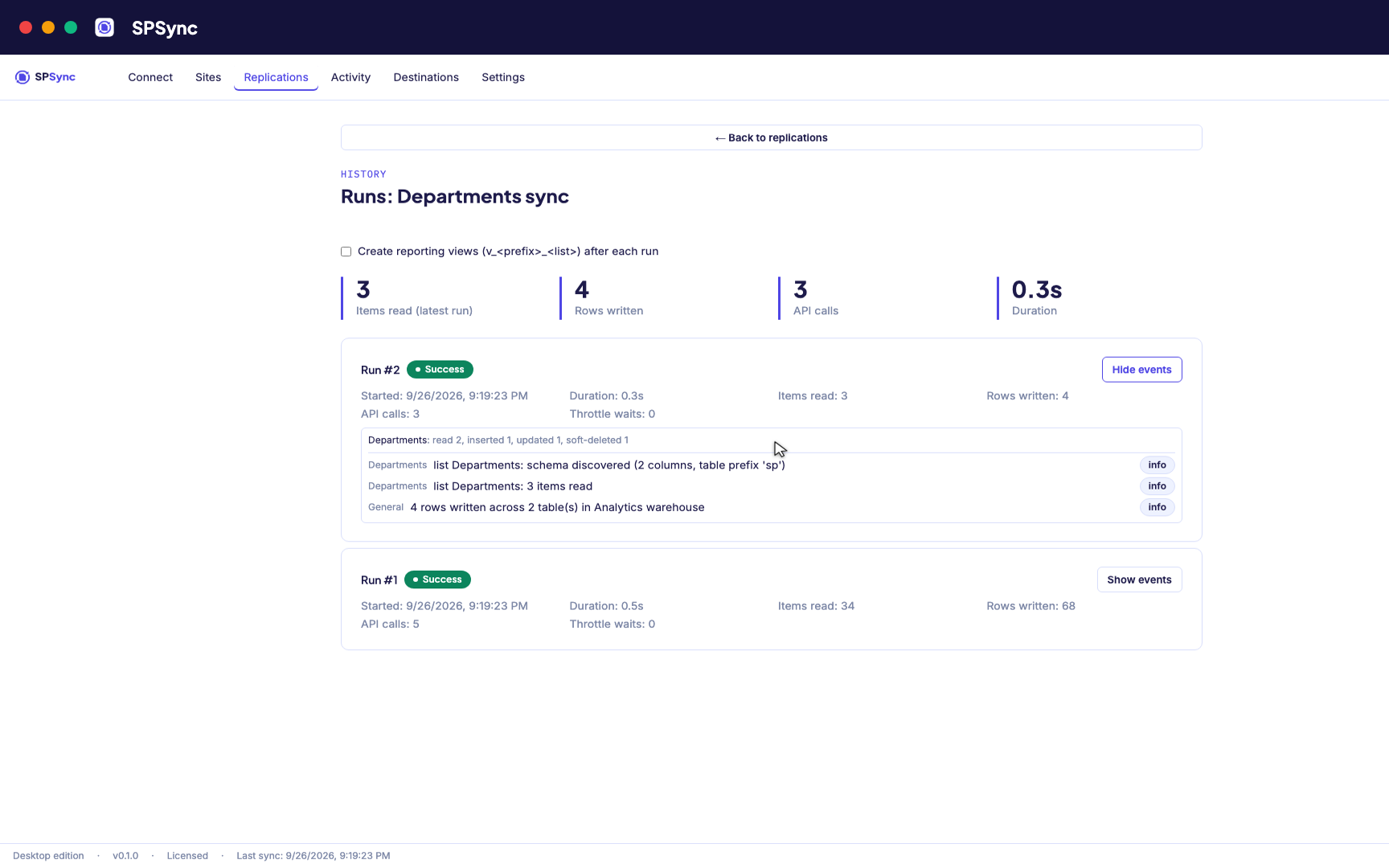
Every run's per-list counts: rows read, inserted, updated and soft-deleted. -
06
Bring sites together and report on it
Replicate many sites into one database, with generated reporting views ready for Power BI DirectQuery on SQL and warehouse destinations. The same tables give any other application a stable SQL interface.
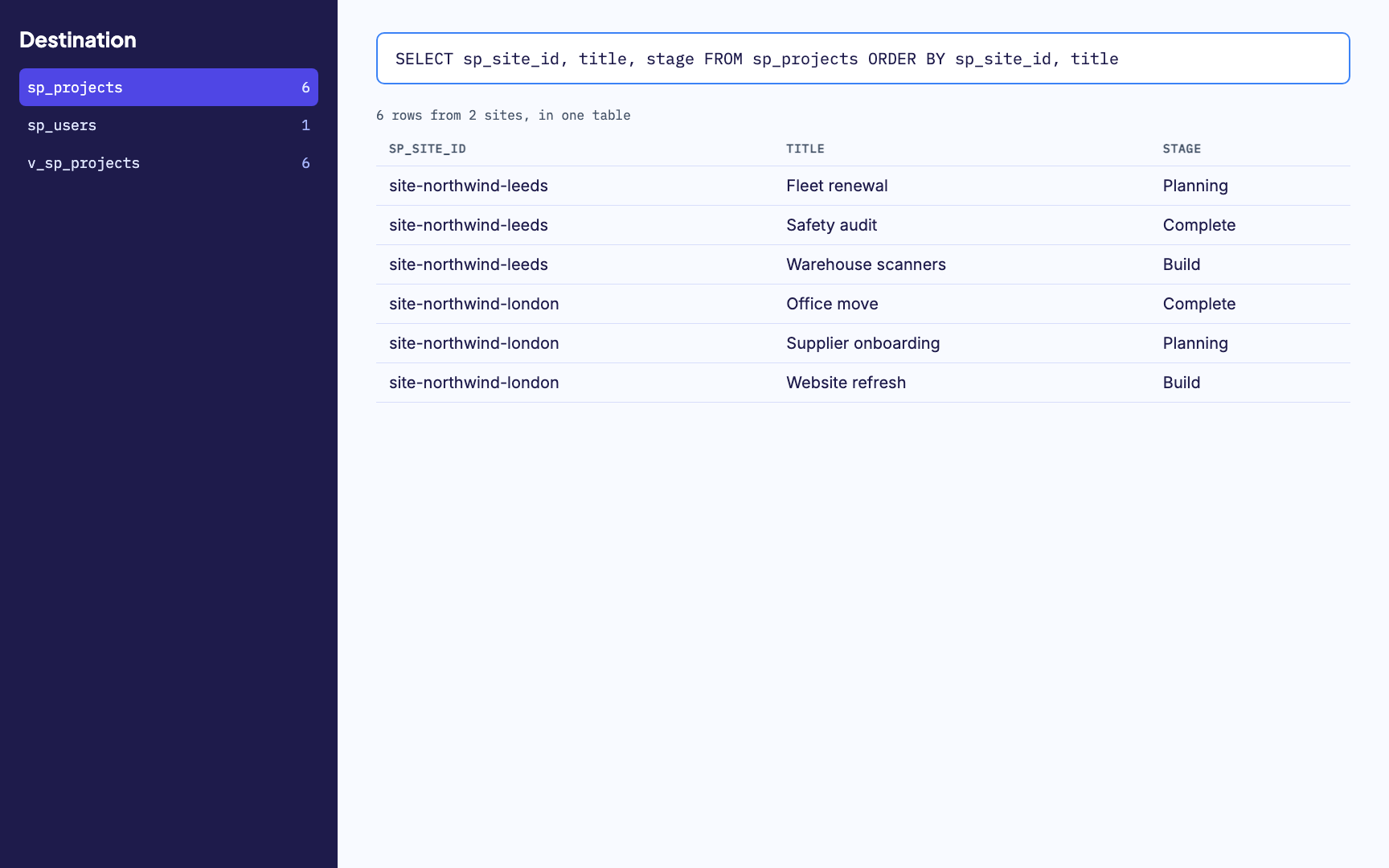
Many sites merged into one table, with a generated reporting view alongside. -
07
Watch it run
Activity and run history sit in one place, with every error named by column. From any run you can send us its diagnostics when you want help with it.
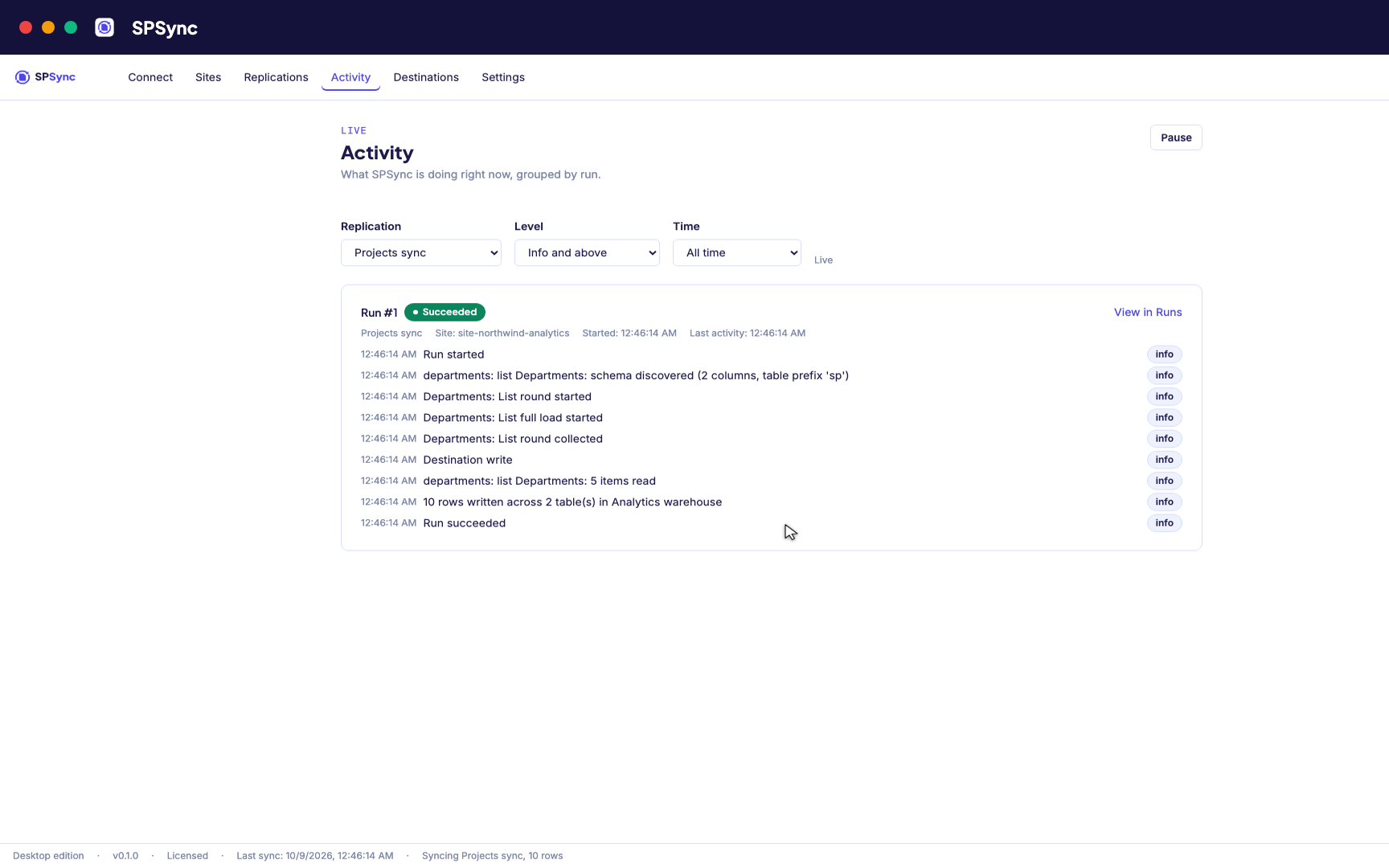
Activity: every run's own steps, live, grouped by run.
Governance
Permissions your tenant admin will approve
SPSync only ever reads from SharePoint, and the replicated rows go to your Azure SQL database and nowhere else.
It runs where you put it
The desktop app runs on your machine and the command line on your own server. SPSync in your Azure, a managed application for your own subscription, is deployed with you on a call while the Marketplace listing is prepared. Nothing SPSync controls sits between SharePoint and your database.
Read permissions only
SPSync asks Microsoft Graph for read access only. No code path creates, updates or deletes a SharePoint item.
Approved site by site
Unattended runs use app permissions granted per site with Sites.Selected, so an admin chooses each site SPSync can read.
A pack for your admin
The first-run wizard explains each permission in plain language and produces a one-page summary your admin can review before approving anything.
A record of every run
Run history shows the rows read and written, and an error names the list and the column it came from.
Your data stays with you
Nothing from SharePoint or your databases is sent to SPSync. Licence activation and any diagnostics you opt into are the only calls it makes.
An agent reads the database copy
An AI agent or Copilot Studio grounded on the copy connects with a database login and holds no Graph permission. SharePoint item permissions are not copied, so the database role and row-level security decide what it sees.
The security page covers the permission model, the data flow and the throttling policy in full.
Frequently asked questions
Does SPSync sync Azure SQL changes back to the SharePoint list?
No. The sync runs one way, from SharePoint to Azure SQL, and SharePoint stays the system of record where people keep editing. Treat the Azure SQL tables as a read-only copy. Write-back with an approval step is designed and has not shipped.
Can a Copilot Studio agent use the Azure SQL copy as knowledge?
Yes, through the Azure SQL real-time knowledge connector, a preview feature as of 22 October 2026. Microsoft indexes only table and column names and queries the database at runtime with the signed-in user's credentials, so the agent is no longer held to the first 2,048 rows that SharePoint list knowledge returns.
Can I copy a SharePoint list to Azure SQL with Power Automate instead?
Yes, and for a short list or one approval at a time a flow is a sensible choice. The SQL Server connector is Premium in Power Automate, and a flow that copies the whole list on a schedule grows with every item. The decision guide sets a flow, Data Factory and a replica side by side.
Does SPSync support both Azure SQL Database and Managed Instance?
Yes. Both are the same SQL Server engine over the wire, so the same connection settings, schema and sync behaviour apply, whichever one you point SPSync at.
How does SPSync authenticate to Azure SQL?
With SQL authentication, a username and password on an encrypted connection string. Microsoft Entra authentication is not wired up yet. Firewall rules or a private endpoint control network access the same way they do for any other client.
Does SPSync create foreign key constraints?
No. Each table gets a primary key, and every lookup or person column gets a key column to join on, such as client_id or owner_user_id. No constraint ties those columns together, so rows can arrive in any order without failing a run. Once the schema has settled you can add constraints yourself.
What does elastic scaling mean for a running sync?
Little. SPSync connects like any other client, so if you scale the tier up or down between runs, the next sync reconnects at the new tier.
Can SPSync replicate data from several sites into one Azure SQL database?
Yes. Each site's tables get their own prefix, so several sites share one database without name clashes.
Common use cases
Further reading
Set up Azure SQL Database and Managed Instance
Sign in to SharePoint with the SharePoint connection guide, then follow the Azure SQL setup guide to create the database user and open the connection for Azure SQL Database and Managed Instance. If the connection test fails, the troubleshooting guide lists the errors people hit and what fixes them.
Script it
Everything you can click, you can script. The CLI, YAML config and automation below reproduce this scenario exactly. See the CLI reference.
spsync auth login --client-id 00000000-0000-0000-0000-000000000000
spsync export-config --output replication.yaml --pipeline-name azure_sql --prefix azure_sql --destination-kind mssql --connection-string-env SPSYNC_DB_CONNECTION --dataset-name azure_sql --client-id 00000000-0000-0000-0000-000000000000 --site-url https://contoso.sharepoint.com/sites/example --all-lists
spsync doctor replication.yaml
spsync run replication.yaml
pipeline_name: azure_sql
prefix: azure_sql
auth:
mode: delegated
client_id: 00000000-0000-0000-0000-000000000000
tenant_id: common
destination:
kind: mssql
connection_string_env: SPSYNC_DB_CONNECTION
dataset_name: azure_sql
scopes:
- site_url: https://contoso.sharepoint.com/sites/example
mode: entire_site
reconcile_interval_days: 7
create_reporting_views: false
Cron (SQL Server nightly):
# every night at 02:00
0 2 * * * cd /opt/spsync && SPSYNC_DB_CONNECTION="$(cat /etc/spsync/db.env)" uv run spsync run replication.yaml >> /var/log/spsync/run.log 2>&1
GitHub Actions:
# .github/workflows/spsync-run.yml
name: SPSync
on:
  schedule:
    - cron: "0 2 * * *"
  workflow_dispatch: {}
jobs:
  run:
    runs-on: ubuntu-latest
    steps:
      - uses: actions/checkout@v4
      - uses: astral-sh/setup-uv@v3
      - run: uv sync
      - run: uv run spsync run replication.yaml
        env:
          SPSYNC_DB_CONNECTION: ${{ secrets.SPSYNC_DB_CONNECTION }}
          SPSYNC_LICENCE_KEY: ${{ secrets.SPSYNC_LICENCE_KEY }}
Azure DevOps:
# azure-pipelines.yml
schedules:
  - cron: "0 2 * * *"
    branches: { include: [main] }
    always: true
steps:
  - script: uv sync
  - script: uv run spsync run replication.yaml
    env:
      SPSYNC_DB_CONNECTION: $(SPSYNC_DB_CONNECTION)
      SPSYNC_LICENCE_KEY: $(SPSYNC_LICENCE_KEY)
Windows (PowerShell + Task Scheduler):
# Windows Task Scheduler action (see /docs/cli/automation/)
$env:SPSYNC_DB_CONNECTION = (Get-Content C:\spsync\db.env)
uv run spsync run C:\spsync\replication.yaml
schtasks /Create /SC DAILY /ST 02:00 /TN "SPSync" /TR "powershell -File C:\spsync\run.ps1"
macOS (launchd):
# ~/Library/LaunchAgents/io.spsync.run.plist, then: launchctl load ~/Library/LaunchAgents/io.spsync.run.plistSecrets (licence key, connection strings) come from the environment, so never write them into the YAML. See scheduling and secrets.
Getting a licence
Talk to us about Azure SQL
On a short call we can point SPSync at one of your lists and an Azure SQL database and let you watch the first run. Today it runs as the desktop app or from the command line. SPSync in your Azure, a managed application for your own subscription, is deployed with you on a call while the Marketplace listing is prepared. SPSync in your Azure subscription describes that edition. Licences are sized per installation and per target family; how licensing works explains both.
Book a call to talk through your use case, see further walkthroughs or demos, and set up a trial in your own environment.