SharePoint to Oracle Database
SharePoint lists beside your Oracle data
Your existing Oracle reports and integrations read SharePoint lists like any other table in the estate, with no new connector to approve. SPSync replicates the lists, and the custom columns of your document libraries, into Oracle Database tables on a schedule.
Last updated
One way: SharePoint stays the system of record, and SPSync keeps a read-only copy of your lists current in Oracle Database.
Chapters are in the video's description.
Watch the walkthrough: the Northwind Analytics demo lists in SharePoint, connecting to Microsoft 365 in the desktop app, picking lists, the run into an empty Oracle database, and the replicated tables and rows in CloudBeaver.
An integration request
Project approvals in SharePoint, project costs in Oracle
A programme office approves projects in a SharePoint list: sponsor, budget line, status, approval date. The costs posted against those projects live in the ERP on Oracle. Finance wants one report showing approved budget against actual spend, and the integration team is asked to make the two meet.
Building a bespoke interface between SharePoint and the ERP means another job to schedule, monitor and explain at every audit. Replicating the list into an Oracle schema keeps it simpler: the approvals become a table, the report joins it to the cost data in SQL, and the person who owns the Oracle reporting stack already knows how to look after it.
Oracle specifics
Names, types and keys in an Oracle schema
Identifier length
Generated table and column names are kept to 63 bytes, inside the 128-byte limit of Oracle 12.2 and later. Older releases cap identifiers at 30 bytes and SPSync cannot tell which limit a database runs under, so on those keep the SharePoint list and column names short enough that the generated names still fit.
Native types
Text is written as VARCHAR2 up to Oracle's size limit and as
CLOB beyond it. Numbers become NUMBER with a suitable
precision, and dates use Oracle's own DATE or TIMESTAMP.
The schema reference has the full mapping.
Keys and history
Each table has a primary key on the SharePoint item id. Lookup columns arrive as key
columns you join on, multi-choice columns as child tables, and people as one users
table. Deleted items are kept with a flag unless you switch a replication to hard
delete with the command-line tool. New list columns are added on the next run and a
retyped column is written to a _v2 copy, so a report built last year
still runs.
Large lists are read in pages past SharePoint's 5,000-item view threshold, and any Oracle instance SPSync can reach over the network will do: on-premises, on a virtual machine, or a managed cloud service.
For the audit file
What SPSync can see, and where the data goes
Integration reviews tend to ask the same questions. Here are the short answers, with the detail on the security page.
It runs where you put it
The desktop app runs on your machine and the command line on your own server. SPSync in your Azure, a managed application for your own subscription, is deployed with you on a call while the Marketplace listing is prepared. Nothing SPSync controls sits between SharePoint and your database.
Read permissions only
SPSync asks Microsoft Graph for read access only. No code path creates, updates or deletes a SharePoint item.
Approved site by site
Unattended runs use app permissions granted per site with Sites.Selected, so an admin chooses each site SPSync can read.
A pack for your admin
The first-run wizard explains each permission in plain language and produces a one-page summary your admin can review before approving anything.
A record of every run
Run history shows the rows read and written, and an error names the list and the column it came from.
Your data stays with you
Nothing from SharePoint or your databases is sent to SPSync. Licence activation and any diagnostics you opt into are the only calls it makes.
An agent reads the database copy
An AI agent or Copilot Studio grounded on the copy connects with a database login and holds no Graph permission. SharePoint item permissions are not copied, so the database role and row-level security decide what it sees.
The security page covers the permission model, the data flow and the throttling policy in full.
Setup
From a SharePoint site to an Oracle schema
The same seven steps apply whatever the destination. See them with screenshots.
-
01
Connect to SharePoint
Sign in with Microsoft, with delegated access, or with app permissions scoped to specific sites through Sites.Selected. Find any site by name or URL, including subsites, without asking IT to list them first.
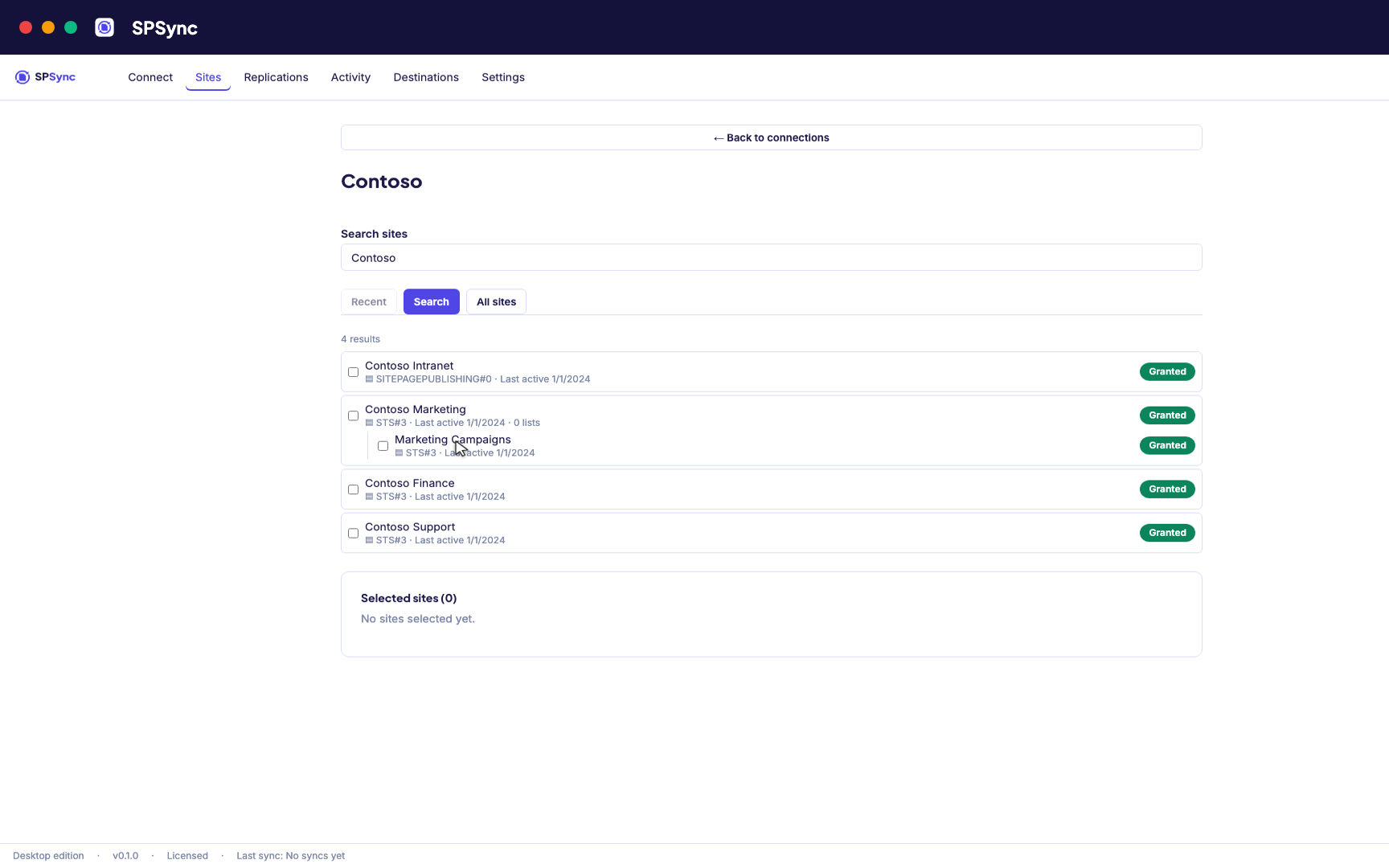
Sign in with Microsoft, then find a site by name or URL, including subsites. -
02
See what you are replicating
SPSync shows every list and library on a site, with its columns and item counts, as soon as you pick a site. You can check what you are about to replicate before you tick anything.
-
03
Choose lists and libraries
Tick individual lists, pick by a name pattern, or sync the whole site so new lists are picked up automatically. The same options work at any level of the site hierarchy.
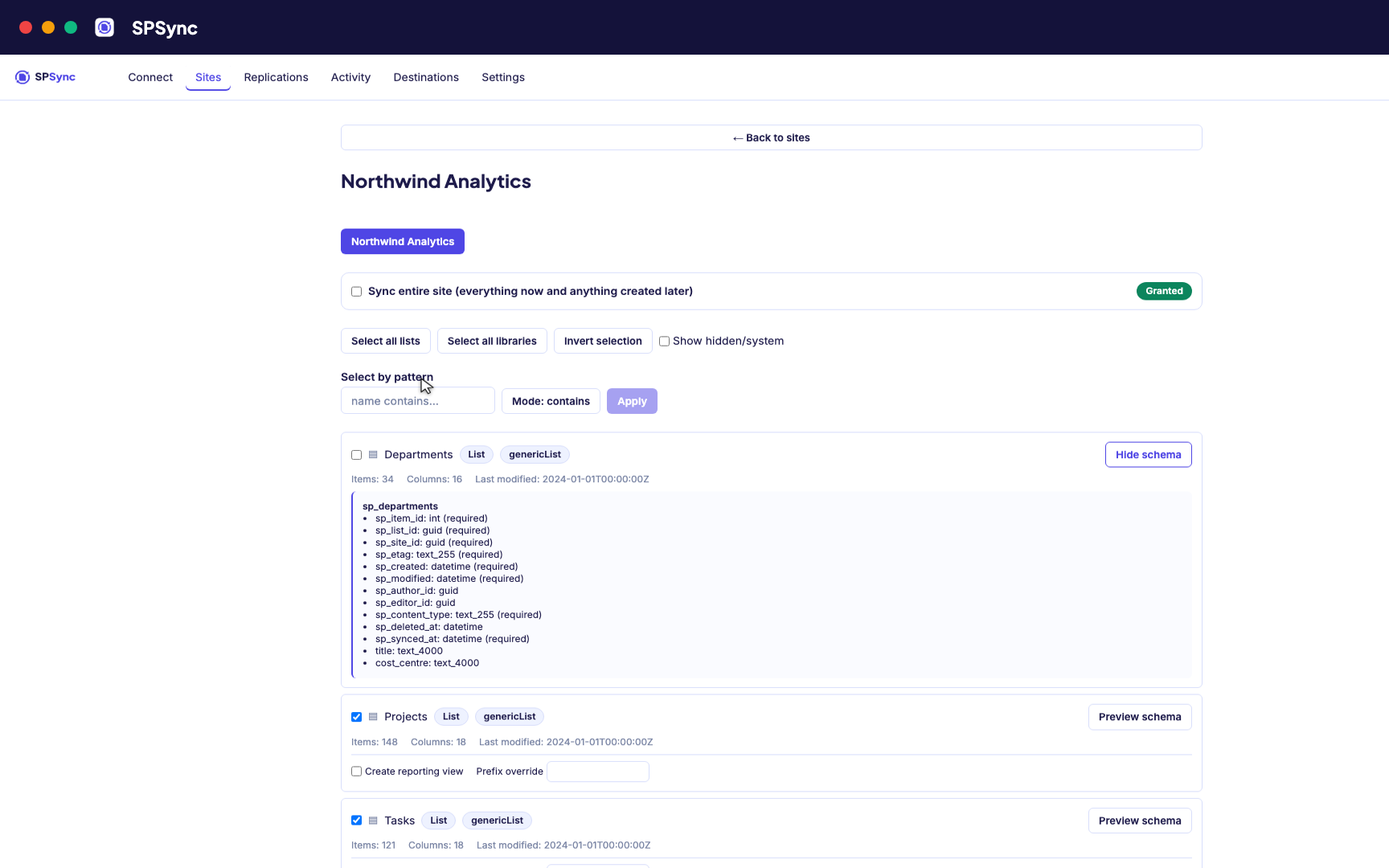
Tick lists individually, pick by name pattern, or sync the whole site, with a schema preview. -
04
Connect Oracle Database
Point SPSync at Oracle Database and test the connection before you commit. SPSync generates and maintains the tables, so there are none to create by hand.
Destination setup guides · If the test fails: troubleshooting
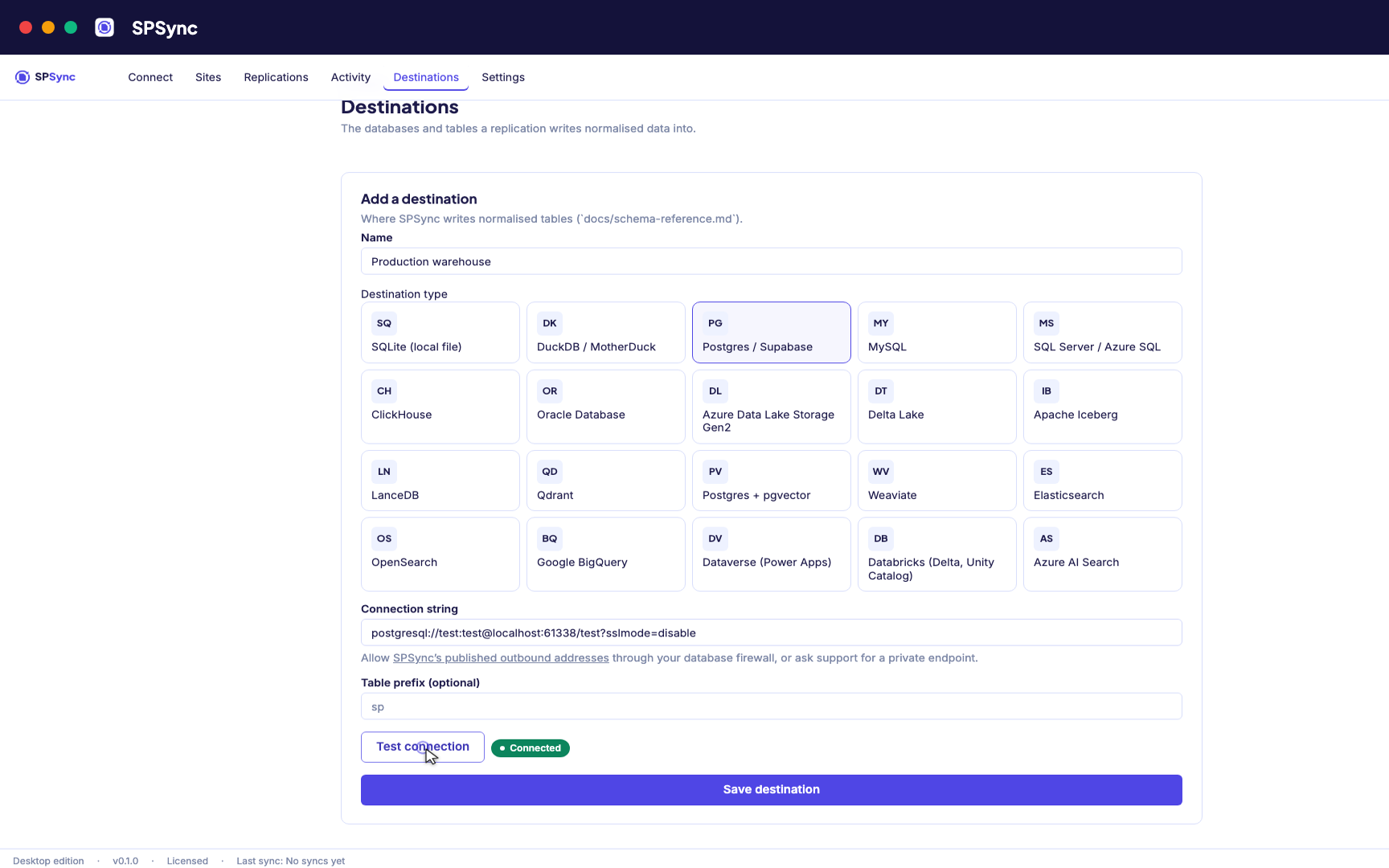
Point at your database. Test the connection, then SPSync creates and maintains the schema. -
05
Run and keep it in sync
A full load first, then deltas on your schedule with a reconcile behind it, weekly by default. Throttling and list view thresholds are handled for you, lookups arrive as keys, and deletes are kept.
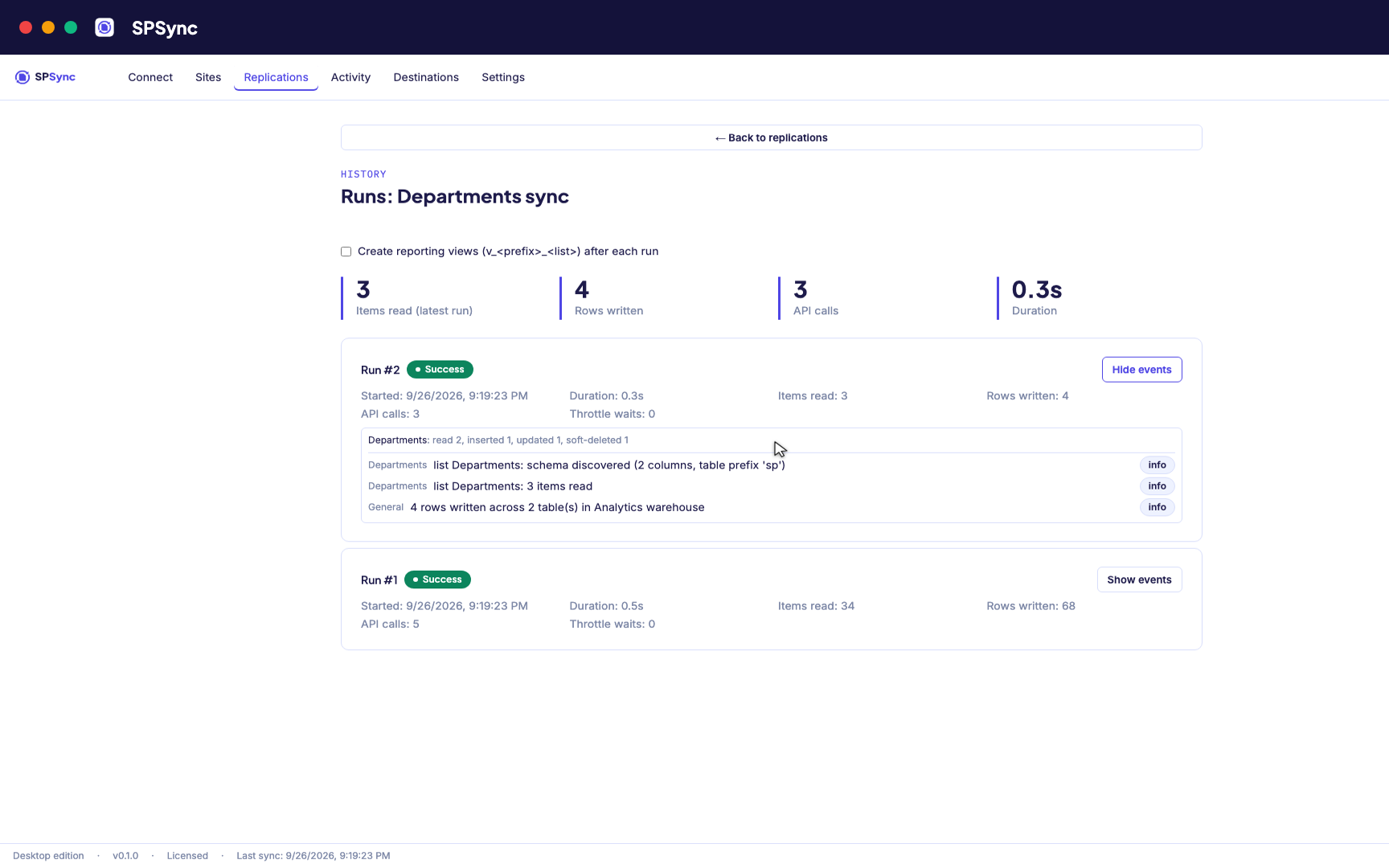
Every run's per-list counts: rows read, inserted, updated and soft-deleted. -
06
Bring sites together and report on it
Replicate many sites into one database, with generated reporting views ready for Power BI DirectQuery on SQL and warehouse destinations. The same tables give any other application a stable SQL interface.
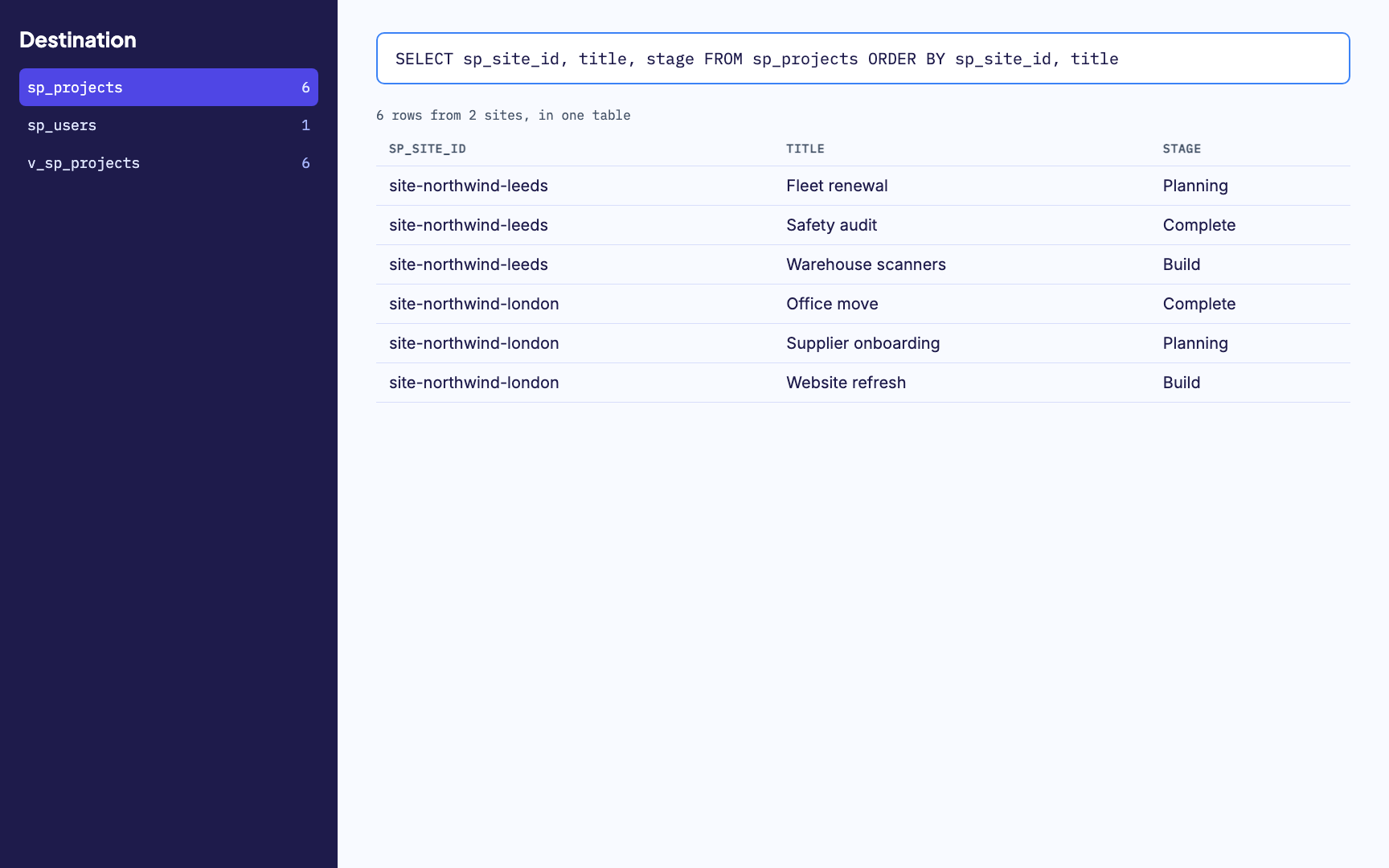
Many sites merged into one table, with a generated reporting view alongside. -
07
Watch it run
Activity and run history sit in one place, with every error named by column. From any run you can send us its diagnostics when you want help with it.
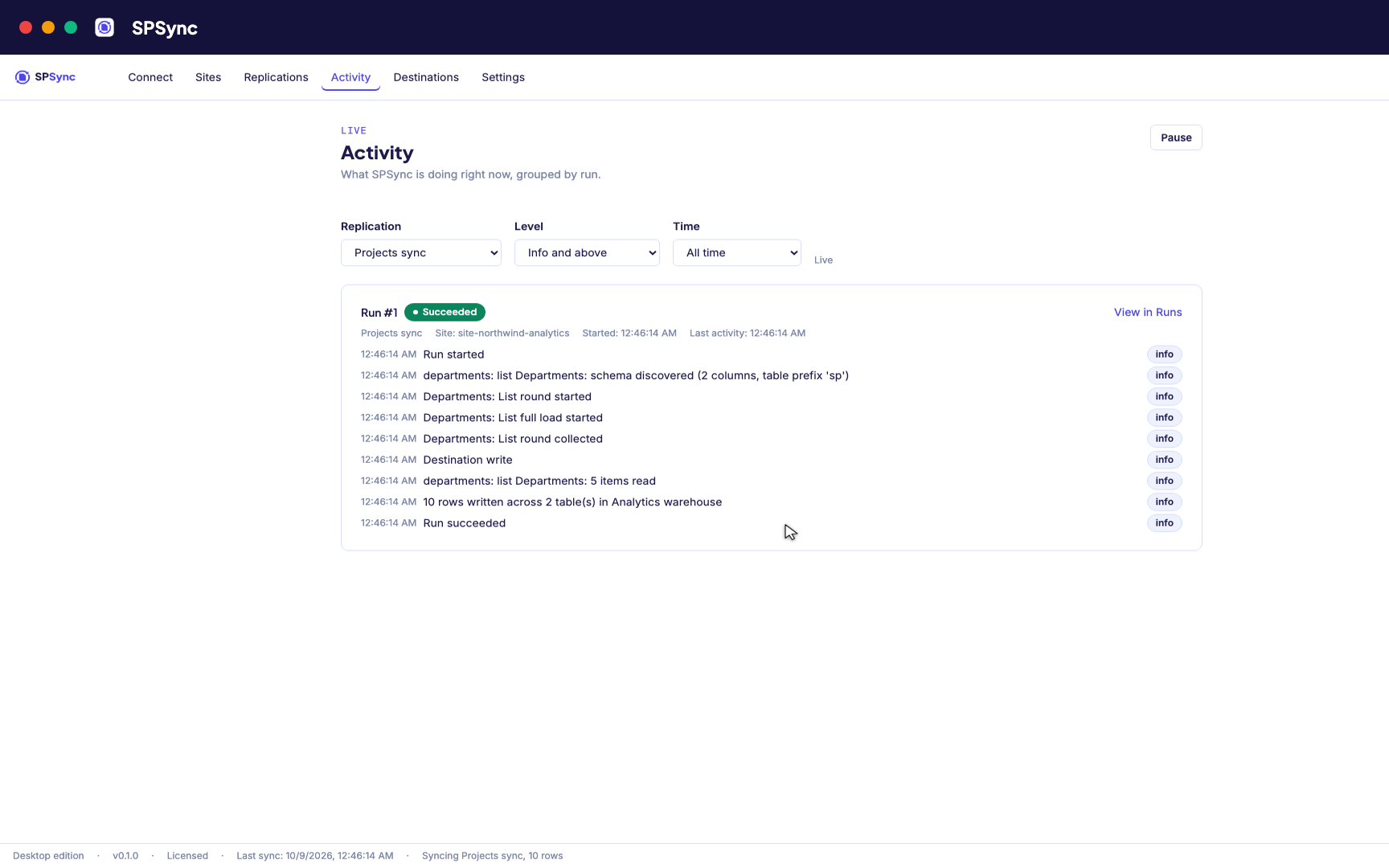
Activity: every run's own steps, live, grouped by run.
Common use cases
Further reading
Demo and licensing
Talk to us about Oracle Database
Oracle is set up with you on a call, against your own schema, and there is no trial download for it. SPSync runs from the desktop app or the command line on a server you choose. SPSync in your Azure, a managed application for your own subscription, is deployed with you on a call while the Marketplace listing is prepared. Licensing is per installation and per target family: see how licensing works.
Frequently asked questions
Does SPSync support Oracle's identifier length limits?
Generated table and column names stay within 63 bytes, well inside Oracle 12.2+'s 128-byte identifier limit. On pre-12.2 Oracle, which caps identifiers at 30 bytes, keep source SharePoint names short enough that the generated name still fits; SPSync cannot detect which limit a given database is running under.
What Oracle types does SPSync use?
Text becomes VARCHAR2 up to Oracle's size limit, longer text becomes CLOB, numbers map to NUMBER with an appropriate precision, and dates become Oracle's native DATE or TIMESTAMP types.
Does SPSync create foreign key constraints?
No. Each table gets a primary key, and every lookup or person column gets a key column to join on, such as client_id or owner_user_id. No constraint ties those columns together, so rows can arrive in any order without failing a run. Once the schema has settled you can add constraints yourself.
Can SPSync connect to an on-premises Oracle Database?
Yes. Any Oracle instance SPSync can reach over the network works, whether it runs on-premises, on a VM or as a managed cloud service.
Is there a free trial for the Oracle destination?
Oracle is sold after a call. Get in touch and we will walk through it against your own schema.
Set up Oracle Database
Sign in to SharePoint with the SharePoint connection guide, then follow the Oracle Database setup guide to create the database user and open the connection for Oracle Database. If the connection test fails, the troubleshooting guide lists the errors people hit and what fixes them.
Script it
Everything you can click, you can script. The CLI, YAML config and automation below reproduce this scenario exactly. See the CLI reference.
spsync auth login --client-id 00000000-0000-0000-0000-000000000000
spsync export-config --output replication.yaml --pipeline-name oracle --prefix oracle --destination-kind oracle --connection-string-env SPSYNC_DB_CONNECTION --dataset-name oracle --client-id 00000000-0000-0000-0000-000000000000 --site-url https://contoso.sharepoint.com/sites/example --all-lists
spsync doctor replication.yaml
spsync run replication.yaml
pipeline_name: oracle
prefix: oracle
auth:
mode: delegated
client_id: 00000000-0000-0000-0000-000000000000
tenant_id: common
destination:
kind: oracle
connection_string_env: SPSYNC_DB_CONNECTION
dataset_name: oracle
scopes:
- site_url: https://contoso.sharepoint.com/sites/example
mode: entire_site
reconcile_interval_days: 7
create_reporting_views: false
Cron (Oracle Database nightly):
# every night at 02:00
0 2 * * * cd /opt/spsync && SPSYNC_DB_CONNECTION="$(cat /etc/spsync/db.env)" uv run spsync run replication.yaml >> /var/log/spsync/run.log 2>&1
GitHub Actions:
# .github/workflows/spsync-run.yml
name: SPSync
on:
  schedule:
    - cron: "0 2 * * *"
  workflow_dispatch: {}
jobs:
  run:
    runs-on: ubuntu-latest
    steps:
      - uses: actions/checkout@v4
      - uses: astral-sh/setup-uv@v3
      - run: uv sync
      - run: uv run spsync run replication.yaml
        env:
          SPSYNC_DB_CONNECTION: ${{ secrets.SPSYNC_DB_CONNECTION }}
          SPSYNC_LICENCE_KEY: ${{ secrets.SPSYNC_LICENCE_KEY }}
Azure DevOps:
# azure-pipelines.yml
schedules:
  - cron: "0 2 * * *"
    branches: { include: [main] }
    always: true
steps:
  - script: uv sync
  - script: uv run spsync run replication.yaml
    env:
      SPSYNC_DB_CONNECTION: $(SPSYNC_DB_CONNECTION)
      SPSYNC_LICENCE_KEY: $(SPSYNC_LICENCE_KEY)
Windows (PowerShell + Task Scheduler):
# Windows Task Scheduler action (see /docs/cli/automation/)
$env:SPSYNC_DB_CONNECTION = (Get-Content C:\spsync\db.env)
uv run spsync run C:\spsync\replication.yaml
schtasks /Create /SC DAILY /ST 02:00 /TN "SPSync" /TR "powershell -File C:\spsync\run.ps1"
macOS (launchd):
# ~/Library/LaunchAgents/io.spsync.run.plist, then: launchctl load ~/Library/LaunchAgents/io.spsync.run.plistSecrets (licence key, connection strings) come from the environment, so never write them into the YAML. See scheduling and secrets.
Book a call to talk through your use case, see further walkthroughs or demos, and set up a trial in your own environment.