SharePoint to MySQL and MariaDB
SharePoint list data in MySQL and MariaDB
SPSync keeps a copy of your SharePoint lists, and of the custom columns on your document libraries, in the MySQL or MariaDB server your own systems already use, refreshed on a schedule. The business keeps editing in SharePoint; your application reads InnoDB tables.
Last updated
One way: SharePoint stays the system of record, and SPSync keeps a read-only copy of your lists current in MySQL.
Chapters are in the video's description.
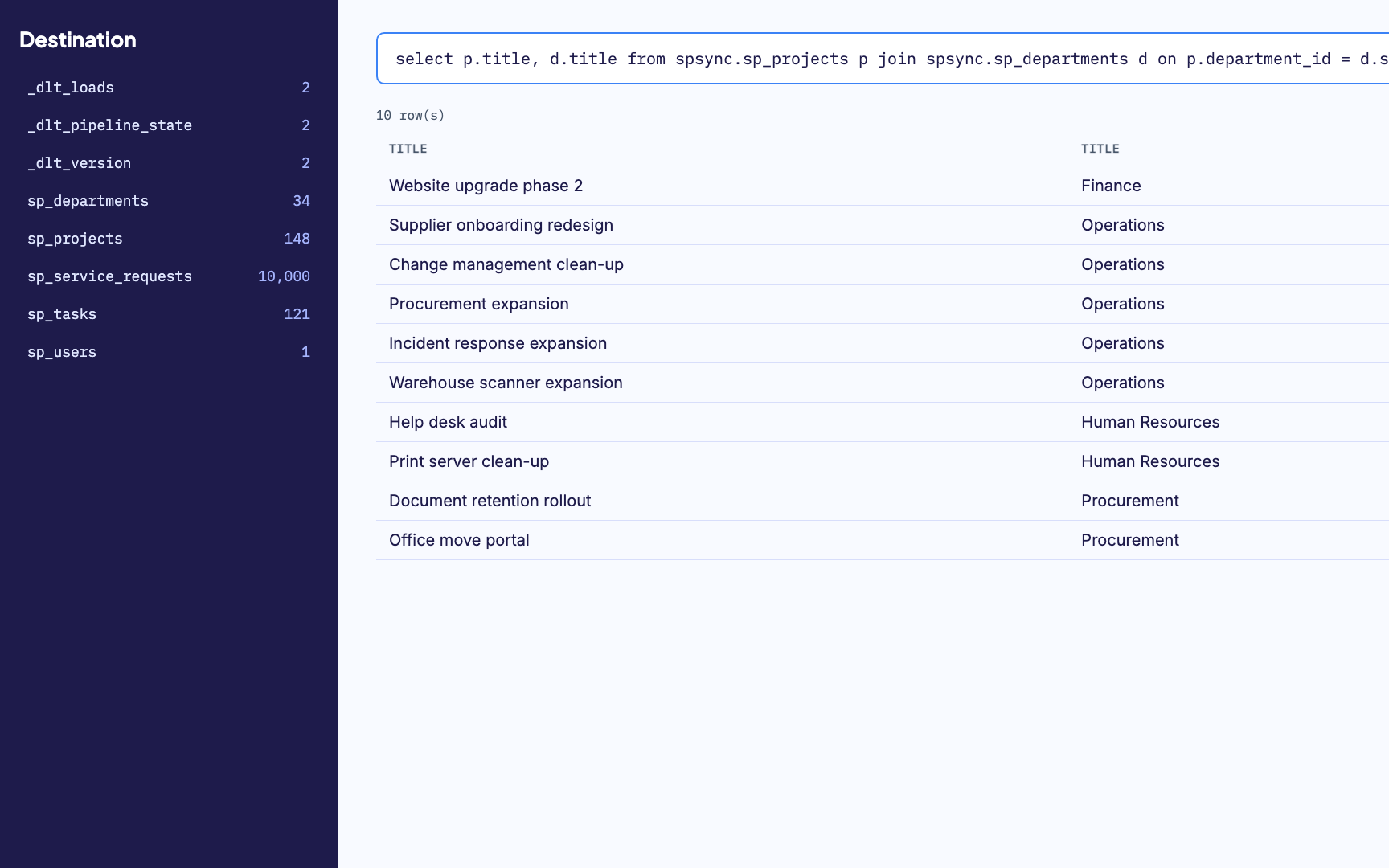
Watch the walkthrough: the Northwind Analytics demo lists in SharePoint, connecting to Microsoft 365 in the desktop app, picking lists, the run into an empty MySQL database, and the replicated tables and rows in phpMyAdmin.
Watch the command-line version of this walkthrough.
Two systems, one register
When the booking system needs the asset list
A facilities team keeps its rooms, vehicles and equipment in a SharePoint list, because that is where they can edit it without asking anyone. The booking system those same assets are reserved through is a web application on MariaDB. Today somebody exports the list on Mondays and imports it into the booking database, and anything added on a Tuesday cannot be booked until the following week.
SPSync replaces the Monday export. It reads the list through Microsoft Graph, writes it into a table in the booking system's own server, and picks up changes on the next scheduled run. A deleted asset stays in the table with a deletion flag, so old bookings still resolve to a name.
For the DBA
How the tables are typed and keyed
Each list becomes an InnoDB table with a primary key on the SharePoint item id.
GUIDs and shorter bounded text columns are created as VARCHAR(n), so you
can index them, unique or not, without a prefix length. Longer text stays
TEXT and is not indexed for you.
Lookup columns become key columns, client_id on a Projects table for
example, which you join to the Clients table. SPSync does not add foreign key
constraints, so a run never stops because a parent row has not been written yet;
add them yourself when the load order allows. Multi-choice columns get child
tables and people resolve to one users table.
New SharePoint columns are added on the next run, removed ones are left in place,
and a retyped column is written to a new _v2 column. Generated
reporting views give a reporting tool a flattened shape with the joins done.
The schema reference lists every type mapping.
Where it runs
Any server that speaks the MySQL protocol
MySQL and MariaDB share a wire protocol, so the connection settings and the behaviour are identical for both. The server can be self-hosted, in a container or a managed service. Azure Database for MySQL has its own page with the Azure-specific setup, and MariaDB has one too. The tables are standard InnoDB tables, so the only running cost is the server you already pay for.
Security
Read from SharePoint, written only to your server
It runs where you put it
The desktop app runs on your machine and the command line on your own server. SPSync in your Azure, a managed application for your own subscription, is deployed with you on a call while the Marketplace listing is prepared. Nothing SPSync controls sits between SharePoint and your database.
Read permissions only
SPSync asks Microsoft Graph for read access only. No code path creates, updates or deletes a SharePoint item.
Approved site by site
Unattended runs use app permissions granted per site with Sites.Selected, so an admin chooses each site SPSync can read.
A pack for your admin
The first-run wizard explains each permission in plain language and produces a one-page summary your admin can review before approving anything.
A record of every run
Run history shows the rows read and written, and an error names the list and the column it came from.
Your data stays with you
Nothing from SharePoint or your databases is sent to SPSync. Licence activation and any diagnostics you opt into are the only calls it makes.
An agent reads the database copy
An AI agent or Copilot Studio grounded on the copy connects with a database login and holds no Graph permission. SharePoint item permissions are not copied, so the database role and row-level security decide what it sees.
The security page covers the permission model, the data flow and the throttling policy in full.
-
01
Connect to SharePoint
Sign in with Microsoft, with delegated access, or with app permissions scoped to specific sites through Sites.Selected. Find any site by name or URL, including subsites, without asking IT to list them first.
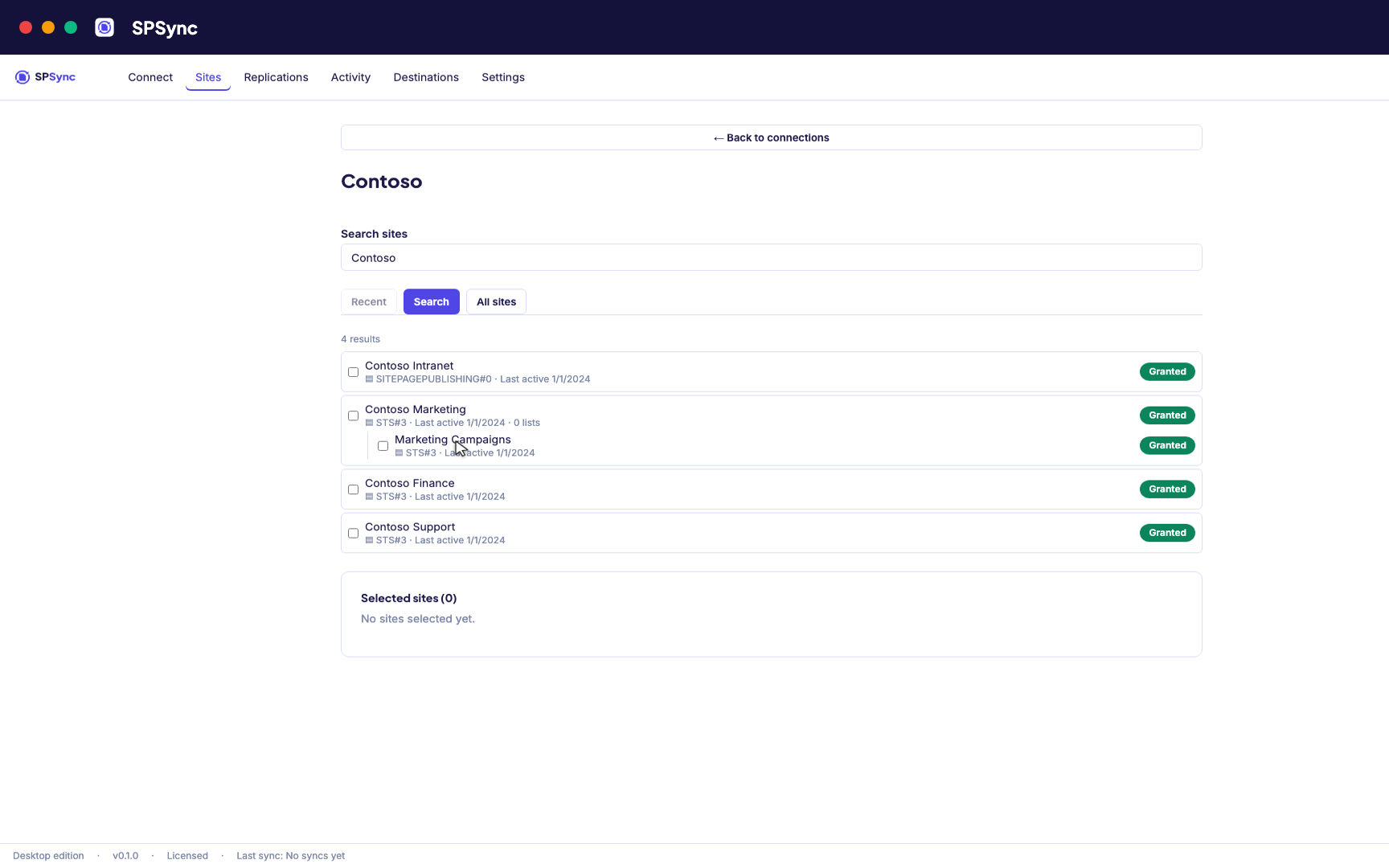
Sign in with Microsoft, then find a site by name or URL, including subsites. -
02
See what you are replicating
SPSync shows every list and library on a site, with its columns and item counts, as soon as you pick a site. You can check what you are about to replicate before you tick anything.
-
03
Choose lists and libraries
Tick individual lists, pick by a name pattern, or sync the whole site so new lists are picked up automatically. The same options work at any level of the site hierarchy.
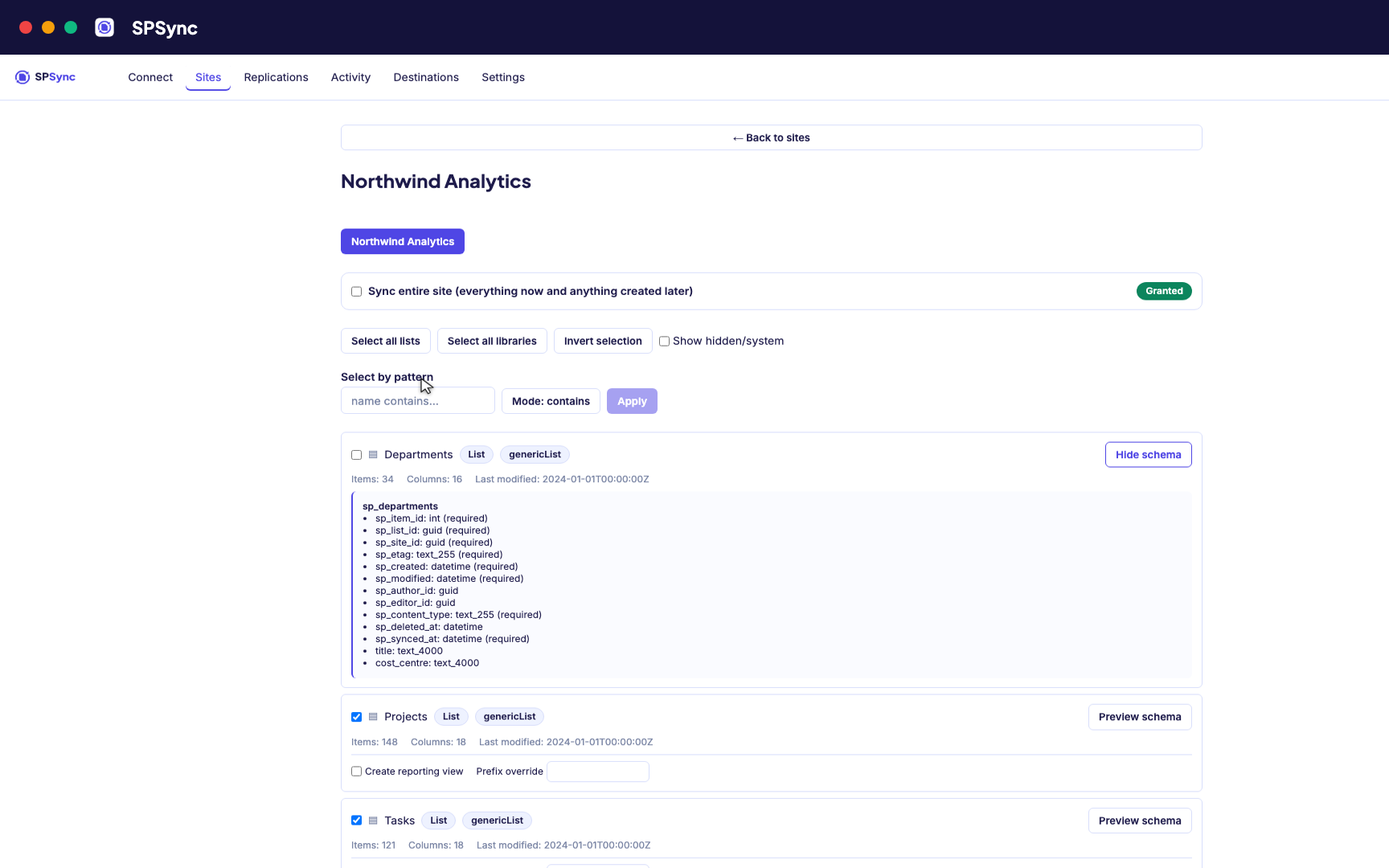
Tick lists individually, pick by name pattern, or sync the whole site, with a schema preview. -
04
Connect MySQL and MariaDB
Point SPSync at MySQL and MariaDB and test the connection before you commit. SPSync generates and maintains the tables, so there are none to create by hand.
Destination setup guides · If the test fails: troubleshooting
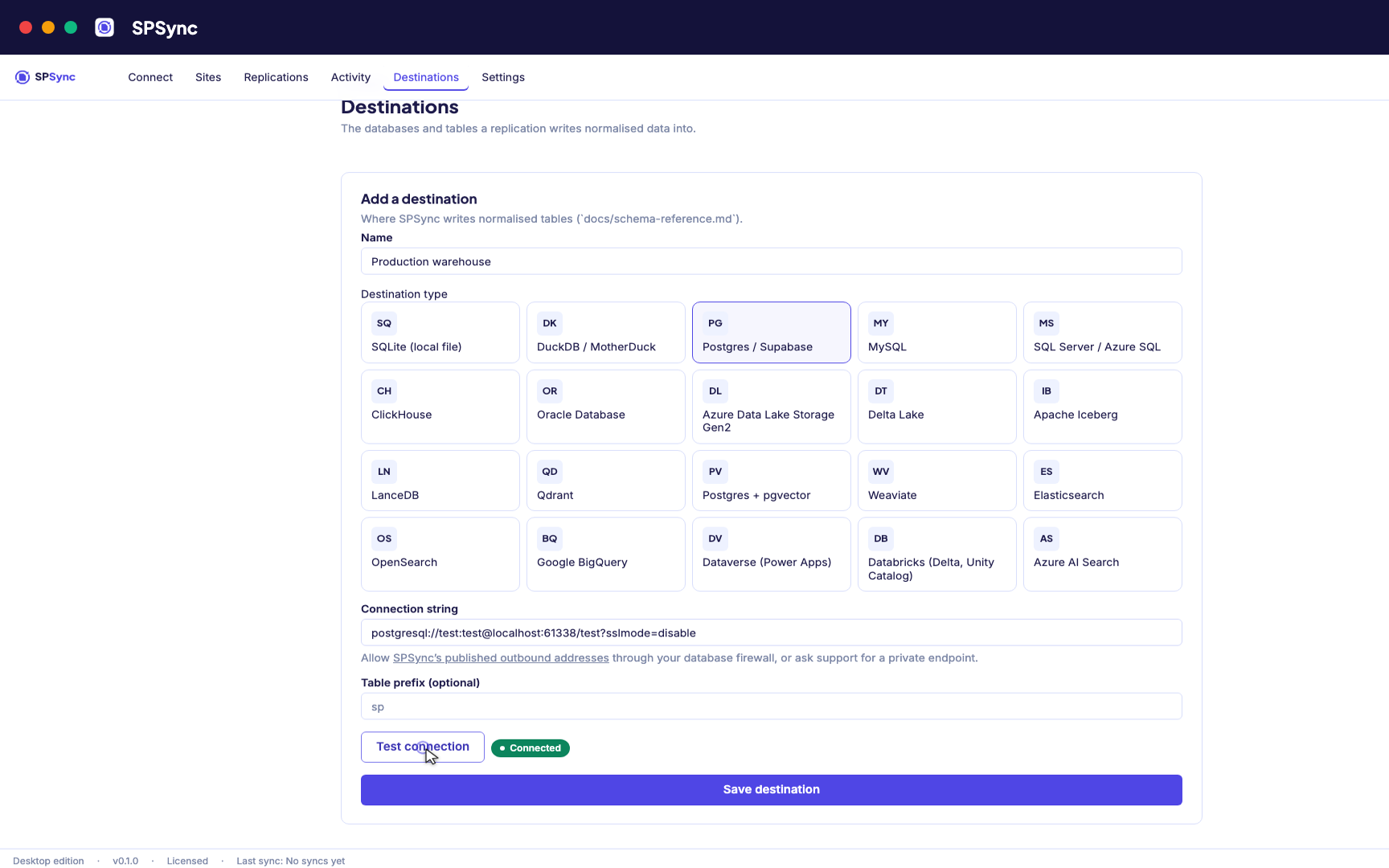
Point at your database. Test the connection, then SPSync creates and maintains the schema. -
05
Run and keep it in sync
A full load first, then deltas on your schedule with a reconcile behind it, weekly by default. Throttling and list view thresholds are handled for you, lookups arrive as keys, and deletes are kept.
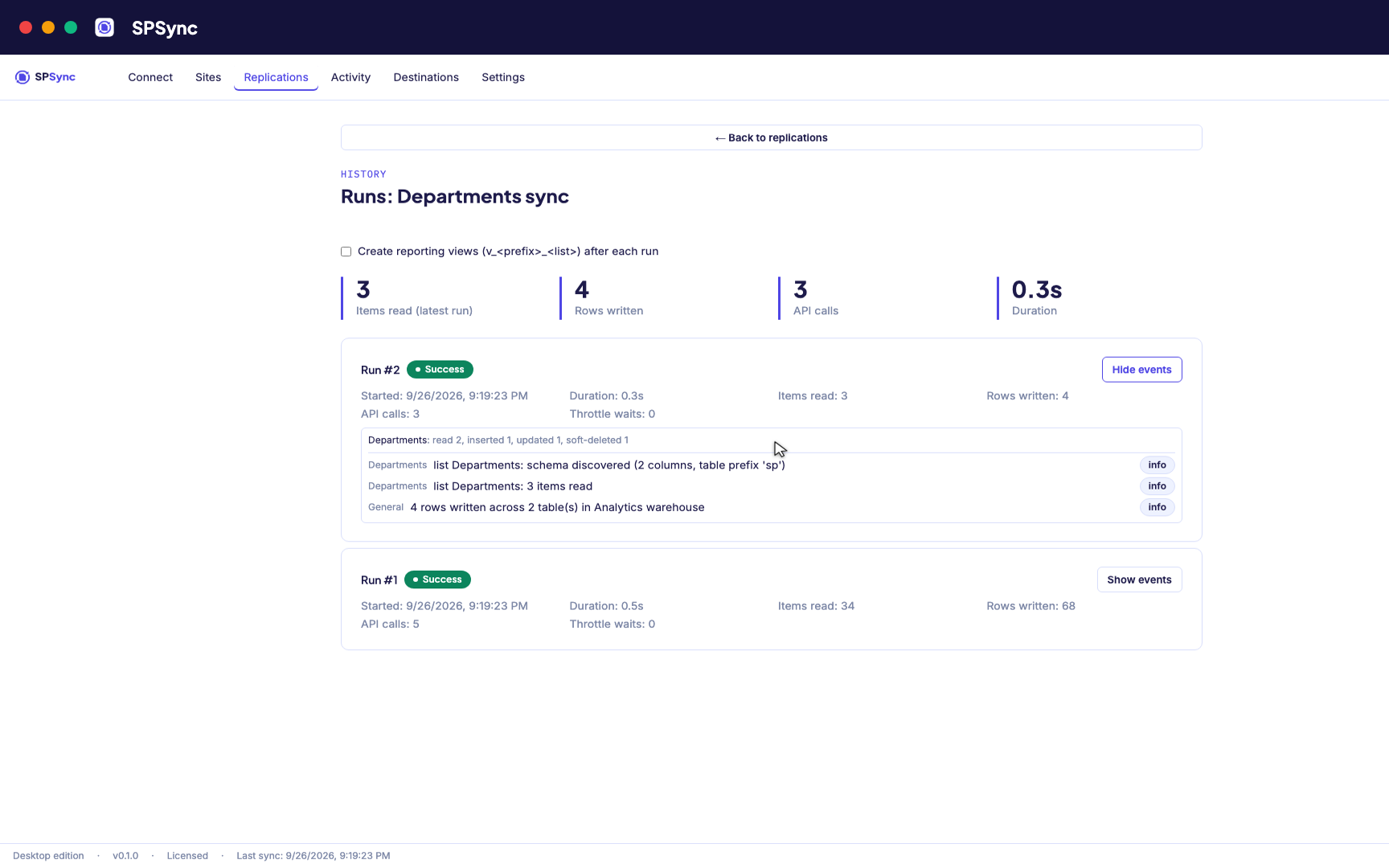
Every run's per-list counts: rows read, inserted, updated and soft-deleted. -
06
Bring sites together and report on it
Replicate many sites into one database, with generated reporting views ready for Power BI DirectQuery on SQL and warehouse destinations. The same tables give any other application a stable SQL interface.
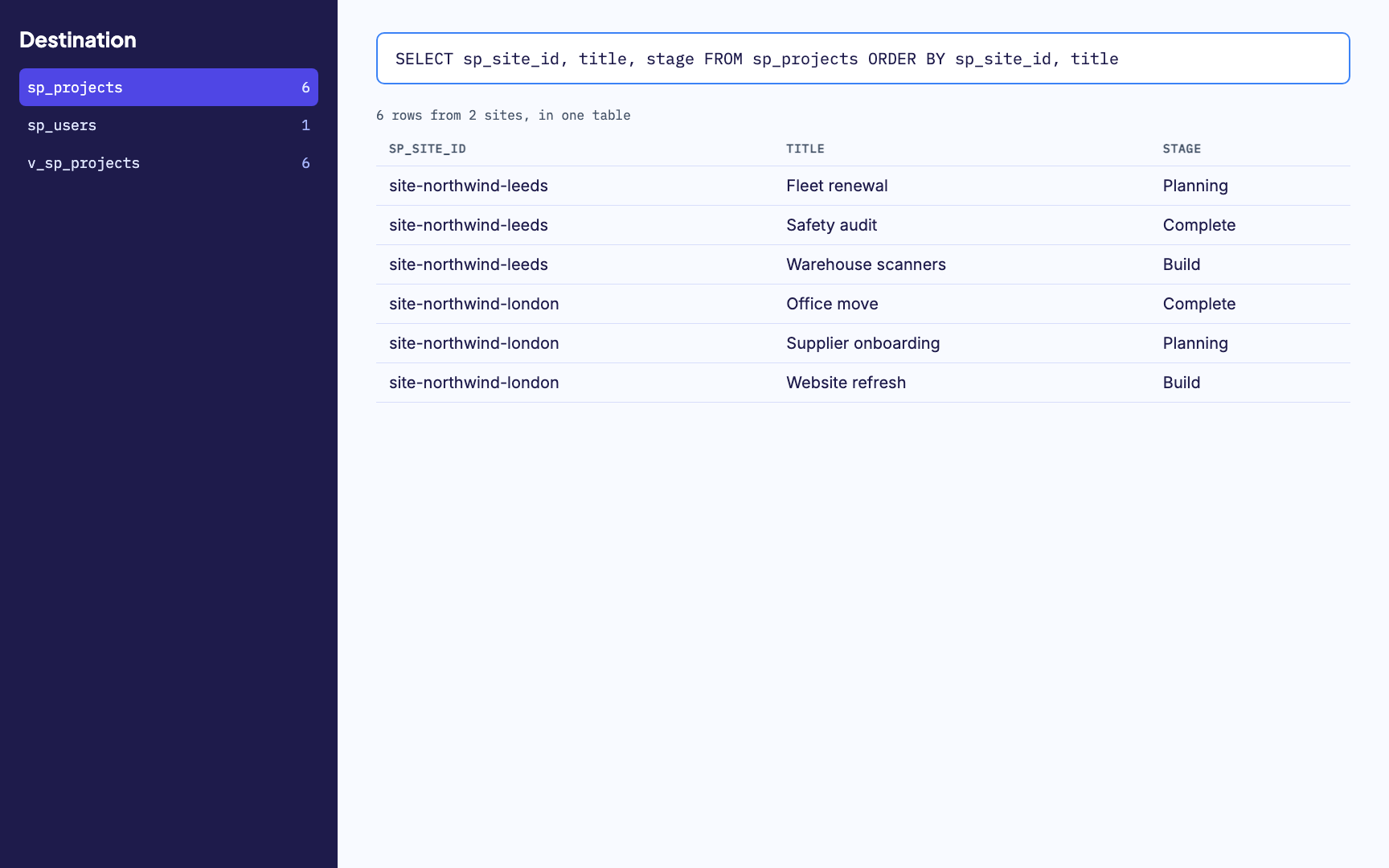
Many sites merged into one table, with a generated reporting view alongside. -
07
Watch it run
Activity and run history sit in one place, with every error named by column. From any run you can send us its diagnostics when you want help with it.
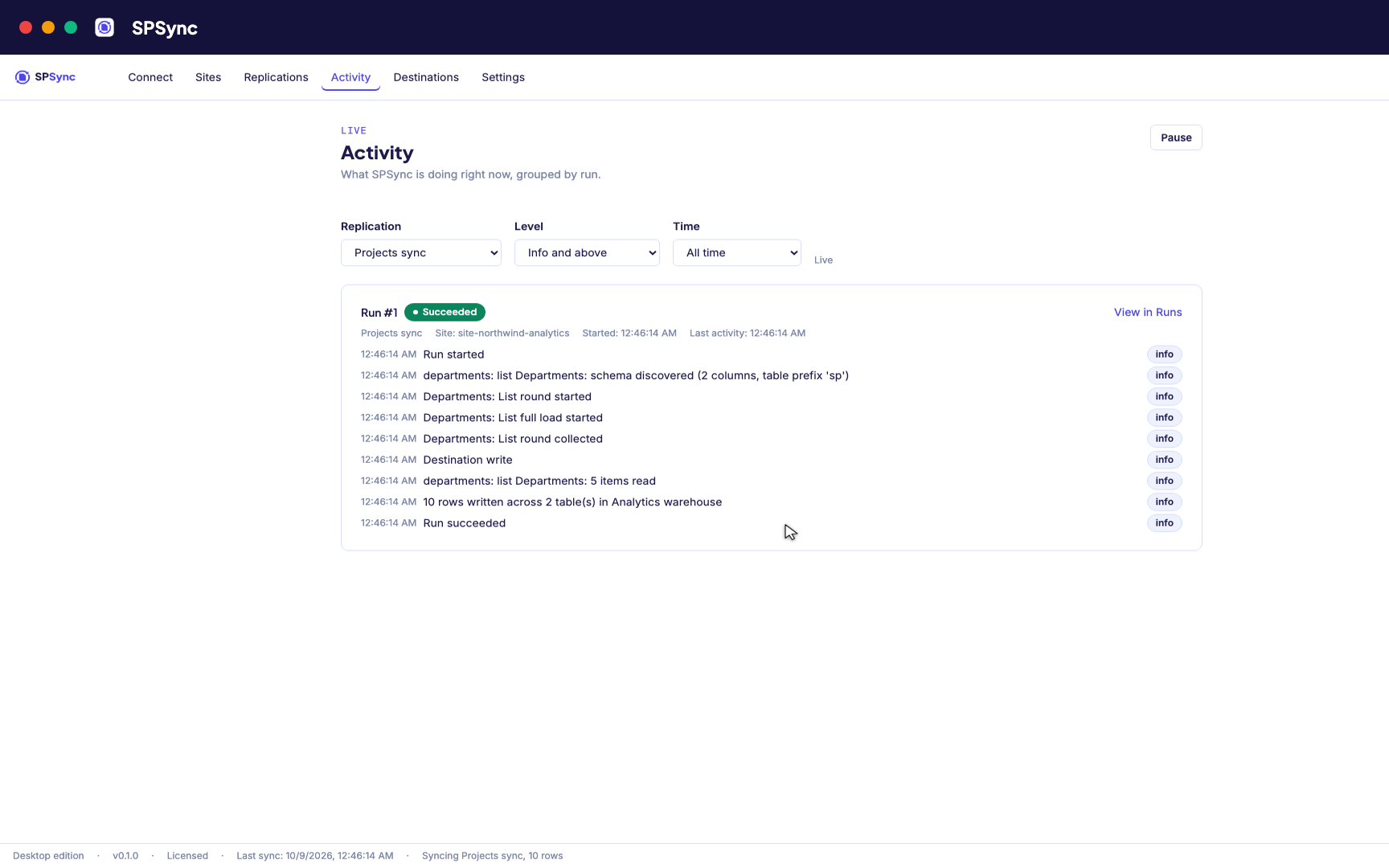
Activity: every run's own steps, live, grouped by run.
Frequently asked questions
Does SPSync work with managed MySQL, not just a self-hosted server?
Yes. Anything that accepts MySQL-protocol connections works: a self-hosted server, a container or a managed service. Azure Database for MySQL has its own destination page with the Azure-specific setup detail.
Does SPSync create foreign key constraints?
No. Each table gets a primary key, and every lookup or person column gets a key column to join on, such as client_id or owner_user_id. No constraint ties those columns together, so rows can arrive in any order without failing a run. Once the schema has settled you can add constraints yourself.
Which MySQL columns can carry a unique index?
GUIDs and shorter text columns are bounded VARCHAR(n), so a unique or ordinary index on them works as it is. Longer text columns stay TEXT and SPSync does not index them.
Can several SharePoint sites replicate into one MySQL database?
Yes. Each site's tables get a prefix, so multiple sites can share a database without name collisions.
Common use cases
Further reading
Licensing
Talk to us about MySQL and MariaDB
Tell us which list your system needs and where the server runs, and we will set it up with you. Licences cover a target family, so MySQL and MariaDB come together, and are counted per installation of the desktop app or the command line. SPSync in your Azure, a managed application for your own subscription, is deployed with you on a call while the Marketplace listing is prepared. More on how licensing works.
Set up MySQL
Sign in to SharePoint with the SharePoint connection guide, then follow the MySQL and MariaDB setup guide to create the database user and open the connection for MySQL. If the connection test fails, the troubleshooting guide lists the errors people hit and what fixes them.
Script it
Everything you can click, you can script. The CLI, YAML config and automation below reproduce this scenario exactly. See the CLI reference.
spsync auth login --client-id 00000000-0000-0000-0000-000000000000
spsync export-config --output replication.yaml --pipeline-name mysql --prefix mysql --destination-kind mysql --connection-string-env SPSYNC_DB_CONNECTION --dataset-name mysql --client-id 00000000-0000-0000-0000-000000000000 --site-url https://contoso.sharepoint.com/sites/example --all-lists
spsync doctor replication.yaml
spsync run replication.yaml
pipeline_name: mysql
prefix: mysql
auth:
mode: delegated
client_id: 00000000-0000-0000-0000-000000000000
tenant_id: common
destination:
kind: mysql
connection_string_env: SPSYNC_DB_CONNECTION
dataset_name: mysql
scopes:
- site_url: https://contoso.sharepoint.com/sites/example
mode: entire_site
reconcile_interval_days: 7
create_reporting_views: false
Cron (MySQL nightly):
# every night at 02:00
0 2 * * * cd /opt/spsync && SPSYNC_DB_CONNECTION="$(cat /etc/spsync/db.env)" uv run spsync run replication.yaml >> /var/log/spsync/run.log 2>&1
GitHub Actions:
# .github/workflows/spsync-run.yml
name: SPSync
on:
  schedule:
    - cron: "0 2 * * *"
  workflow_dispatch: {}
jobs:
  run:
    runs-on: ubuntu-latest
    steps:
      - uses: actions/checkout@v4
      - uses: astral-sh/setup-uv@v3
      - run: uv sync
      - run: uv run spsync run replication.yaml
        env:
          SPSYNC_DB_CONNECTION: ${{ secrets.SPSYNC_DB_CONNECTION }}
          SPSYNC_LICENCE_KEY: ${{ secrets.SPSYNC_LICENCE_KEY }}
Azure DevOps:
# azure-pipelines.yml
schedules:
  - cron: "0 2 * * *"
    branches: { include: [main] }
    always: true
steps:
  - script: uv sync
  - script: uv run spsync run replication.yaml
    env:
      SPSYNC_DB_CONNECTION: $(SPSYNC_DB_CONNECTION)
      SPSYNC_LICENCE_KEY: $(SPSYNC_LICENCE_KEY)
Windows (PowerShell + Task Scheduler):
# Windows Task Scheduler action (see /docs/cli/automation/)
$env:SPSYNC_DB_CONNECTION = (Get-Content C:\spsync\db.env)
uv run spsync run C:\spsync\replication.yaml
schtasks /Create /SC DAILY /ST 02:00 /TN "SPSync" /TR "powershell -File C:\spsync\run.ps1"
macOS (launchd):
# ~/Library/LaunchAgents/io.spsync.run.plist, then: launchctl load ~/Library/LaunchAgents/io.spsync.run.plistSecrets (licence key, connection strings) come from the environment, so never write them into the YAML. See scheduling and secrets.
Book a call to talk through your use case, see further walkthroughs or demos, and set up a trial in your own environment.